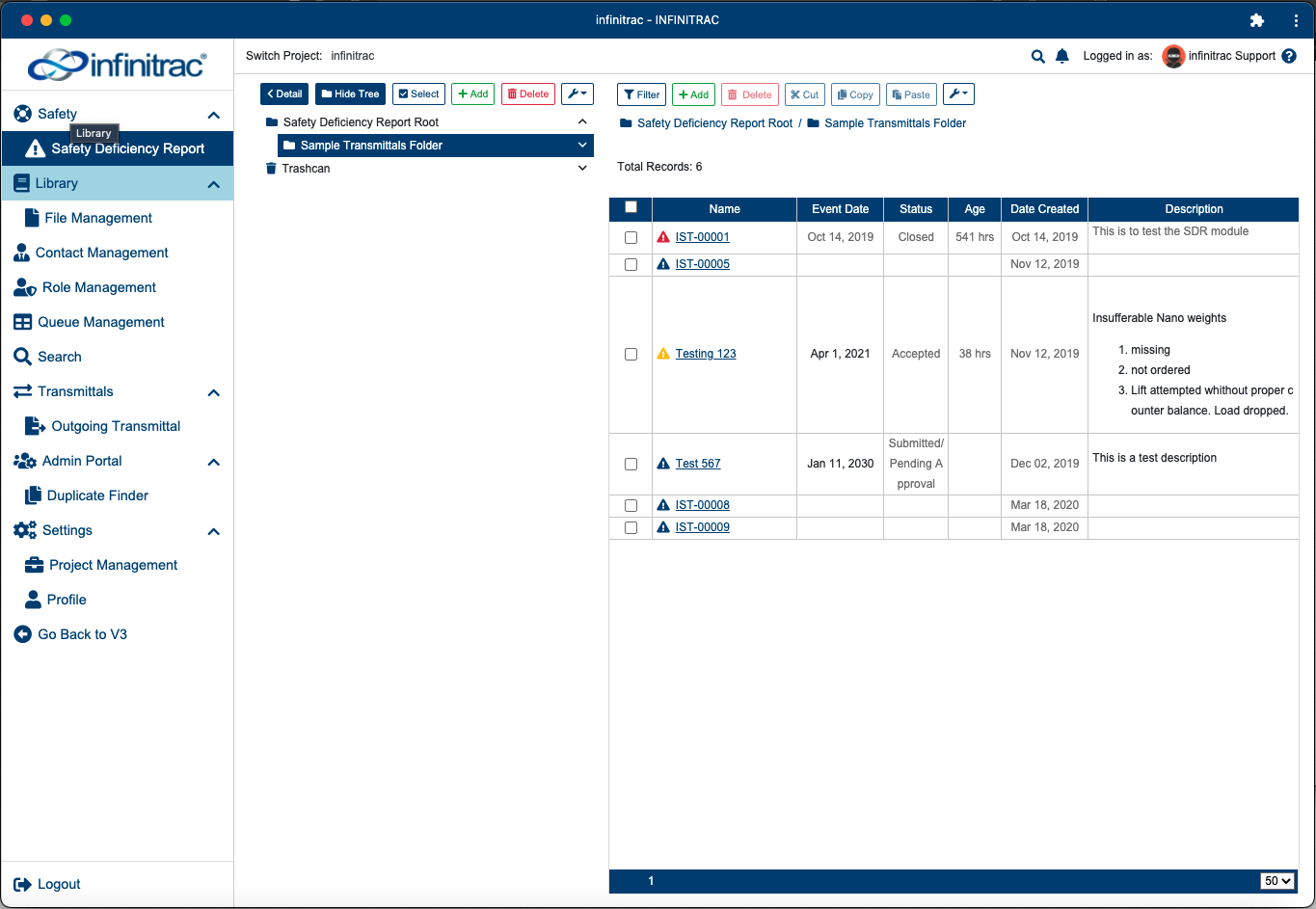
Desktop & Mobile Access
infinitrac platform can be accessed from any device connected to the internet, whether it's been a desktop or a mobile device. Application, also can be installed on Windows, Mac OS X, Linux, IOS and Android devices, using supported browsers. Installing infinitrac application to the local OS system, eliminates the need to enter infinitrac instance site url into a browser every time, and provides full desktop like application environment.
On IOS Mobile Devices
Open Safari browser
Enter infinitrac instance url into the browser url bar, and login to the system.
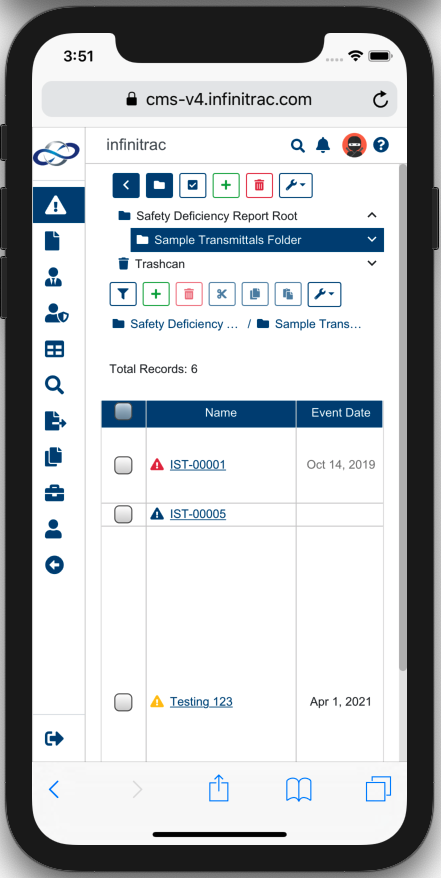
Select a share button at the bottom bar.
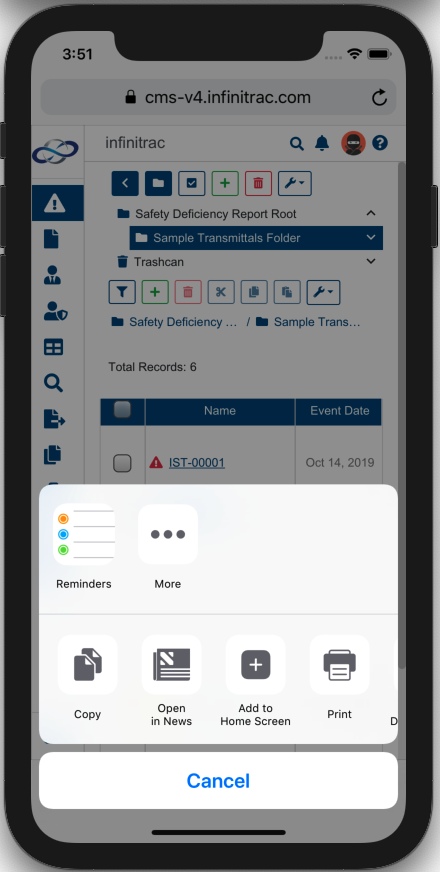
Select “Add to Home Screen' quick action icon
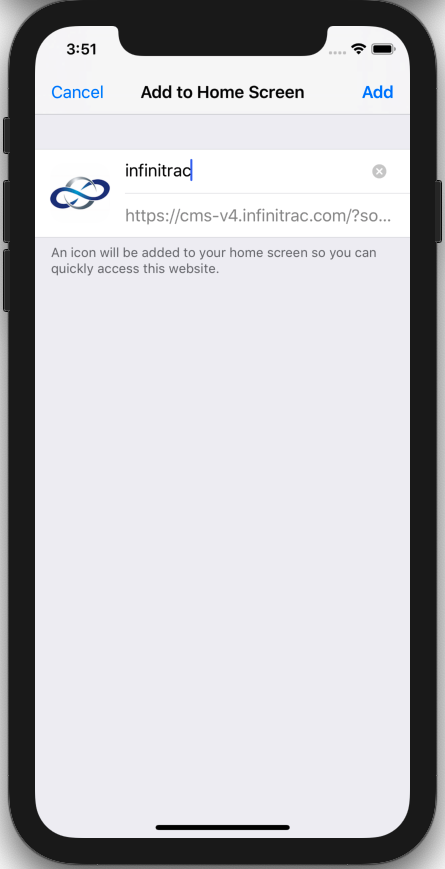
You can optionally customize the name of the icon that will appear on the mobile device Home Screen. infinitrac app icon will appear as the last icon on the device Home Screen.
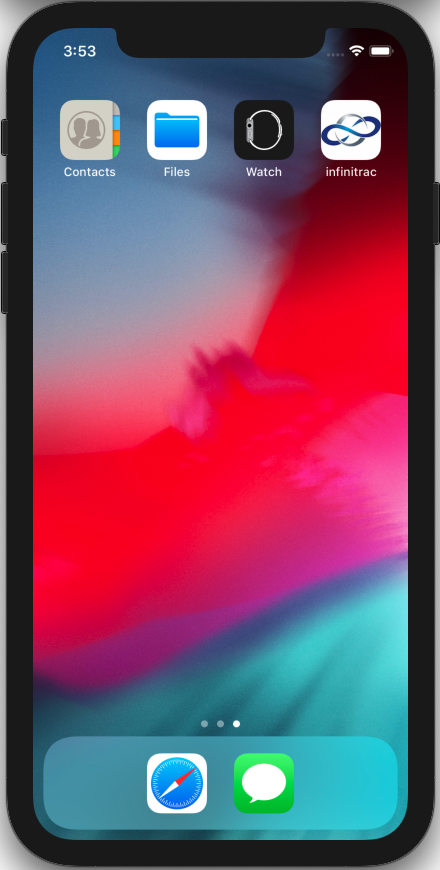
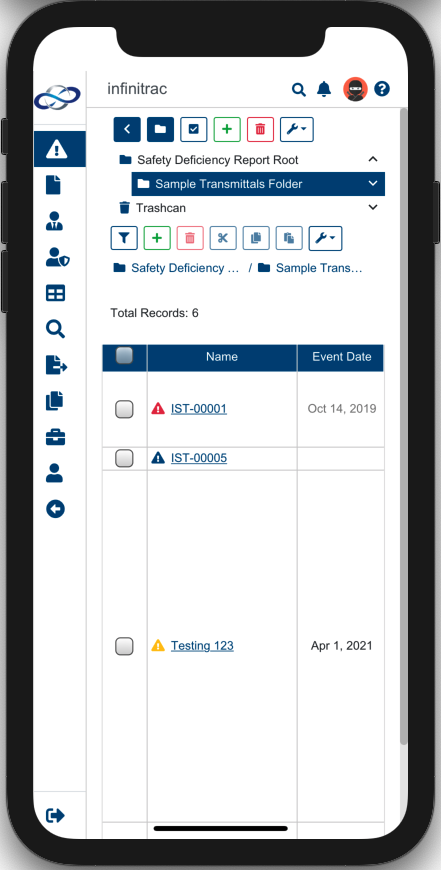
Application will look and behave as any other native installed IOS application.
On Android Mobile Devices
Open Chrome browser
Enter infinitrac instance url into the browser url bar, and login to the system.
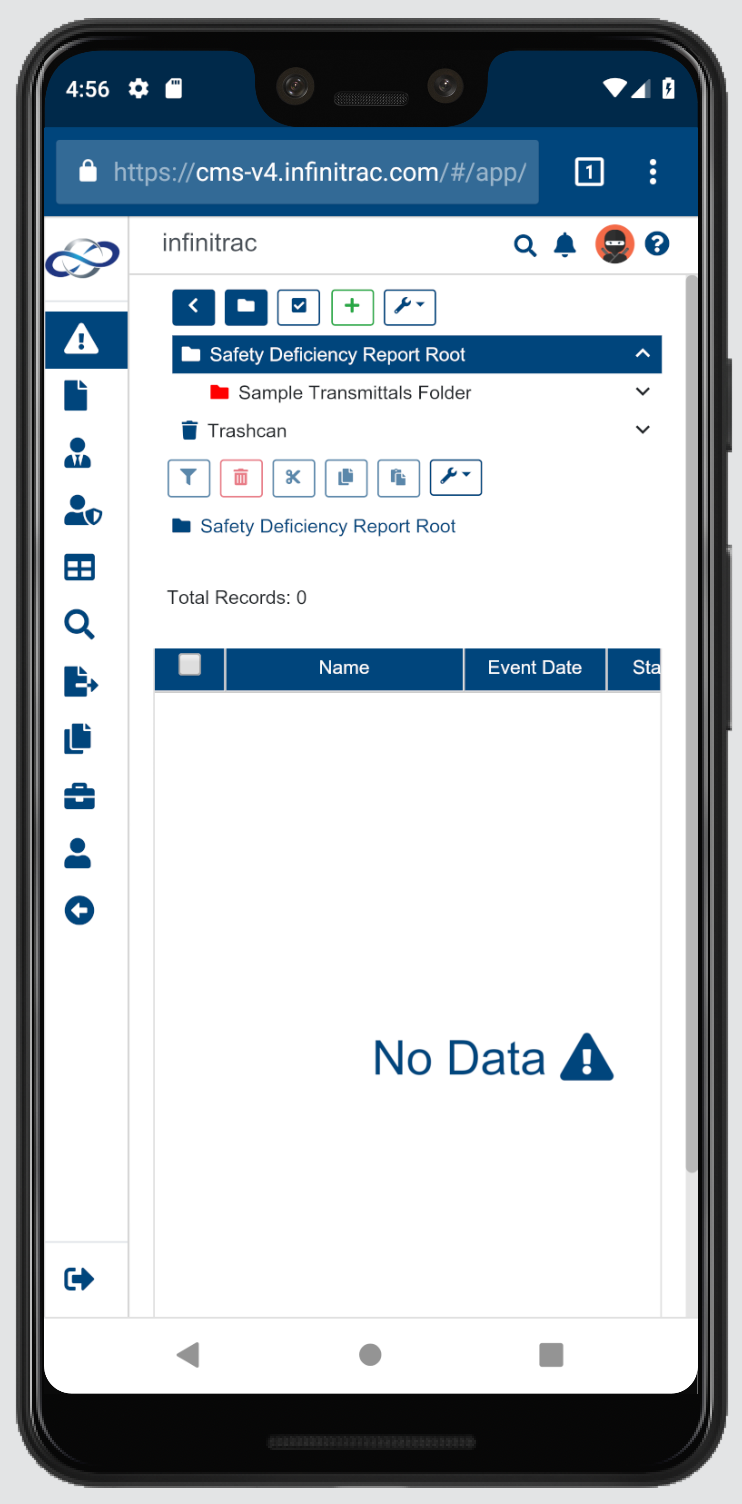
Select a Menu button at the top-right hand corner (vertical hamburger button).
Select “Add to Home Screen“. Optionally change the name for the home screen icon.
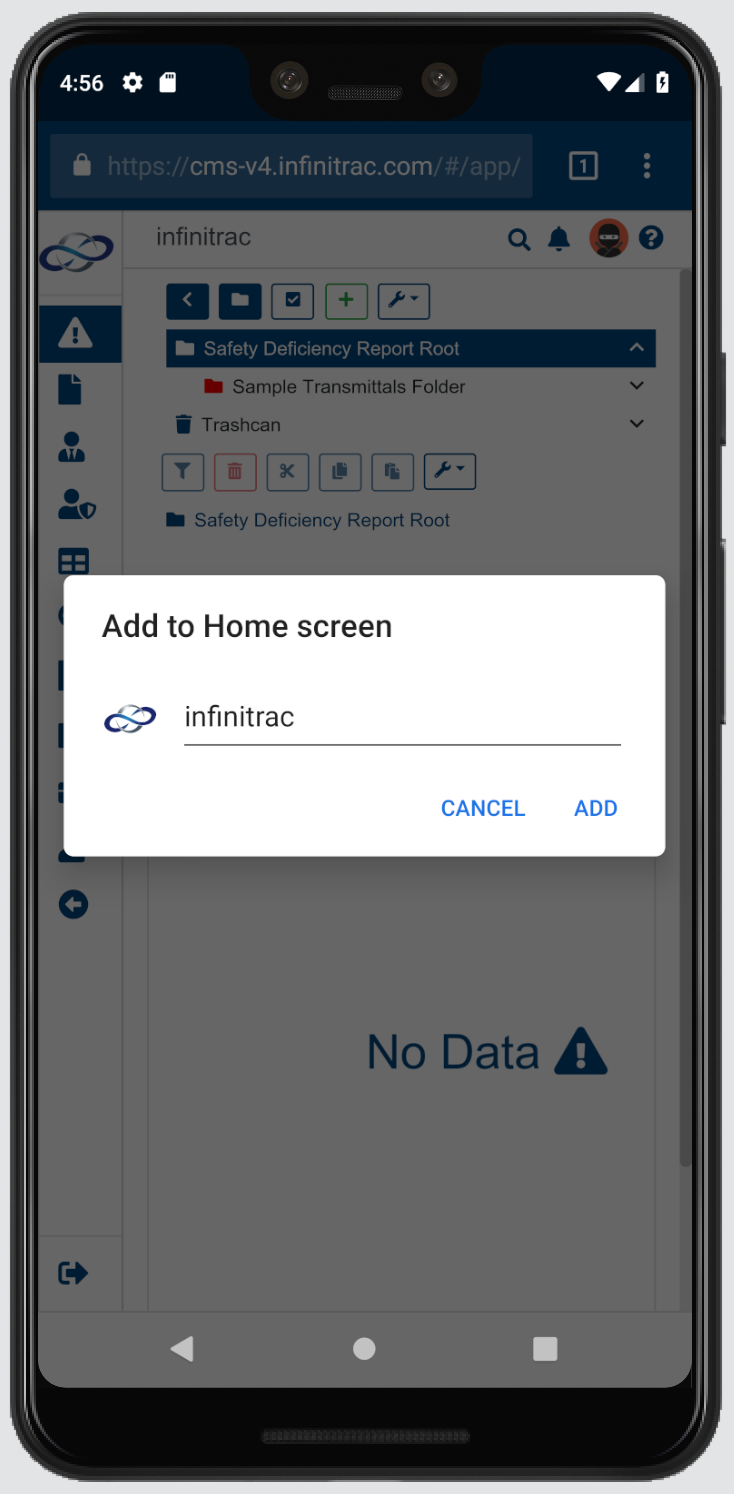
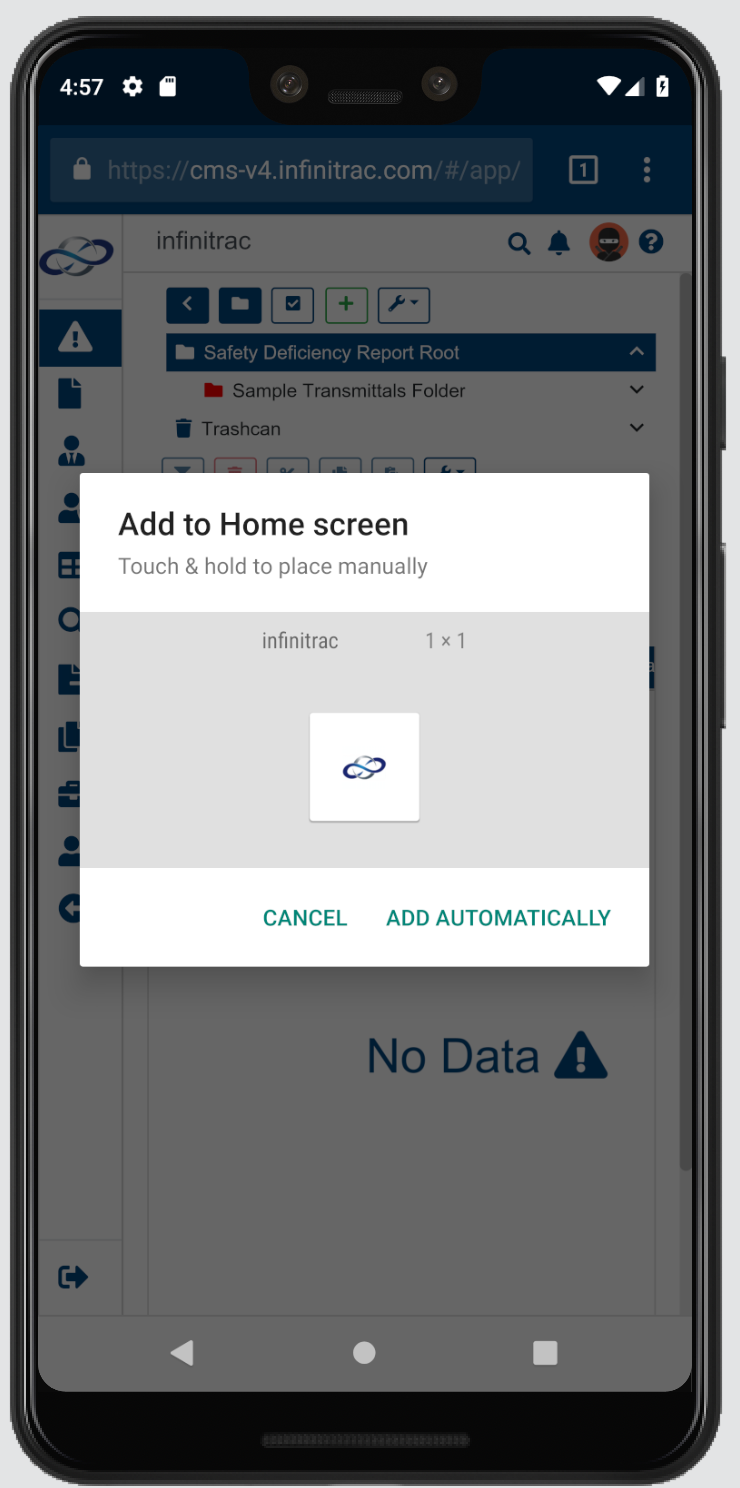
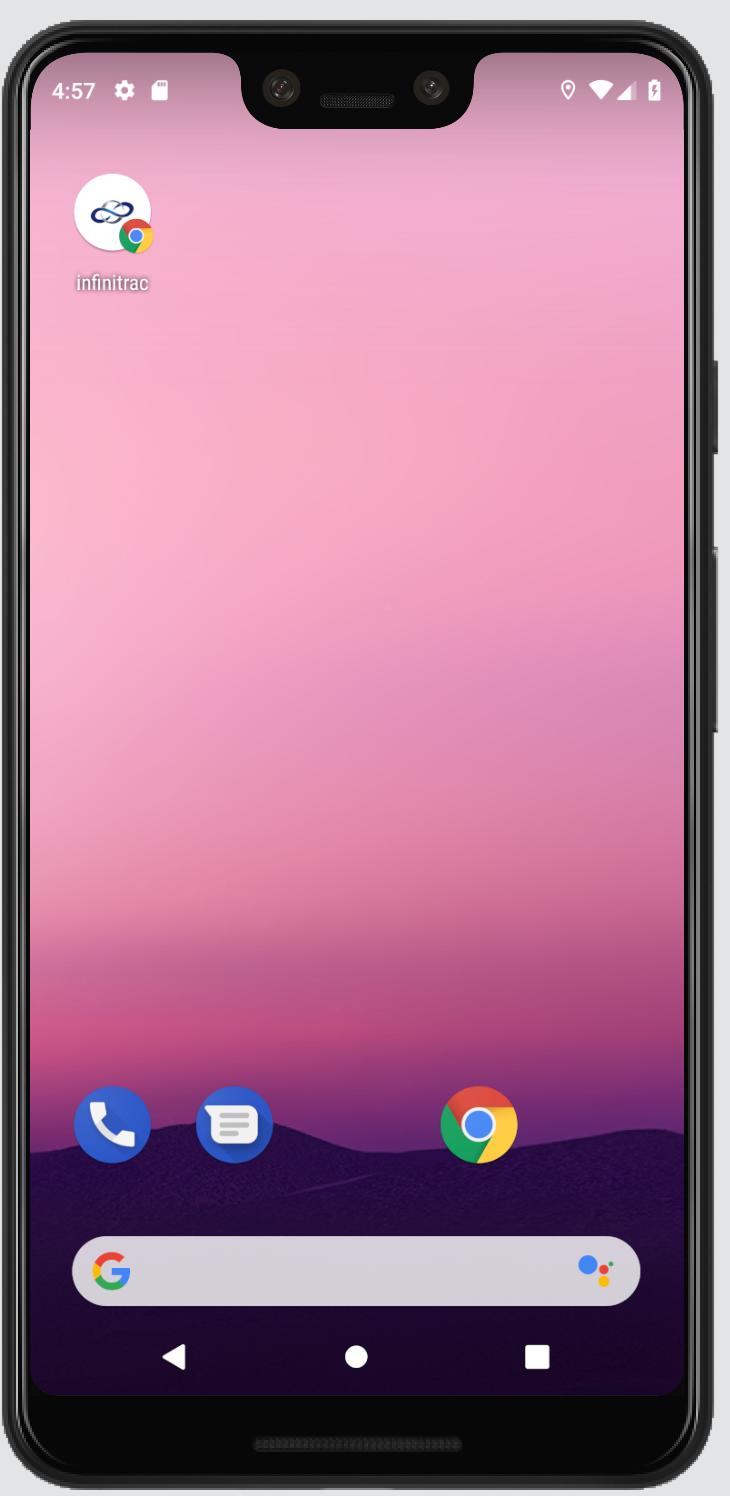
Icon will appear on the Home Screen with provided application name/title.
On Desktop Google Chrome (Windows/MacOSX/Linux)
Open Chrome browser
Enter infinitrac instance url into the browser url bar, and login to the system.
At the top right, click “More”. Then select “More Tools”.
Click “Create shortcut”
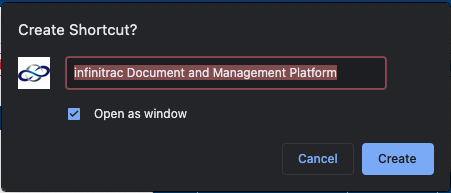
Edit a name for the shortcut and click “Create”.
Application will look and behave as any other native OS application. Top bar of the application will indicate application name, and a current project. Application can be launched via a Desktop icon.