Downloading Files
To download files that have been uploaded to infinitrac user can select between download a file package (all the files inside the folder), multiple files (selecting more than one file inside the folder, but not all) or a single file.
Download a File Package
To download a file package:
Navigate to the File Management module
Select the folder containing the files to download.
Click the “Download Files” button in the content view toolbar.
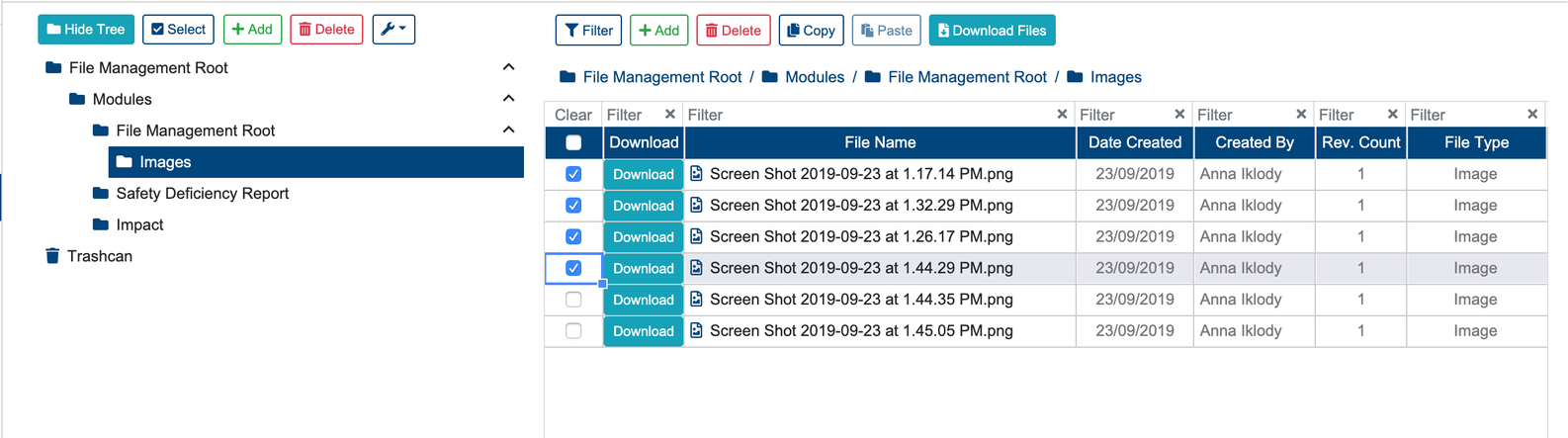
Download Multiple Files
To download multiple files:
Navigate to the File Management module
Select the folder containing the files to download.
Select the files to download by clicking the checkboxes next to their name.
Click the “Download Files” button in the content view toolbar.
Either download a package or multiple files on a success operation will display the next message “[Today Date_Folder Name].zip downloaded successfully“. On a failed operation will display “Error Occurred: …“
Download a Single File
To download a single file:
Navigate to the File Management module
Select the folder containing the files to download.
Click the “Download” button next to the file name.
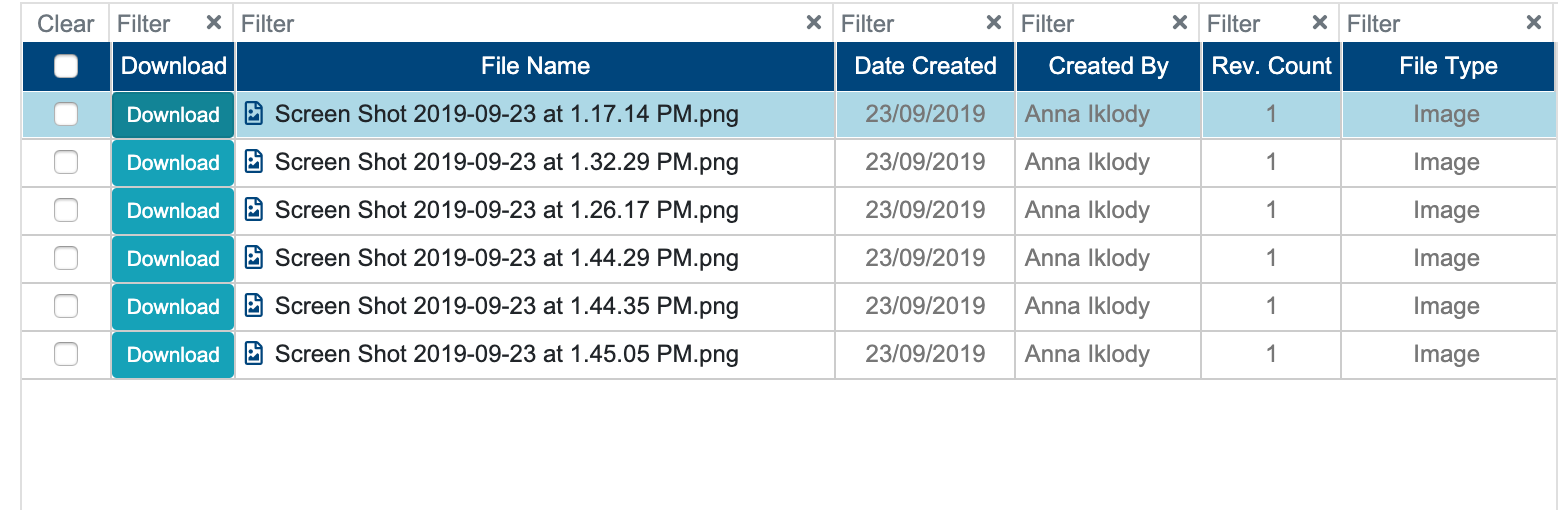
For single files, a success operation will display the next message “[File Name] downloaded successfully“. On a failed operation will display “Error Occurred: …“
Multiple files and file packages will be downloaded as an archive file (zip), single files will be downloaded in their original format.