Adding Files
To add a new file, select the File Management view.
Select a folder that will contain the files, from the folder tree.
Select “Add” button, located on the folder content view.
Drop the files into the highlighted area, or click it to open a file navigator on the device. User can select multiple files to upload to the folder.
Click “Upload” button.
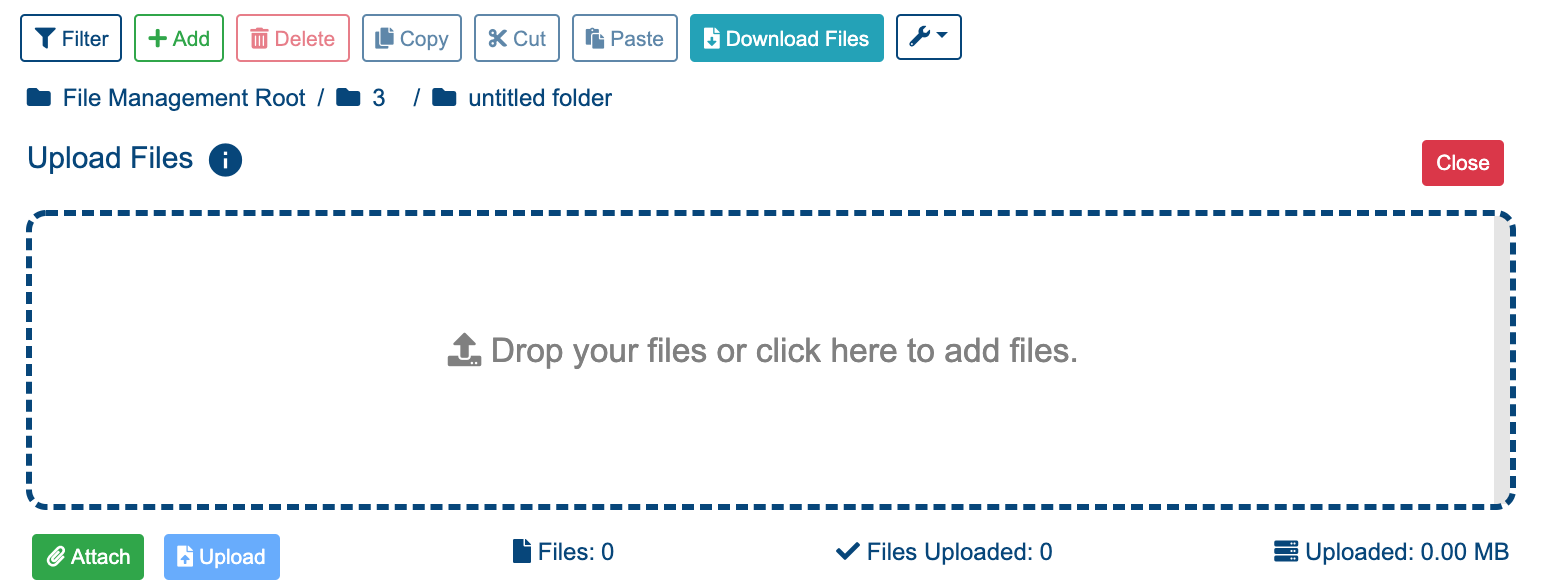
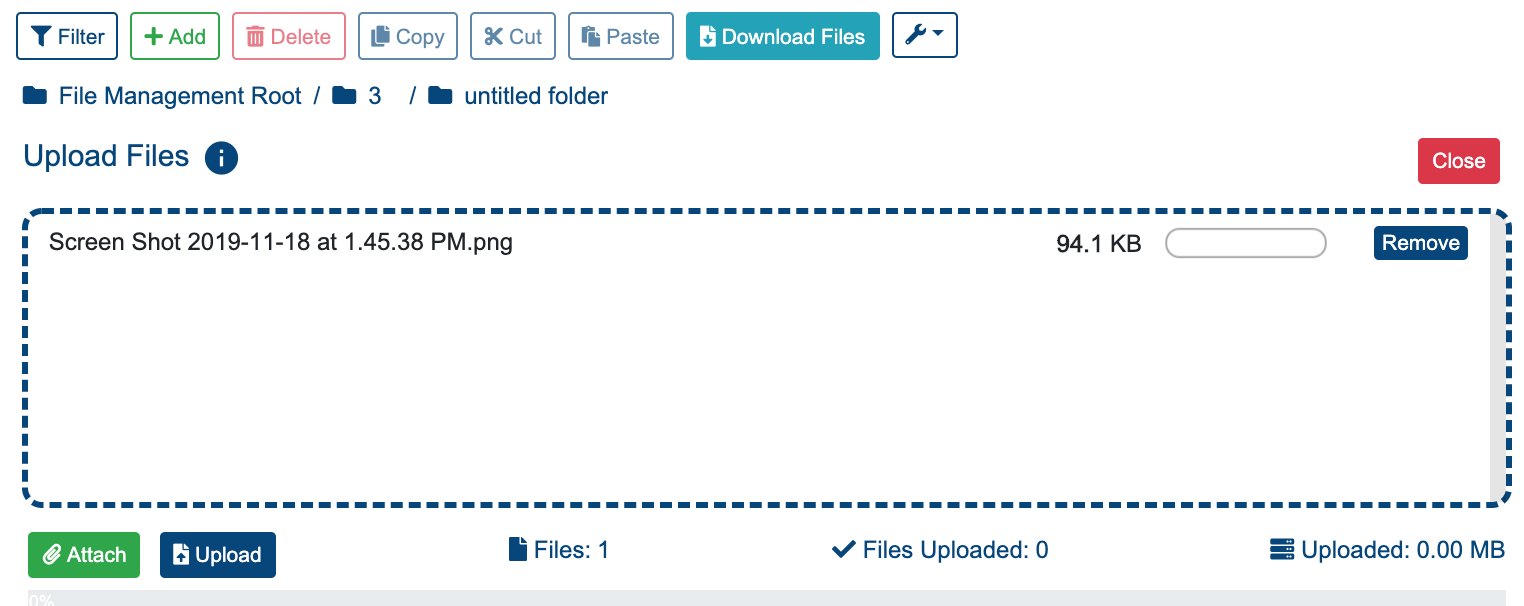
The upload will only commence after clicking the "Upload" button. Files can be individually removed via the "Remove" button.
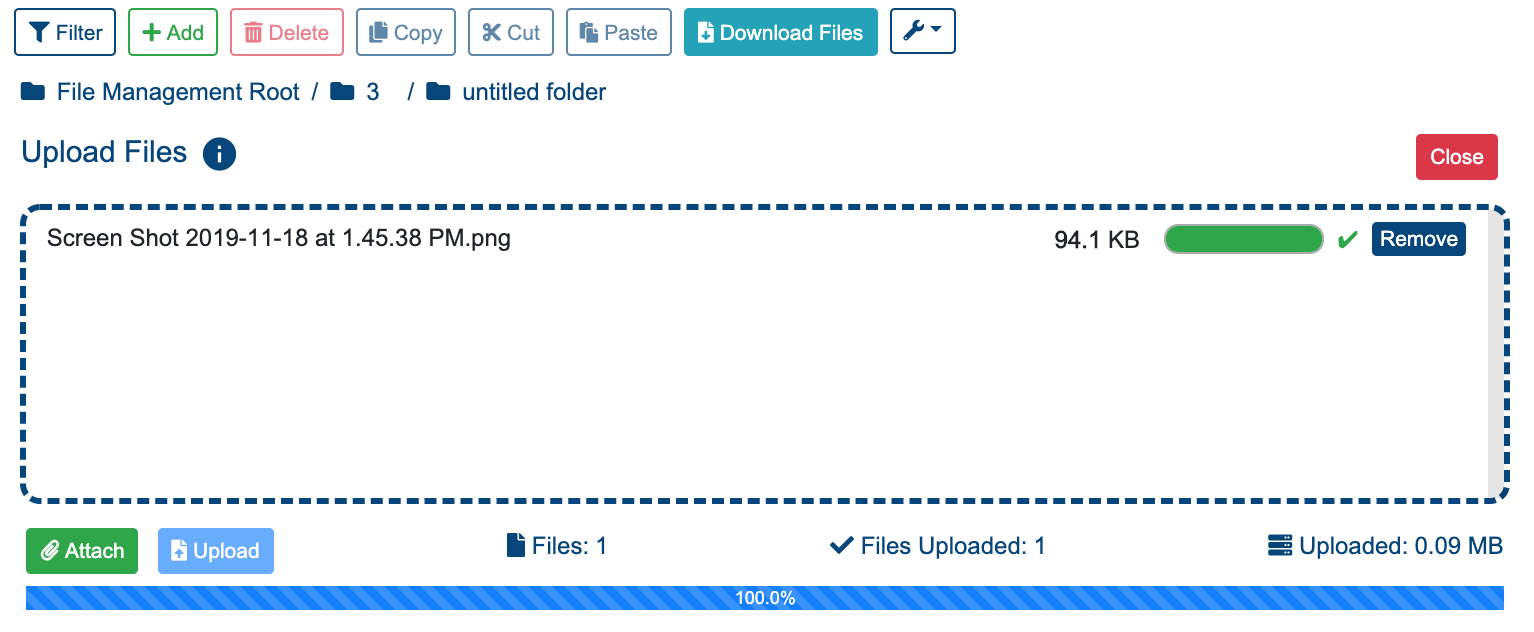
Once the upload begin, a progress bar will display. A success upload will display the next message: “File [File Name] successfully uploaded into [Folder Name]“ as well as a check-mark next to the successful upload bars. A failed operation will display: “Error: Failed to upload [File Name]“