Group Files
Group files means to select one or more files, and group them, transforming them into revisions of each other. As an Example if different revisions of a document were uploaded at different times into the library the user can group all the files, and mark the most recent as latest revision. infinitrac will display those documents as revisions in the library
To group files:
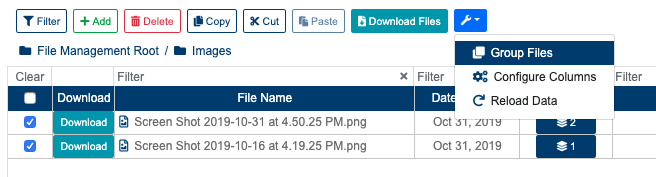
Select the files to group together.
Click on the "Group Files" button from the toolbar drop-down menu.
Indicate the “Primary File“ by clicking on checkbox next to the file Name.
Click “Group“ button.
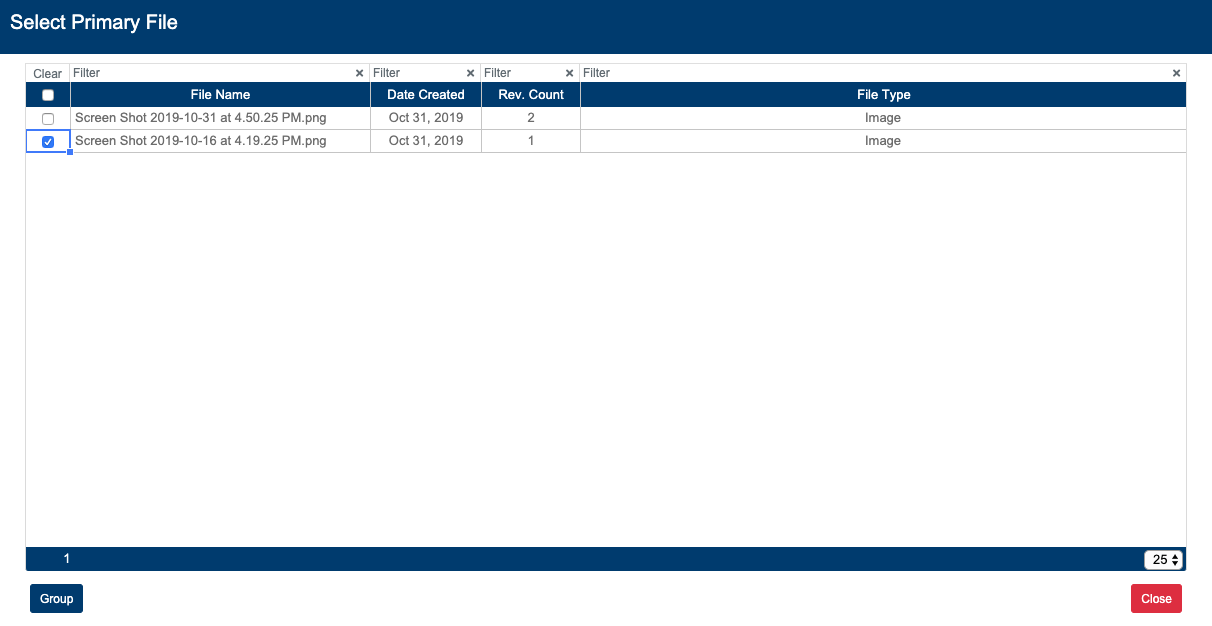
The primary file will be marked as the latest revision, while the other files (and their associated revisions) will become prior revisions.
Once the files are grouped, a success notification will be shown, displaying the next message: “Files Have Been Grouped“. On a failed operation system will display: “An Error Occurred: Failed to Group Files“.
In case of system not updating the table immediately, user can Reload Data.