Add User
Multiple users can be added to the current project via the Contact Management module. To perform the actions described on this article, user must have “add“ role enabled.
To add a user:
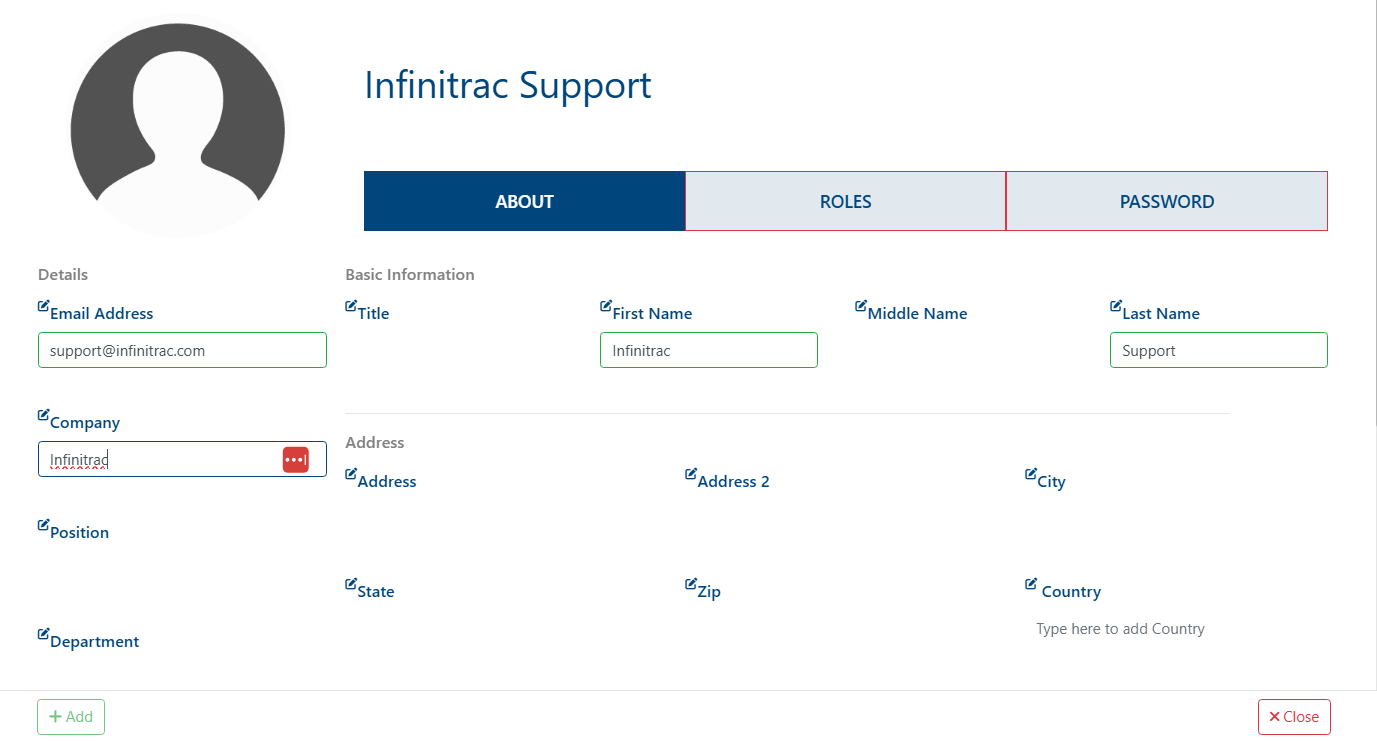
Click ‘Add’ while on the ‘Users’ tab; a profile screen will pop up
Fill out the new user’s information. Enter at least the E-mail Address, Company, First and Last Names to proceed.
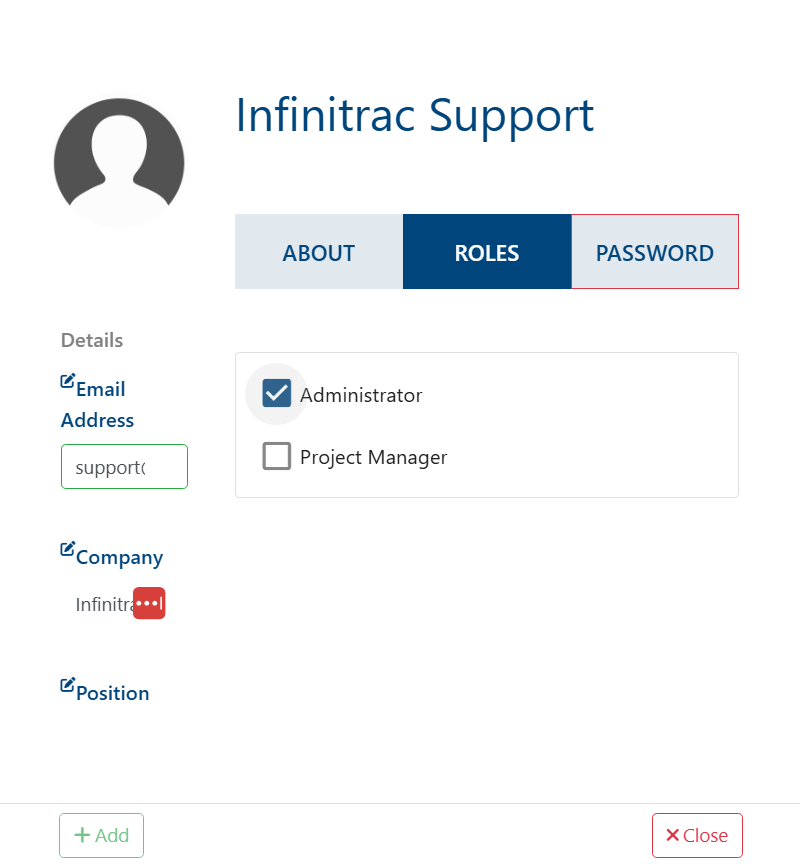
Click on 'Roles', and assign role(s) to new user.
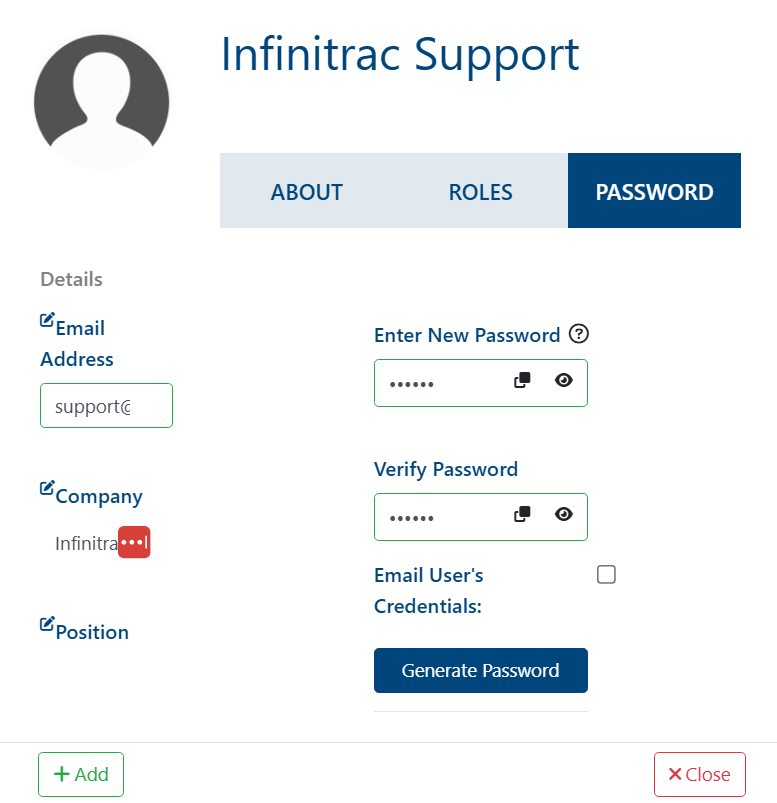
Set a password for the new user.
Click “Add“ button.

Newly added users are disabled by default, and can activate their account via the activation code in the welcome email.
On a success operation, system will display the next messages: “Successfully added user to project“, “User has been created successfully“ confirming user creation. On a failure will display: “Error Occurred: Failed to add user“.
Add new User from module
Users can also be added directly from within a module.
Expand the Recipient table and click “Add“
When the following modal opens click on “Create User“

3. Fill out the new user’s information. Enter at least the E-mail Address, Company, First and Last Names to proceed.
4. Click on 'Roles', and assign role(s) to new user.
5. Set a password for the new user.
6. Click “Add“ button.
If multiple new users must be added, select the “Add Another“ checkbox in the bottom-left corner. after clicking add a new modal will be presented to the user and the process can be repeated as many times as necessary.