Add Contact
Multiple contacts can be created for a project, via the Contact Management module. To add a contact, user must have “add“ role enabled
To add a contact:
Navigate to “Contacts” tab.
Click “Add” button located on the toolbar; a profile screen will pop up.
Fill out the new user’s information. Enter at least the E-mail Address, Company, First and Last Names to proceed.
Click “Add” button to complete Contact creation, or “Close” to discard the entry.
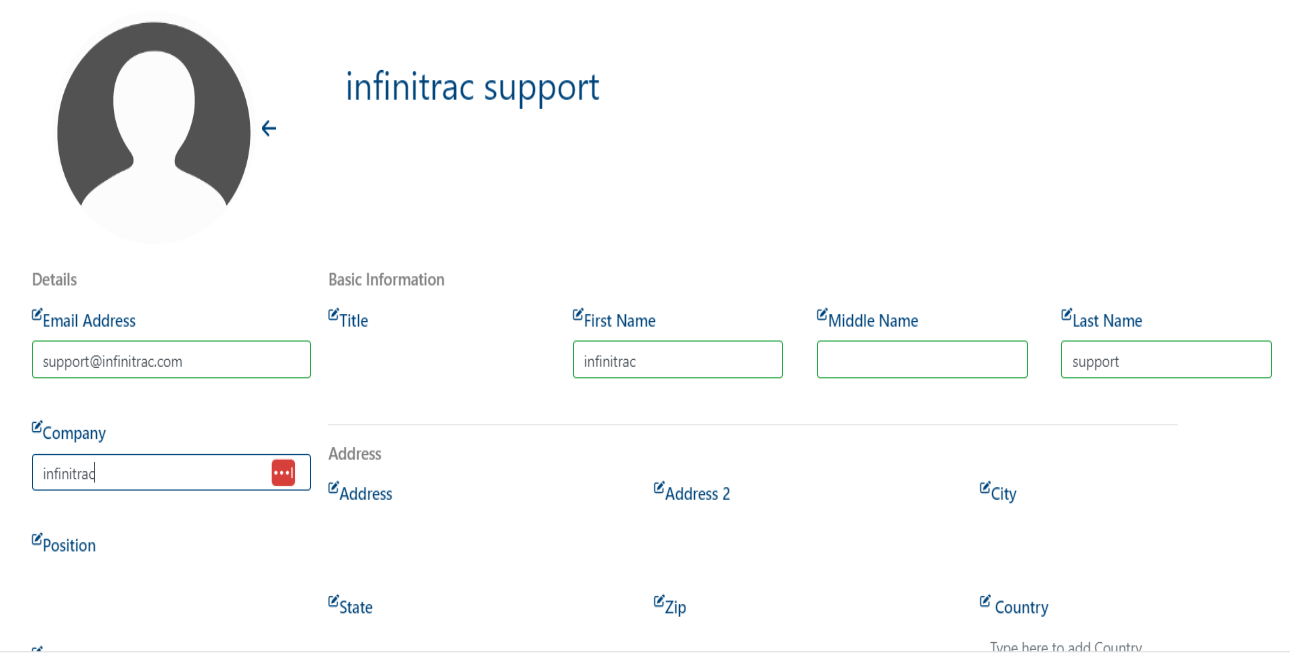
On a success operation, a notification will display the next message: “Contact has been created successfully“. On a failure system will show: “Error Occurred: Failed to create contact“.
Emails already registered as “user“ can not be added as contact.
Add new Contact from module
Contacts can also be added directly from within a module.
Expand the Recipient table and click “Add“
When the following modal opens click on “Create User“

Fill out the new contact’s information. Enter at least the E-mail Address, Company, First and Last Names to proceed.
Click “Add“ button.
If multiple new contact’s must be added, select the “Add Another“ checkbox in the bottom-left corner. after clicking add a new modal will be presented to the user and the process can be repeated as many times as necessary.