Adding Roles
To perform the actions mentioned on this article, user must have “add“ role enabled.
To add a new role:
Navigate to the “Role Management” module.
Click “Add New” at the top of the page.
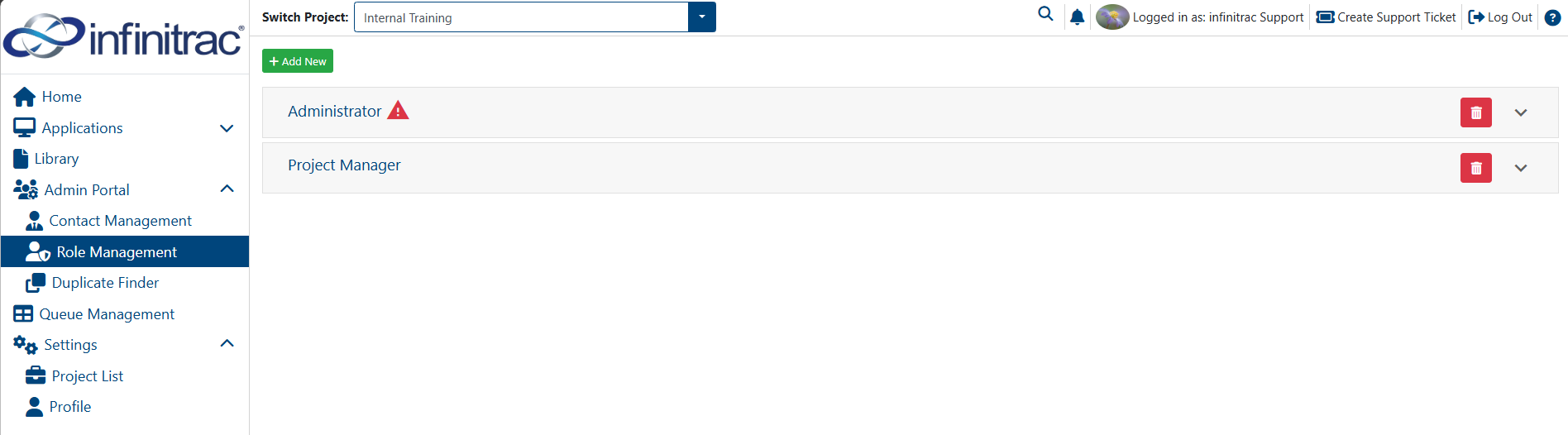
Click on each module name to expand the tab.
Select the privileges for the new created role, by clicking on the respective checkbox.
Click “Add“ button to save or “Close“ button to discard.
Make sure to double-check the currently active project at the top of the page, as roles are created for each project separately.
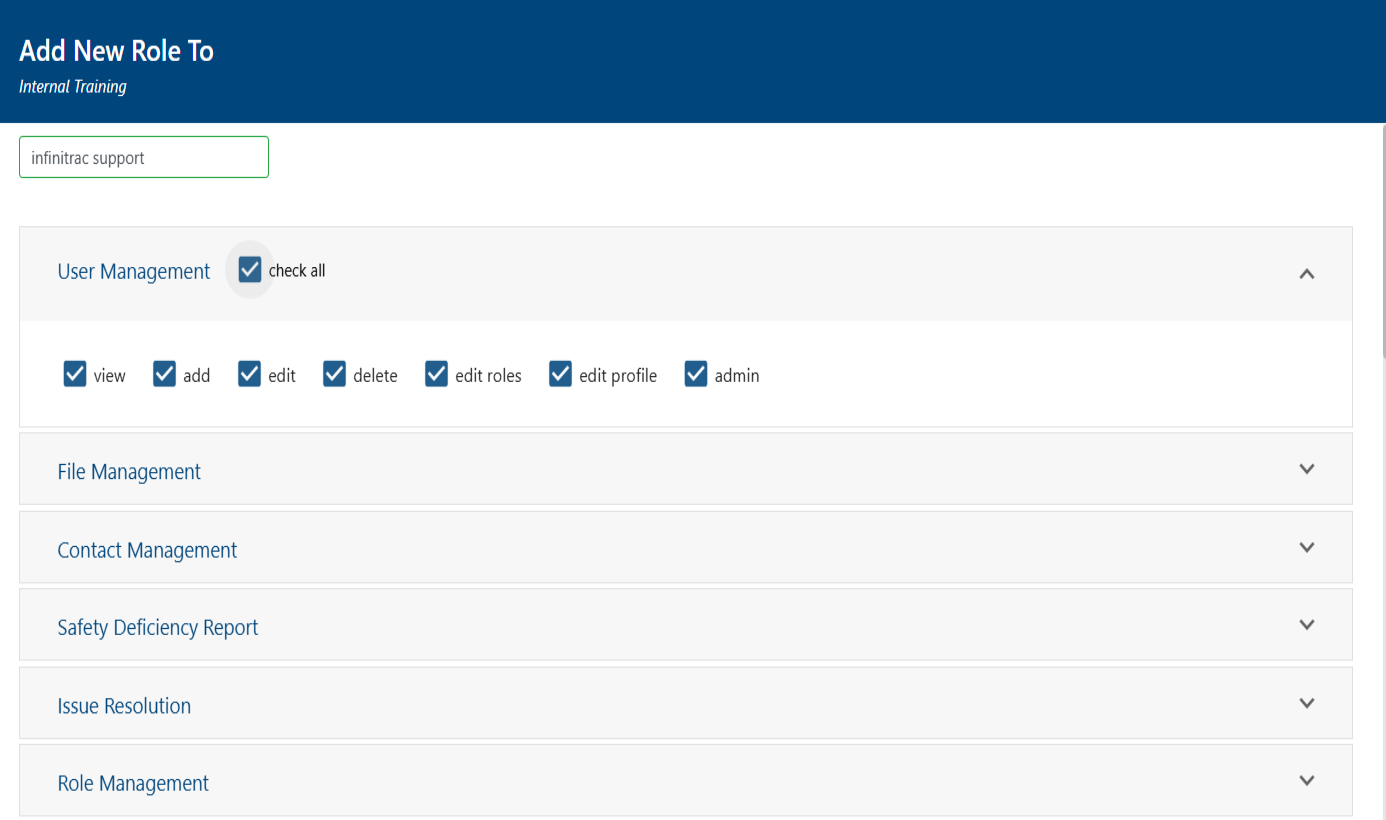
To add all privileges for a module, click “check all”, otherwise click the checkbox for each privilege to add.
On a success operation system will display: “Role successfully added“. On a failure will display: “Error: Failed to add new role“.
Read more about the specific privileges for each role.