View/Configure Roles
User can check the current roles assigned and related privileges via Profile module.
To do so:
Navigate to “Profile“ module.
Click on “Roles“ tab.
Privileges will be listed separately for each module.
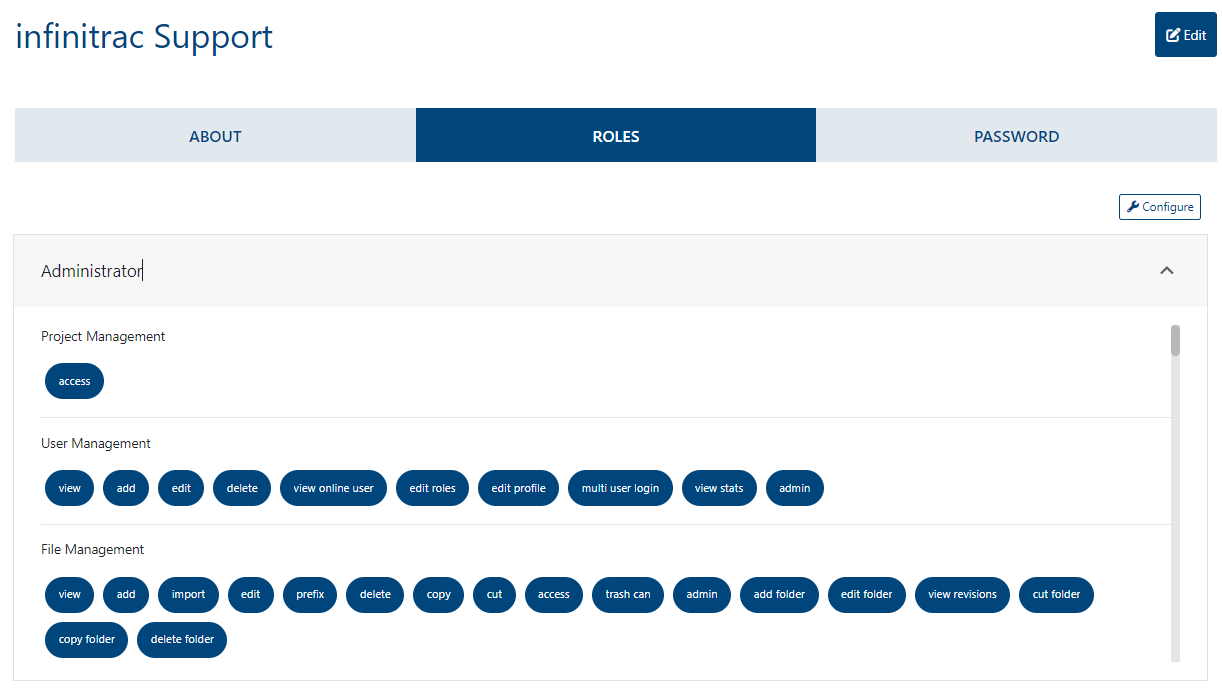
While perusing this guide, if an action or a button does not work/isn’t displayed, please check the assigned roles to make sure of having privileges to those features before contacting Support.
User can configure its own roles, if has “Role Management - edit“ role enabled.
To do so:
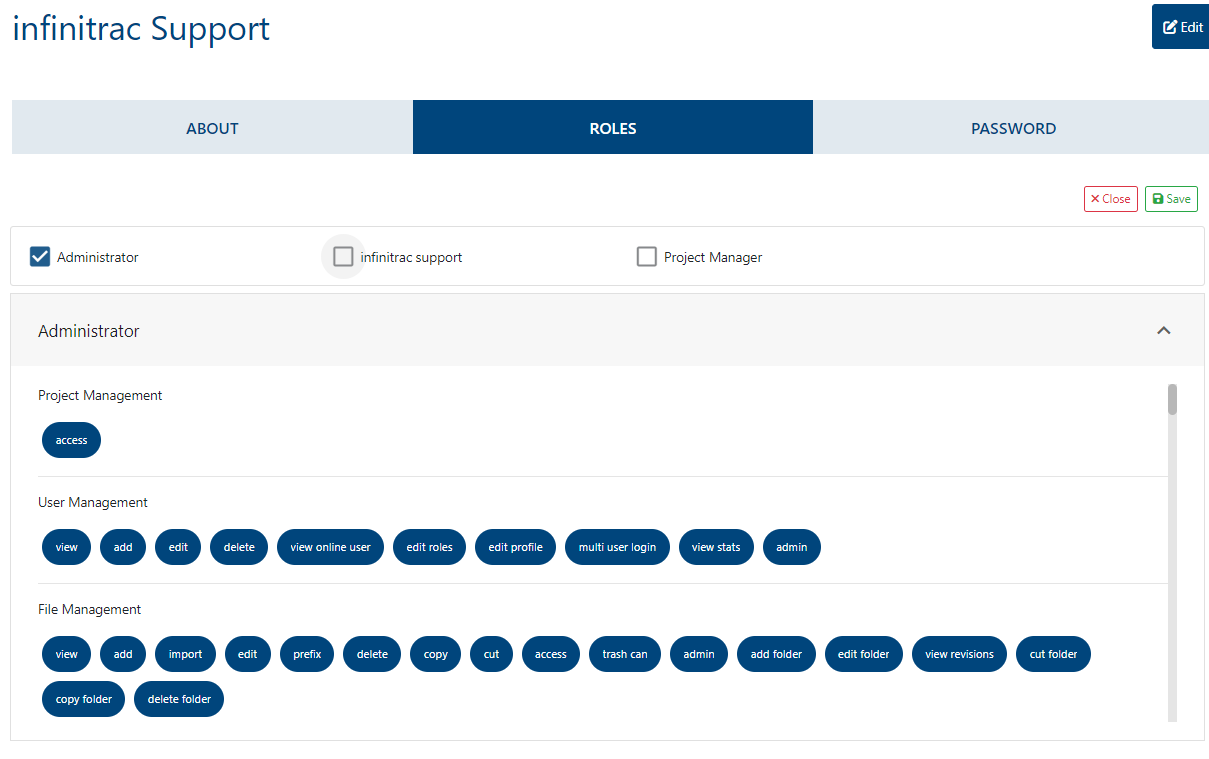
Click on the "Configure" button above the assigned role(s).
Every available role will be shown, select the new role to configure clicking on the checkbox.
Click “Save“ button to keep changes or “Cancel“ button to discard.
Once finished, the updated list of current roles and its corresponding privileges will be displayed.
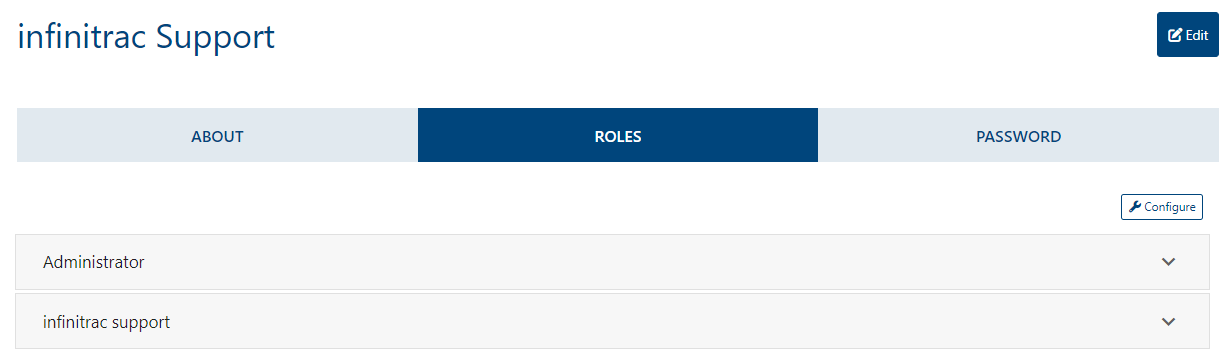
On a success operation, system will show “Role was assigned “successfully“ as a notification message, on a fail, will display “Error Occurred: Failed to assign role“.
If user remove all its assigned roles, will be locked out of the project.