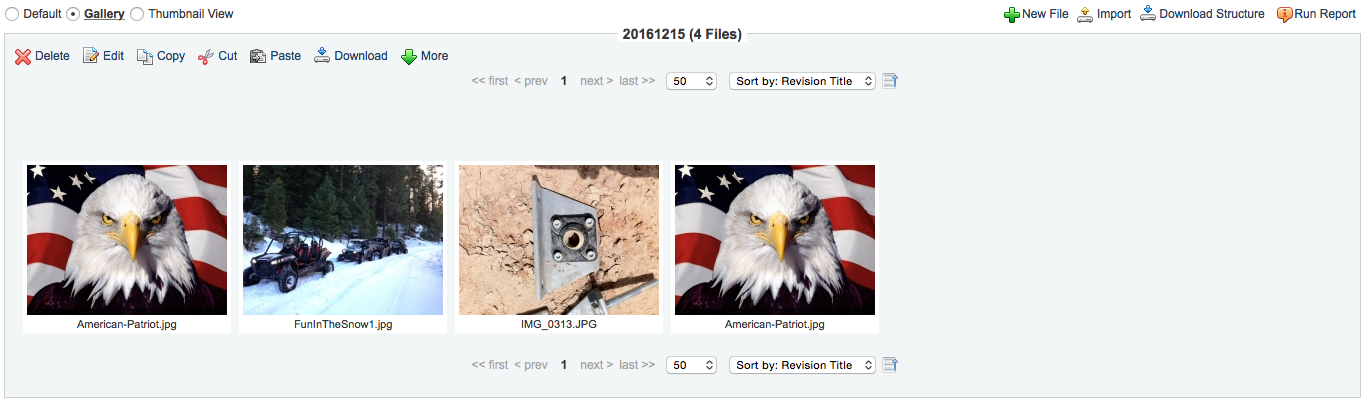
Gallery Functionality
The Gallery makes it easy to select and edit the attributes of a specific file or many files at once. Of course, before editing a file you must select it. The following guide explains the different ways to select and edit files.
SELECTING FILES:
A user has the ability to select and de-select files one at a time or many at once using the shift key:
Selecting files one-at-a-time:
A single click anywhere on a thumbnail image will select a file and bring up a dark highlighted blue border around the thumbnail and a checked box in the bottom left hand corner indicating that the file has been selected.
The images that are selected in the screenshot below (files 1, 2 and 3) can now be: deleted, copied, cut, downloaded, etc.
A single click anywhere on a thumbnail image that has already been selected will then deselect that file and the highlighted border will disappear indicating that the file is no longer selected.
A file can also be selected by hovering over a thumbnail image and clicking the empty checkbox that appears in the bottom right hand corner.
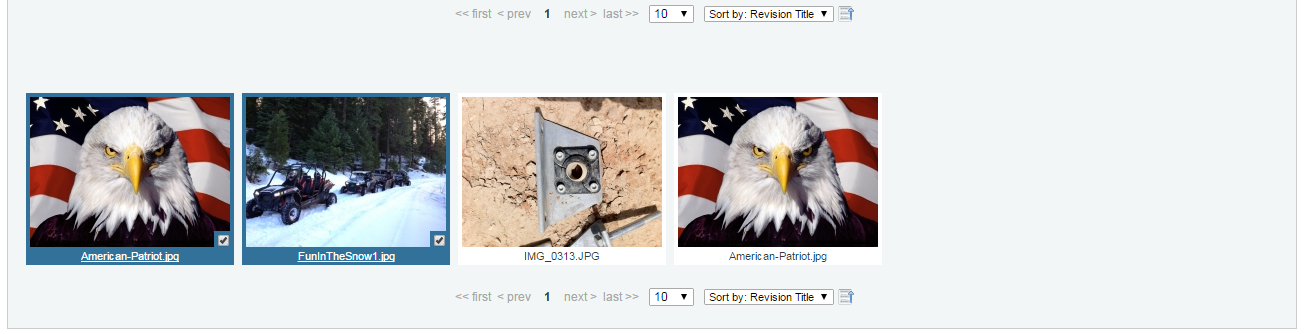
2. Selecting a range of files with the shift key:
To select or de-select a range of files first click on the first image in the range, then while holding down the shift key, click the last image in the range.
EDITING FILES:
A user has the ability to edit files two different ways:
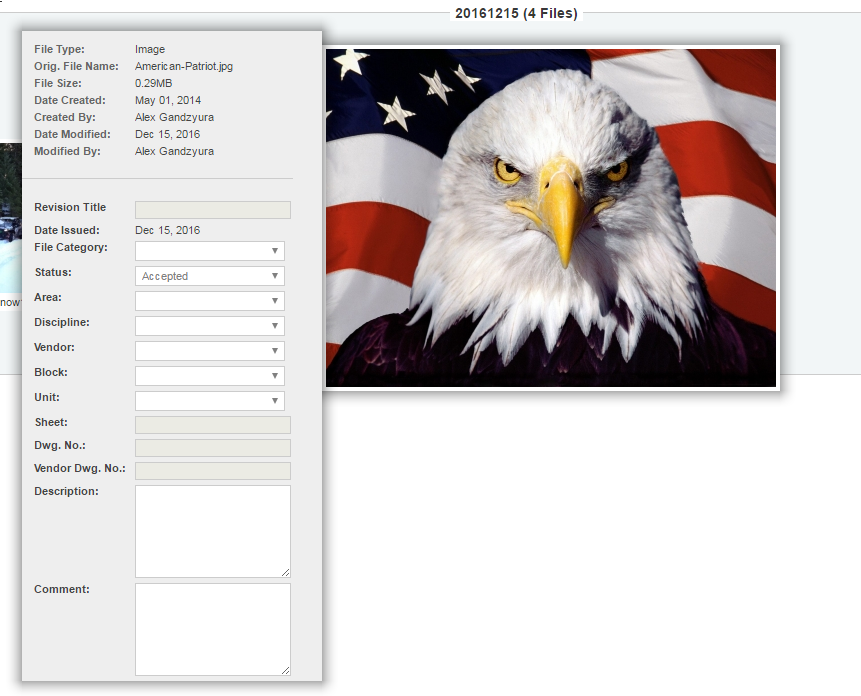
Editing a single file can be done by simply moving the mouse over a thumbnail image and subsequently moving the mouse over the preview image of the file. A rectangular box will then appear to the side of the preview image listing out the corresponding attributes of the file. All attributes listed below the horizontal line can be edited on the fly by simply changing the value in the corresponding text field. Values are automatically saved once the mouse is moved away from the preview image.
2. Editing multiple files or a mass edit can be done by selecting the files and then clicking on the edit button. A dialog box will then appear in the center of the screen with attributes that can be set for all the selected files.