Add New QIR
QIRs may be added by clicking the "New QIR" icon. When doing so, you will be presented with Figure 1 below.
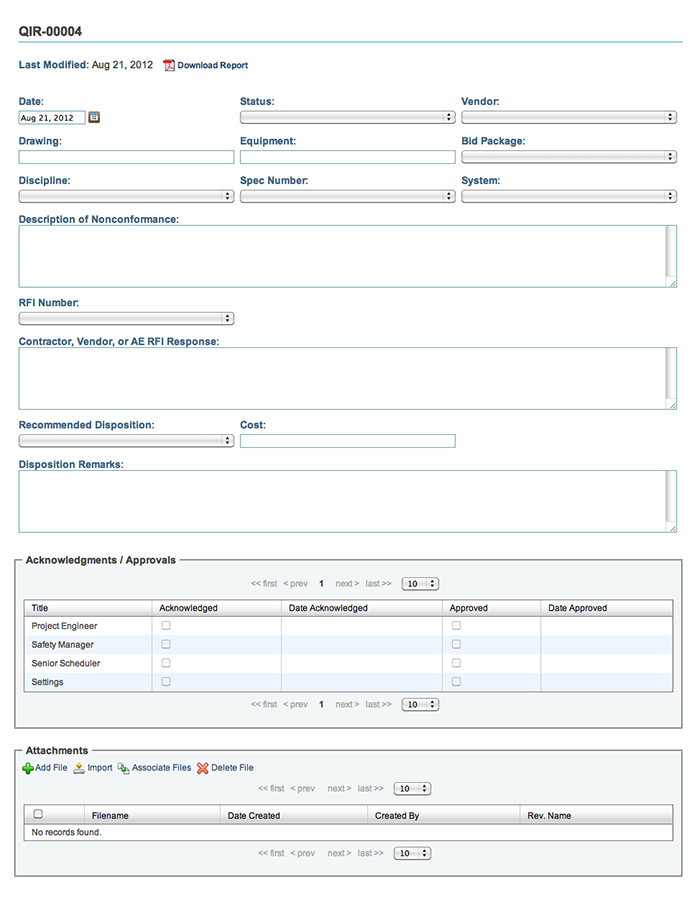
Figure 1 - QIR detail view
Click on the text in the textbox to edit text fields, and select from the Drop Down menus for optional data or add options (access may vary).
To sign off Acknowledgments/Approvals, click on the appropriate check box for each title. The QIR detail page should be refreshed with the new Acknowledged/Approved date timestamps. Special Permissions are required to Acknowledge/Approve.
There are three ways to add Files:
Add File: Allows attachment of a file from a local computer one file at a time.
Import: Opens a new window, allowing importing of multiple files from a local computer using a Java Application. See Importing Multiple Files.
Associate Images: Attach a file located in the infinitrac Library.
New files may also be imported to the Library from this window.
A PDF report can be generated and printed by clicking the "Download Report" icon in the upper-right corner.
To delete any added content from a QIR, select the check box next to the item you wish to delete, and then click the "Delete" icon.
WARNING! Once deleted, there is no Undoing that action.