Dashboard Guide
The dashboard is located on the home page of infinitrac. It allows the user to have quick access to the Calendar, Recent Uploads, Open Issues, Pending Expense Reports, Recently Sent RFIs, Recently Sent Outgoing Transmittals, Approved Daily Reports, and Open Tasks. Announcements of recent changes to infinitrac may also be seen on the dashboard and is updated periodically. Viewable access may vary.
Figure 1. infinitrac Header
In the header of infinitrac there are four links: My Account, My Note, Support, and Logout.
Profile allows the user to change their User Information and Password.
My Note launches the Sticky Pad Module.
Support offers a way for the user to contact Tech Support with any problems/questions they may have about infinitrac.
The user may log out of infinitrac by clicking the "Logout" link.
The Search bar is also available to look for any files/folders in infinitrac. See Basic Searching in the Search User Guide.
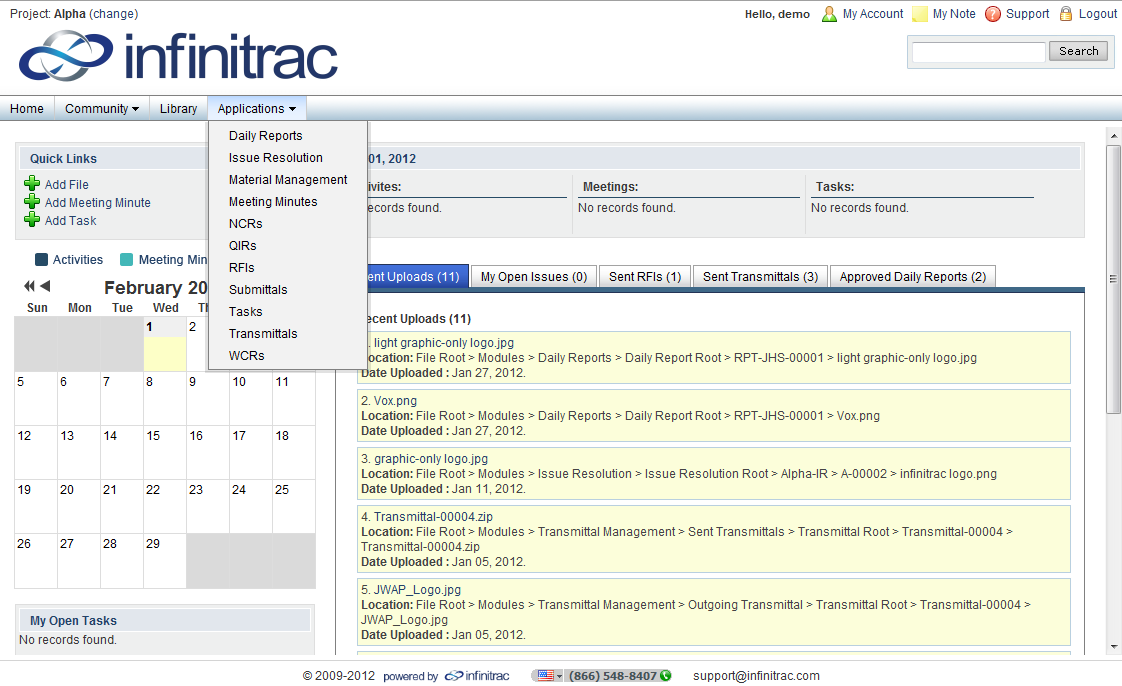
Figure 2. Dashboard with Drop-Downs Displayed
Navigating through infinitrac is easy with the new drop down menus.
The "Home" link takes you back to the Dashboard.
Hover over "Community" and "Applications" to activate the drop down menus and select the desired module. - Viewable access may vary.
"Library" is a simple link that will take you to File Management. - Viewable access may vary.
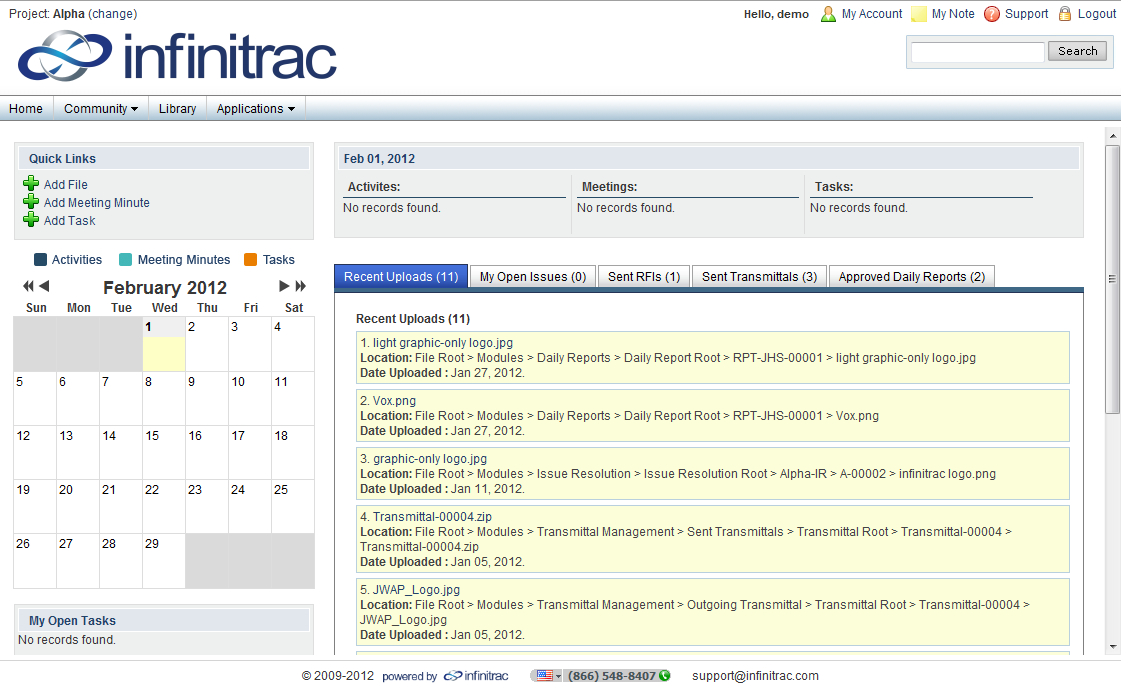
Figure 3. Dashboard Full View
Quick Links allow fast access to modules that you use most.
The "Announcements" headline alerts any new changes that have been made to infinitrac. Click the "Read More" link to go to a more detailed description of those changes in our forum.
Module updates are viewable in individual tabs with quantity numbers, to allow users to keep track of recent changes.