Uploading Files
How to upload a file
The following options are available for uploading files into infinitrac:
The "New File" icon (Figure 1) allows the user to upload a file from their local computer. Only one file may be uploaded at a time.
The "Import" icon (Figure 1) will launch a Java based application window (Figure 2) or HTML Import tool (Figure 4) that will allow multiple files to be uploaded at once.
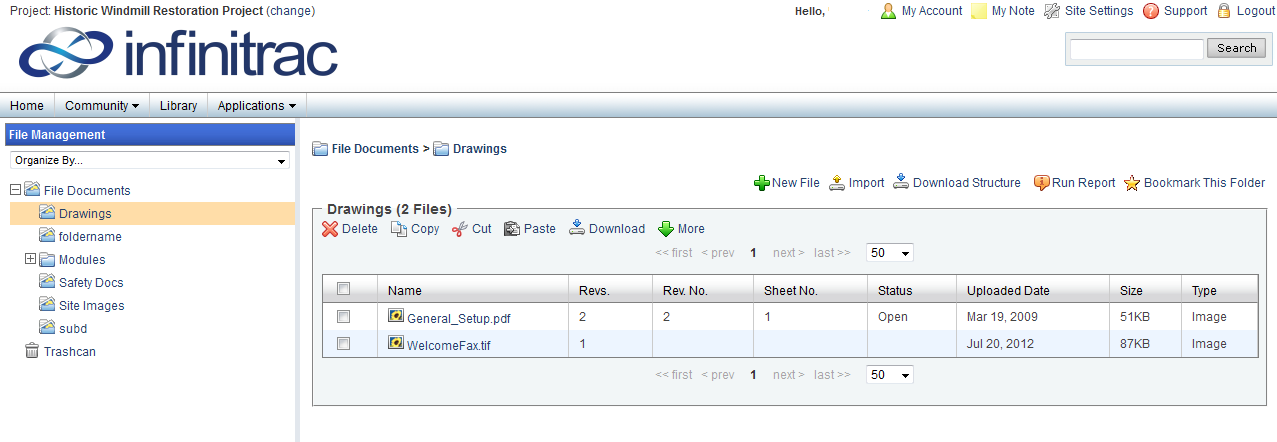
Figure 1. -Importing Multiple Files
File Import:
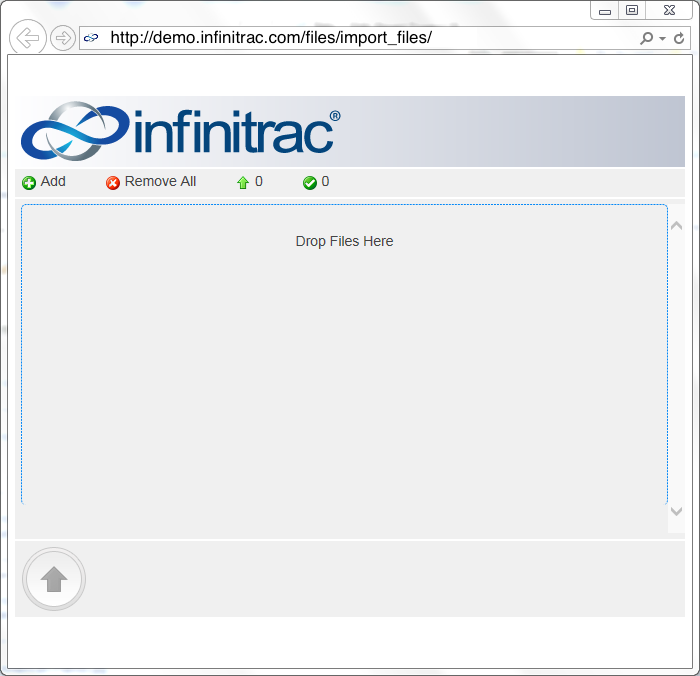
Figure 4. - Html Import Tool
Select Files:
Drag the files from your desktop to the middle area of the window above;
Alternatively you can click on the “Add” button and select files from your native “File Explorer”
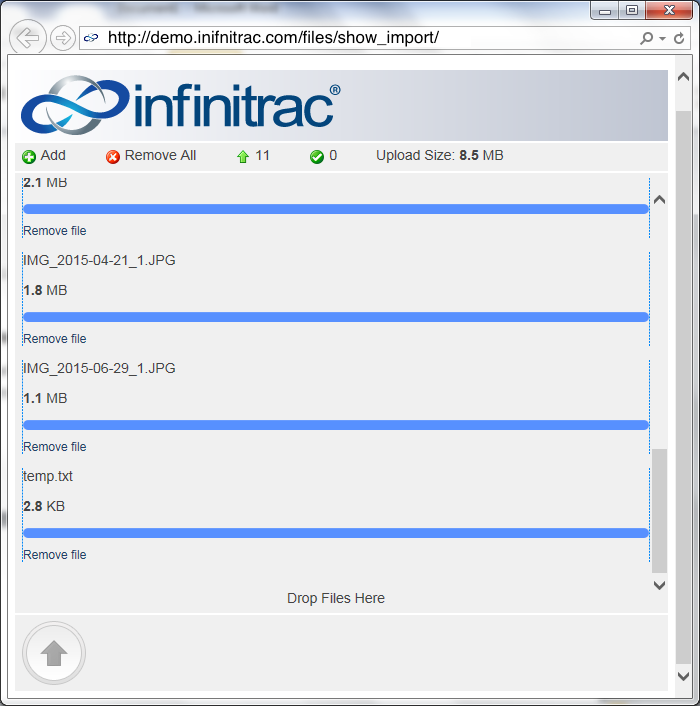
Figure 5. - Upload Queue
Remove files:
Each file selectively can be removed from the upload queue by clicking “Remove File” under the file name
Alternatively to remove all files from the upload queue click “Remove All”, button on the upload tool control panel, under the infinitrac logo;
Start upload:
To start upload process click a round button with an arrow; Progress bar will start “spinning” symbolizing the upload progress for the individual files; Total upload file size will decrease reflecting how much bandwidth left to upload;
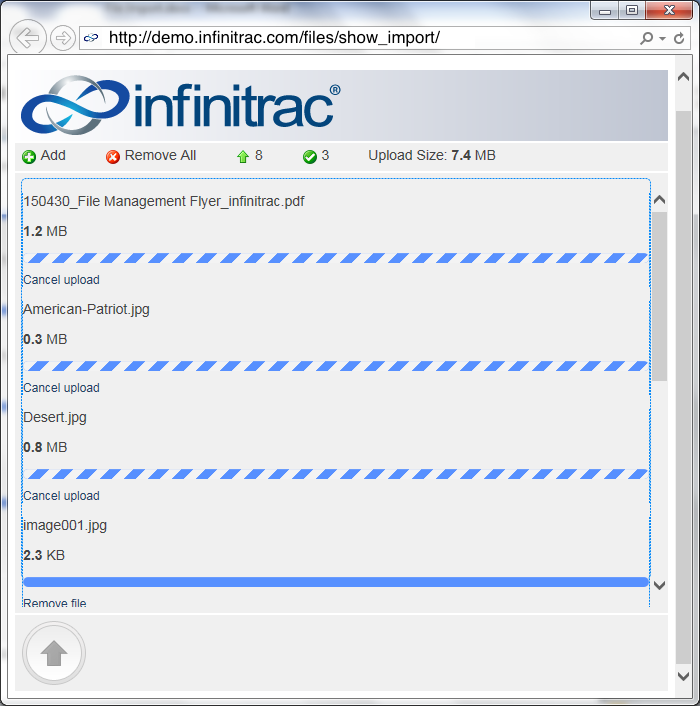
Figure 6. - Upload in Process
User can cancel upload of each file, by clicking the “Cancel upload” for the selected file or “Remove file”
Upon successful upload operation, an alert message will be displayed with the message: “The files were imported successfully”. Press “Ok”, and the import tool will be closed automatically:
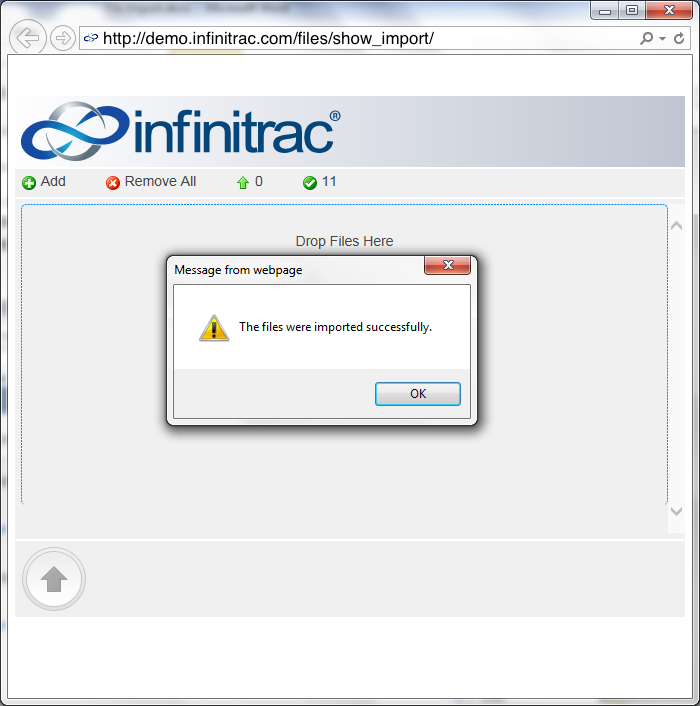
Figure 6. - Success Message
Import tool control panel:

Figure 7. - Import Tool Control Panel
Add button, press add to add files to the upload queue
Remove All button , press “Remove All” to remove all items from upload queue
Label symbolizes how many items are in the current queue left to upload; It decrease as the queue get processed;
Label symbolizes how many items had being successfully uploaded; The number increases as items are successfully uploaded;
Note: A maximum of 1GB (1024MB) can be imported at a time.
Java Based Import Tool:
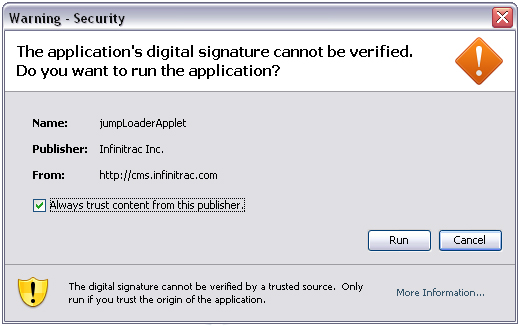
Figure 2. - Java Applet Security Warning
As a security precaution we have added the Java Security Warning.
Make sure the "Always trust content from this publisher" is checked. Once checked, this message will not show up on your computer again unless your security settings are reset.
Click the "Run" button.
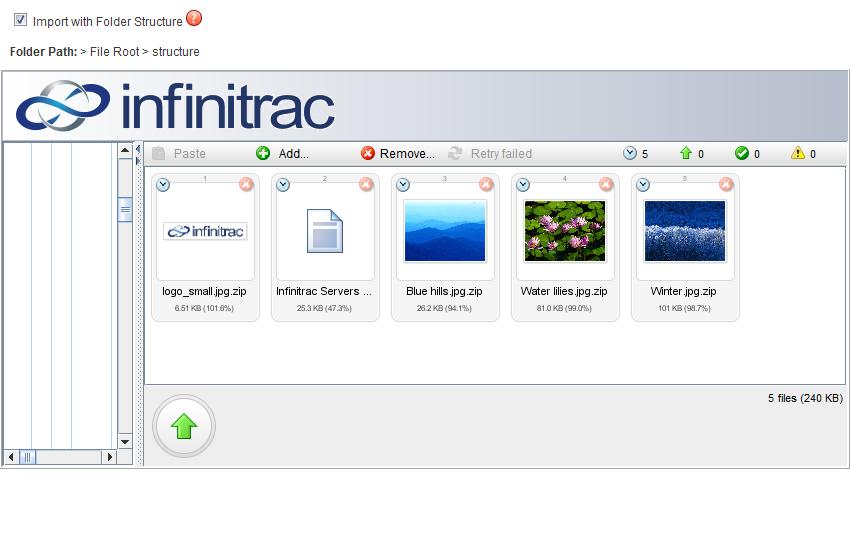
Figure 3. - Importing with Java Applet
After clicking the "Import" icon, the application above will launch.
You may add files to this application multiple ways:
Click the "Add" button to browse files on your local computer.
Copy files from your computer and click the "Paste" button.
Drag and drop files into the application.
Holding down the Ctrl key will allow selection of multiple files individually. Holding down the Shift key will select multiple files that are all grouped together.
Click the green "Up" arrow at the bottom of the window to import the selected files.
Note: When selecting a folder, all files within that folder, and all sub-folders, will be imported in a flat structure. No folder structure will be maintained. To maintain the existing folder structure from your local file system, check the box next to "Import with Folder Structure."
Switch to java based import tool:
Internet Explorer Browser, Version: 11+
User can switch to the Java Jumploader import tool, make adding the infinitrac website url to the Internet Explorer compatibilities list:
Add infinitrac url to the Internet Explorer Compatibilities List:
Click on the Internet Explorer Tools icon (Gear icon) or press Alt+x ; The tools popup will be displayed;
Select “Compatibilities View Settings”; A new window will be displayed (Figure 8);
In the field “Add this website” enter the infinitrac url, for example: example1.infinitrac.com
Press Add, then press Close;
Your infinitrac website view will be reloaded;
Restart the import tool; The Java Jumploader import tool will be started;
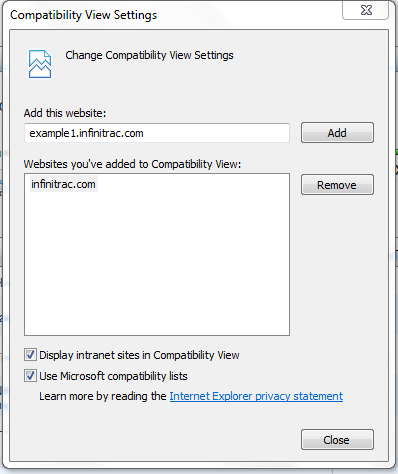
Figure 8. - IE 10 Compatibility View Settings
Internet Explorer Browser, Version: 10:
Follow instructions as shown in the Figure 9:
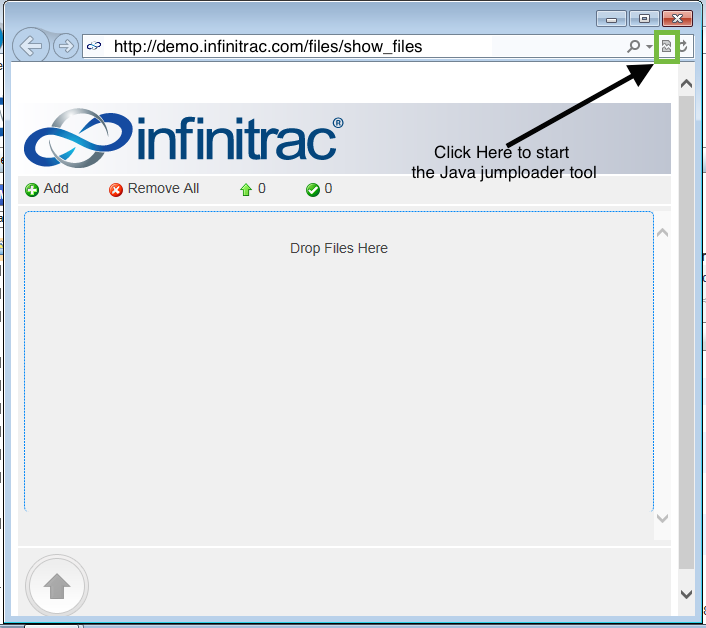
Figure 9. - IE 10 Compatibility View Settings