Sharing Sticky notes and Using Shared Notes
This document guides the user sharing sticky notes and using shared notes.
You can share Sticky Notes with other people, whether they are infinitrac users or not. A Sticky Note’s Sharing List identifies the contacts with whom you are sharing that Sticky Note.
How to manage a Sticky Note’s Sharing List
To manage a Sticky Note’s Sharing List, click the Sticky Note window’s Sharing List tab (Figure 1).
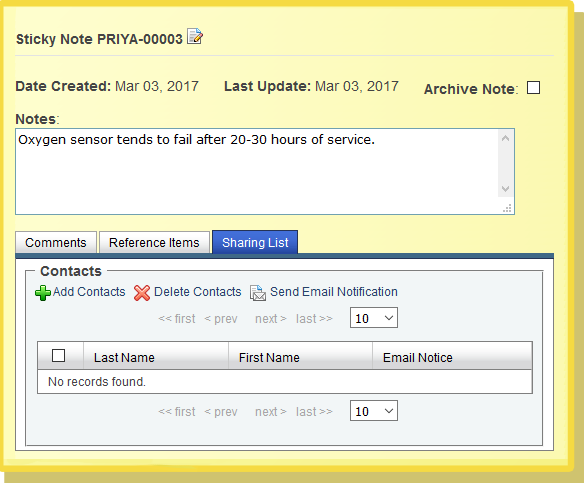
Figure 1. The Sticky Note window's Sharing List tab
How to add a contact
To add one or more contacts to the Sharing List, click the Add Contact icon. infinitrac opens the Contacts window (Figure 2). Then check the checkbox next to each contact’s name, then click the Add to Sticky Note icon.
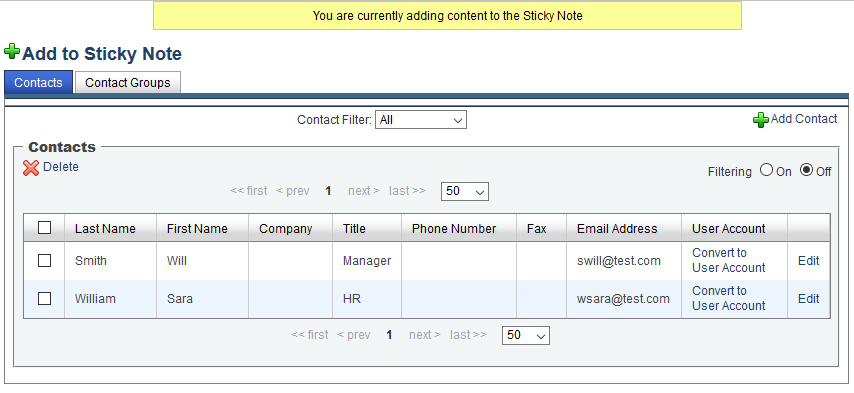
Figure 2. The Contact window
How to delete contacts from a Sharing List
To delete one or more contacts from the Sharing List, click the checkbox next to each contact you want to delete in the Sharing List tab, then click the Delete Contacts icon.
WARNING! Once you delete a contact, you can’t undo the action.
How to send notifications to a Sharing List
To notify users that you have shared a Sticky Note with them, click the Sticky Note window’s Send Email Notification icon. infinitrac sends an e-mail to each contact in the Sharing List. This email displays the Sticky Note’s text and comments and links to its referenced items.
You may add contacts and click Send Email Notification, then add more contacts and click Send Email Notification again. infinitrac will send notifications only to the users who have not already received them.
How to use Sticky Notes shared by other users
The Sticky Pad view can show the Sticky Notes that other users have shared with you, as well as your own. Click the Shared Sticky Notes tab (Figure 3) to see other users’ shared Sticky Notes; click the My Sticky Notes tab to see your own Sticky Notes.
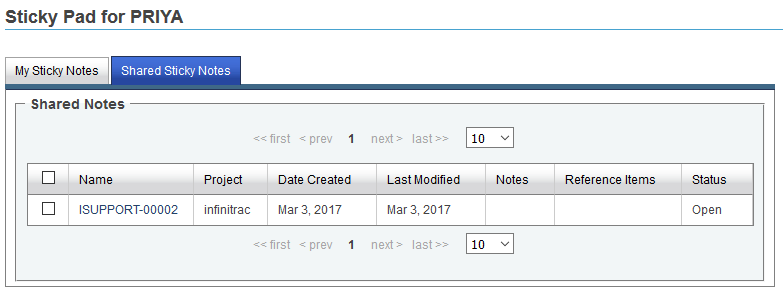
Figure 3. The Shared Sticky Notes tab
You can open shared Sticky Notes to review them, comment on them, and open and save the Sticky Note’s reference items.