How to add User
Adding a new user in infinitrac is a quick and easy process.
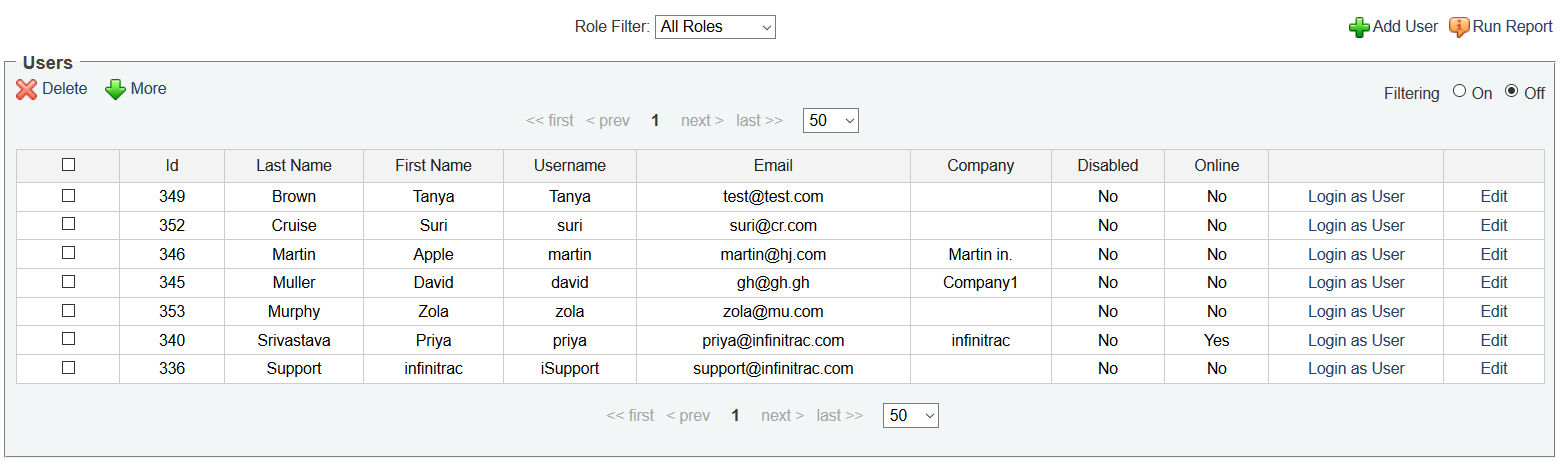
Figure 1. User List page
As a number of users increases, you can add new user information.
When viewing the user list (Figure 1), the top right most column is to Add user.
On clicking "Add User," you will be taken to the new window. (Figure 2).
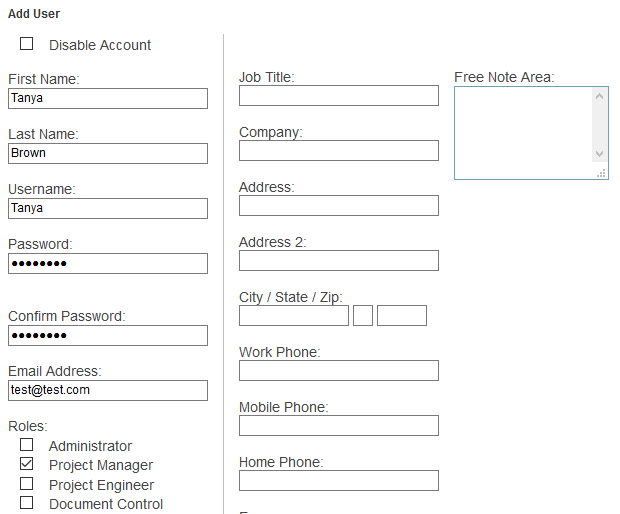
Figure 2.1. Add User page
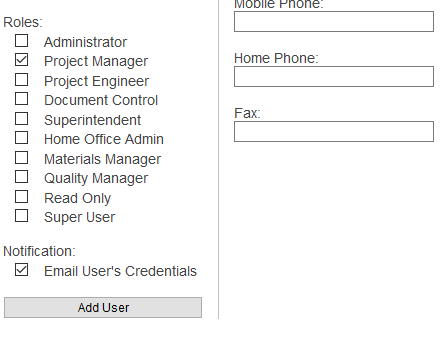
Figure 2.2. Add User page
The First Name must be at least 5 characters in length and required
Last Name is required field.
Password and confirm password fields are required.
Username should not match with existing users username. Also, Email need not to be matched with existing users and contact users emails.
Email should not match with existing users and contacts emails.
Select any role from 'Roles list' that you want to assign a new user.
On selecting 'Email User's Credentials', you can also notify user with their username and password through email.
The Free Note Area is provided to simply cut and paste info as a bridge to filling out the Contact form, so you will not need to flip back and forth between windows.
WARNING! This area DOES NOT save entry data.Clicking the "Add User" button will submit the entry and take you back to the previous page. The new user will be added to the list.
A success message will display at the top of the screen and you will be returned to the User list.+