Non Conformance Report Guide
After entering infinitrac NCRs, navigate to the appropriate folder below "NCR Management." - Viewable access may vary.
Once you have selected an NCR, right-click the folder to view folder editing options.
Before any NCR can be added to the selected folder, it must have a Prefix set.
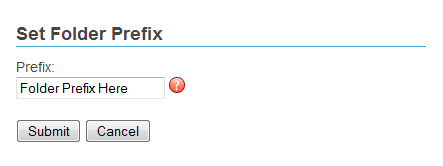
Figure 1 - Set Folder Prefix
To set a Prefix, right click on a folder to view the Folder menu then click the "Set Prefix" link.
A new window will open allowing the user to set the Prefix to the folder. Click the "Submit" button to apply the Prefix and close the window.
Prefixes may only be set when a Folder is "Mounted." See Editing a Folder in the File Management User Guide.
Clicking the "New NCR" button at the top of this screen will add a new NCR to the selected folder. Also see Adding a new NCR.
NCRs will be named after their Prefix and a serialized number.
NCRs may be organized into sub-folders, but will maintain their serialized identification.
When adding an NCR folder, that folder may be designated as a "Mount Folder."
Setting a folder as a "Mount Folder" will require a new "Prefix" to be set, and will also restart the serialized numbering sequence. - Permission Required.
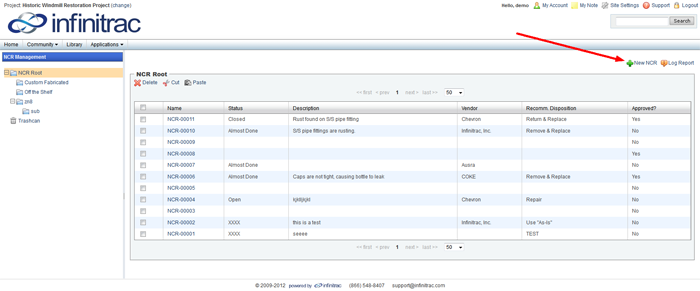
Figure 2 - NCR List View