3.3 Upload or Import files
Upload a file:
There are several ways to upload files to infinitrac:
- Drag and drop files onto the Drop Zone (Figure 1.) Keep the browser open until you see the message.
- Click on New File (Figure 1. Top-Right) Choose File button appears (Figure 1. Left) Select a single file to Upload to the current folder.
By default a maximum of 1GB (1024MB) can be imported at a time, but this option is configurable
Import:
- Click the Import button (Figure 1.) this will launch Import tool (Figure 2.)
- Selecting files:
- Click Add button and select files with your native File Explorer.
- Drag and drop files into the area designated "Drop Files Here".
- Click the round button with the green arrow to start Upload.
Import tool control panel:
In the top area of the Import tool we can see the control panel (Figure 3.)
Add
Remove All: click to remove all items from upload queue
How many files are left to upload
How many files have being successfully uploaded

Figure 1. Upload/Import tools
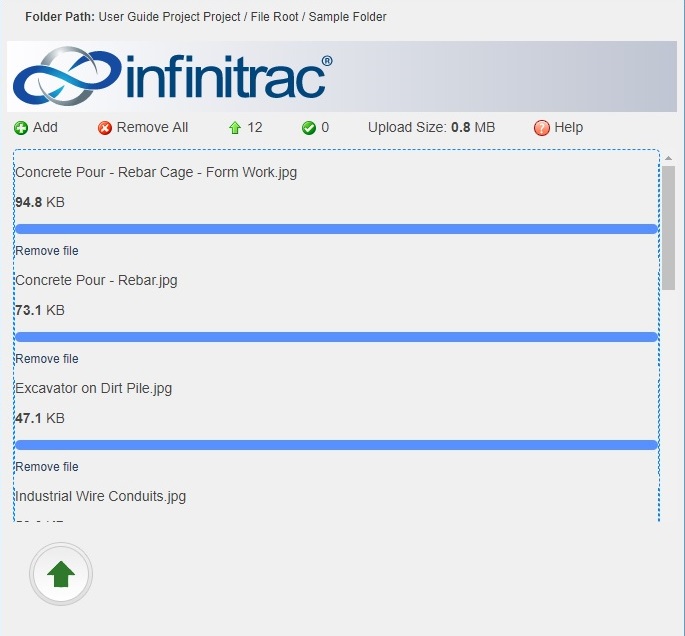
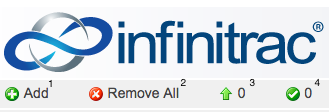
Figure 2. Import Figure 3. Import Control panel