7. Asynchronous Queue Manager
Overview of Module
Queue Manager monitors the processes, and services currently running on the infinitrac platform. It can be used to start and stop Queue processing. In addition it can Change the priority of each queue item task, and filter based on what type of Queue Item(s) to have returned.
Also, it shows details about the Processing Queue (Uptime, Memory Usage, etc.) and details of each Queue Item task(s).
Instructions
Starting/Stopping Queue
Filtering based of Queue Item Type
Changing the Priority of Queue Items
1. Starting/Stopping Queue
To start and stop queue, navigate to “Queue Management” from the Navigation Menu, and click button “Start/Stop” Queue to “Start/Stop” Queue.
On success a green bubble is shown in the top right corner stating, “Queue Successfully shut down” or “Queue Successfully Started”.
On failure the error message is displayed in a red bubble for example “Internal Server Error”.
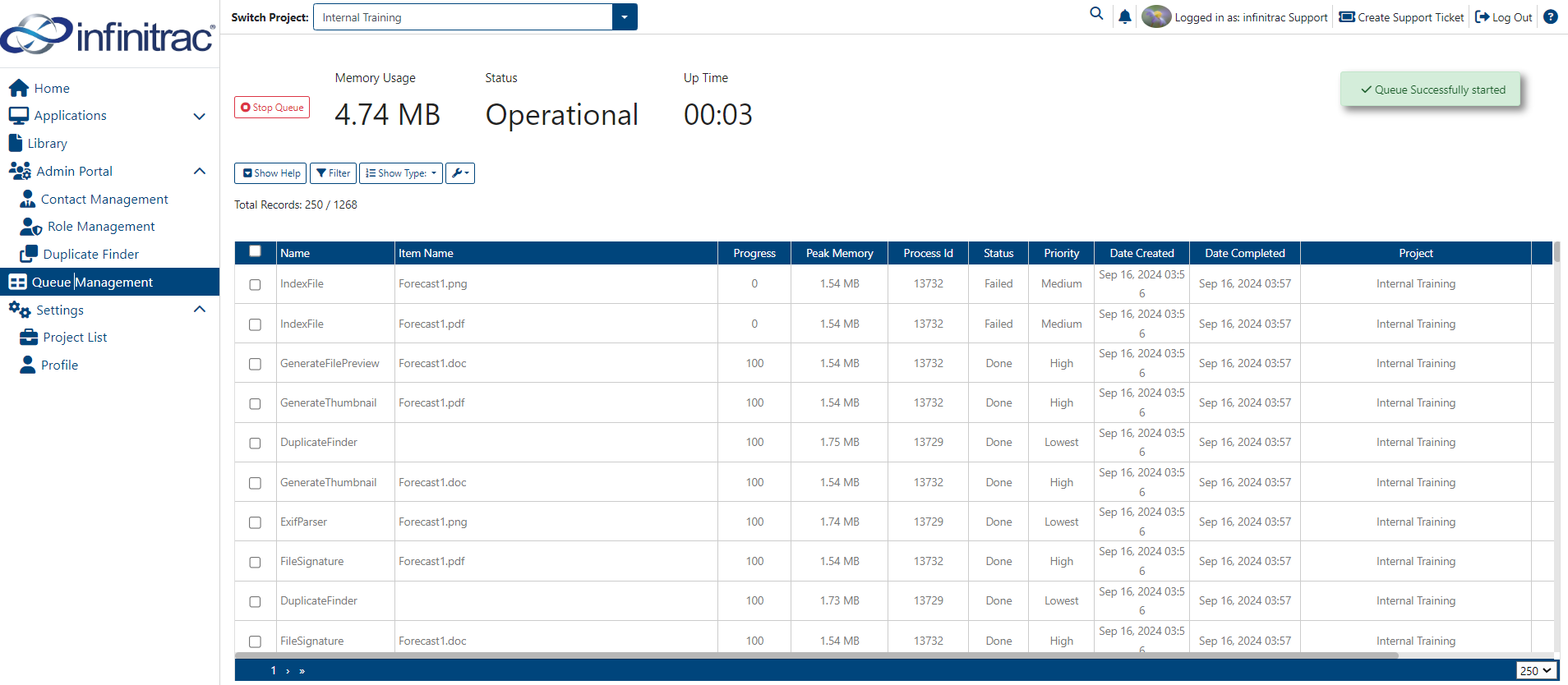
Only super user admins have the privilege to “Start/Stop” Queue. If the button does not appear, the privilege is not set for current User.
2. Filtering based on Queue Item Type
Queue Management module has the ability to filter Queue Items in the “Queue Management” Module.
First Navigate to “Queue Management” from the Navigation Menu, and then over the Table (Show image with table and Filter), after the preferred “Queue Item Type” is selected, those “Queue Item Type(s)” will be returned.
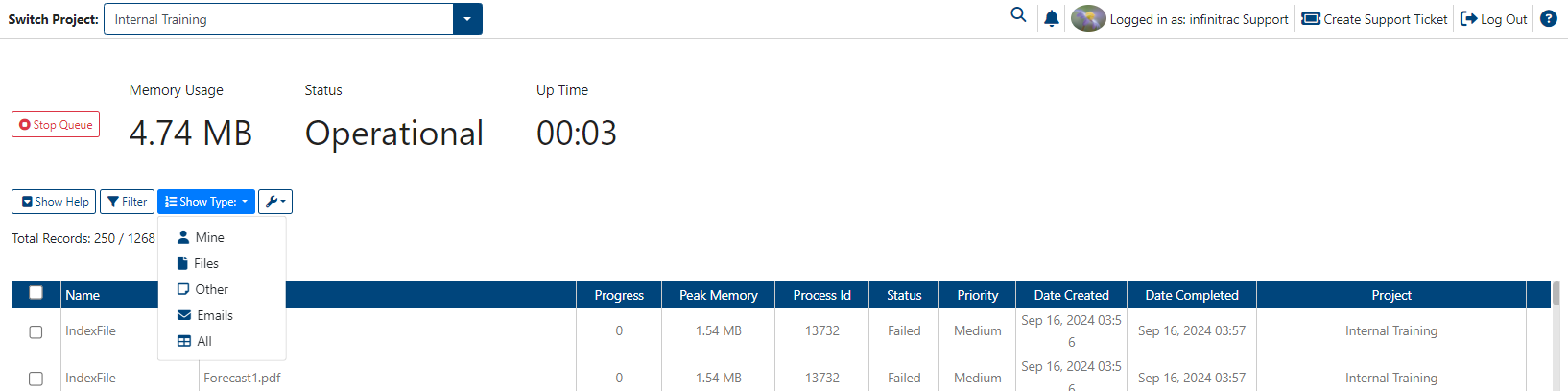
The selection stays saved, to change the “Queue Item Type” a new selection has to be made.
2. Filtering Queue results table
The Queue Management table can be filtered.
To filter [Status] please use the following references:
-1 => Failed
1 => Completed
0 => Not started
2 => In Progress
Retry Queue Item
You can Retry each Queue item task that are failed during execution
Buttons
Delete Queue Item Button
By clicking this button, you can remove selected Queue Item(s).
Retry Queue Item Button
By clicking this button, you can select your Retry selected Queue Item(s) .
Select Types Button
By clicking this button, you can select your preferred “Types” to be returned .