Data Tables in infinitrac
Throughout infinitrac, content is displayed in tables. These tables have common functionalities, to ease their use across modules.
Include Subfolders
User can select “Include Subfolders“ checkbox to display all of the selected Folder’s and respective Subfolder’s files a User has access to in the Table, regular operations can be done on the visible files, such as Cut, Copy, Paste, and Download.
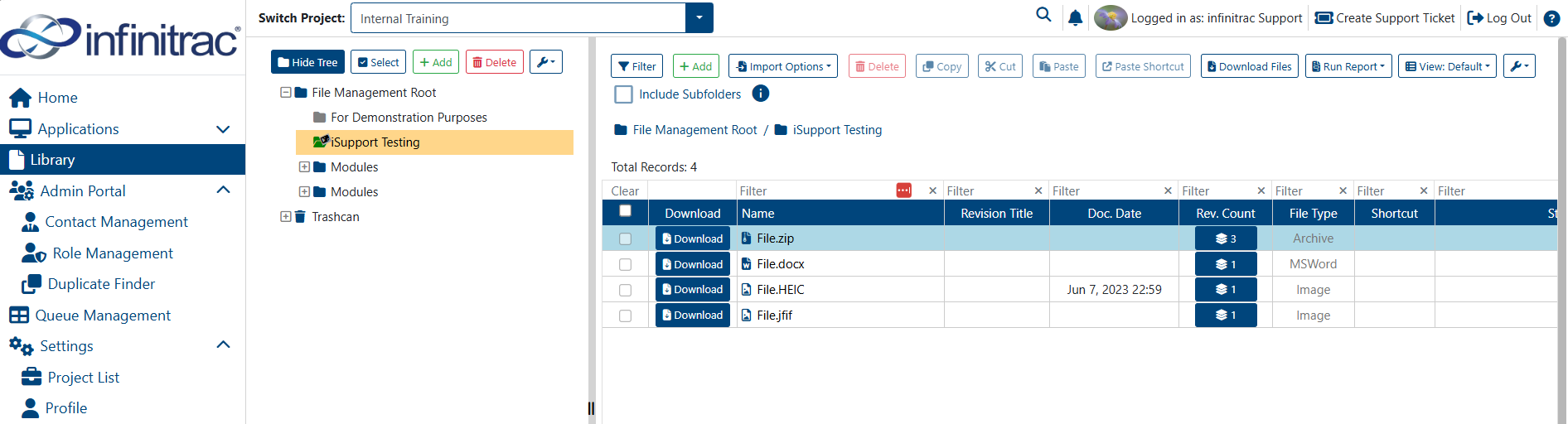
Files protected by role access will not be visible when performing this operation
Column Configuration
User can configure which columns they want to view/hide within the folder content view of an infinitrac module. To configure the columns to be displayed:
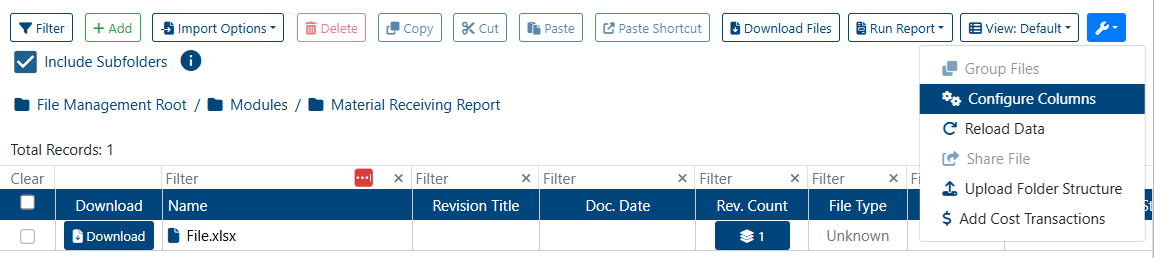
Click on “More Options” button located in the table's toolbar
Select the "Configure Columns" button from the drop-down menu.
Check/uncheck the checkboxes corresponding to the available columns.
Click "Save" button to display the selected columns.
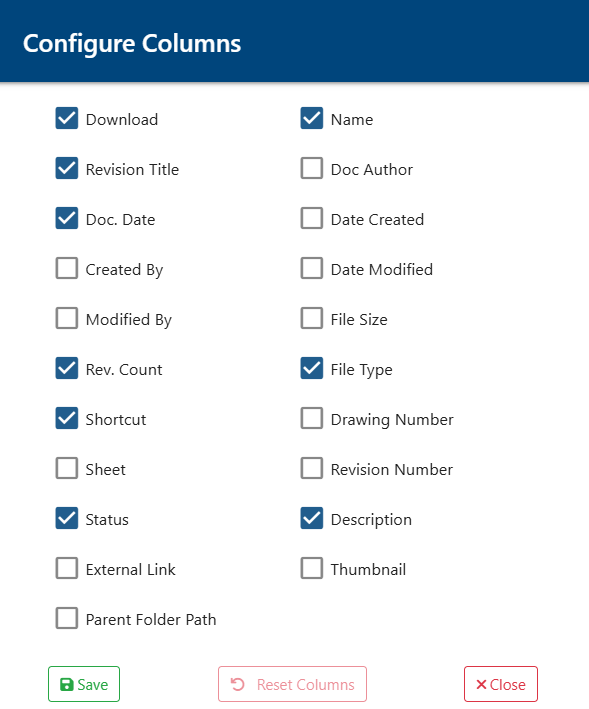
Column Configurations specific to each table across the infinitrac platform will persist through refreshes, and navigation away from the page.
To reset the columns to the default display mode, return to the table's "Configure Columns" modal, and click "Reset Columns" button.
Breadcrumb
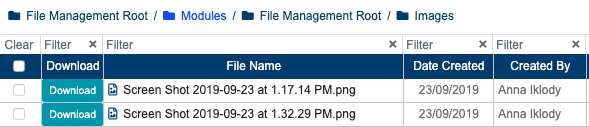
A breadcrumb is a trail showing the entire folder path leading to the currently viewed folder in the folder content view, located above each data table. User can click on any folder in the path to view the file contents of a parent folder.
Sort
Click on a column header to sort the table entries in ascending order of that property.
To sort by descending order, click the column header again.
Clicking it a third time will reset the sort.
Filter
To filter columns for content:
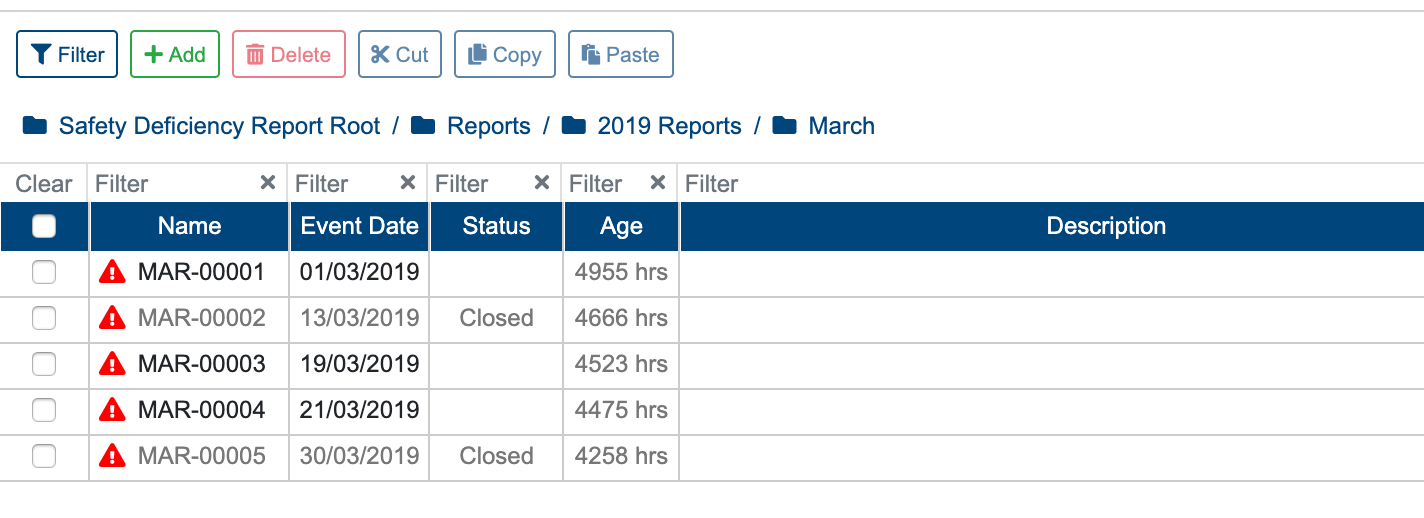
Click the “Filter” button in the toolbar above the table.
Each column that can be filtered will have a “Filter” template string where user can enter the search term.
To remove the filter, press on the x in the corresponding column next to the search term that have been entered.
Editing Table Fields
Some content can be edited directly in the table:
Double-click on the field to edit.
Input the update.
Click away from the field or press ENTER on a keyboard.
Updated value will be saved automatically after step 3.
Date fields accept multiple types of date formats including:
YY-MM-DD
YY-M-D (Separator required)
YYYY-MM-DD
YYYY-M-D (Separator required)
MM-DD
M-D (Separator required)
DD-MM-YYYY (Separator required)
D-M-YYYY (Separator required)
MMM-D-YYYY (Must use blank space separator)
MMM-D (Must use blank space separator)
MMM-DD-YYYY (Must use blank space separator)
MMM-DD (Must use blank space separator)
Notes:
Accepted Separators => “-” “.“ “/“ “blank space”
YY => Dates larger than 70 are saved as 19YY, Year smaller or equal than 70 is saved as 20YY
MMM=>Text, i.e: Jan, Feb; or January February
No Year => Year will be current year