Cut/Paste Revision(s)
Depending of your privileges, a revision can be moved between the folders the user have access to, with the cut function. Since cut action is protected by Role Permission to secure the revision(s), the user need to have the cut role enabled in the revision role section.

To cut one or more revision(s):
Select the folder containing the revision(s) to be moved.
Click on the "Rev Count" button of the file to move the revision from
Click the checkbox(es) next to the revision(s) to move.
Click "Cut" button.
Select the file to paste the revision(s) into.
Click on the "Rev Count" button of the file to paste the revision into.
Click “Paste” button.
Items cut successfully will display the next message: “2 Item(s) Cut To Clipboard”.
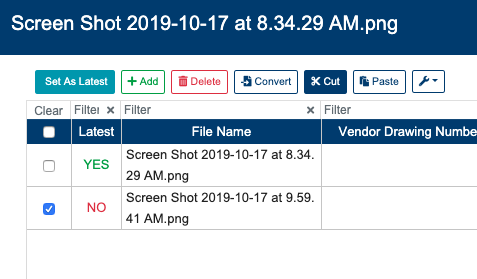
“Cut” button is disabled until one or more revision(s) is selected.
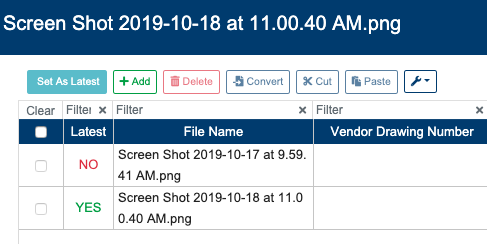
“Paste” button is disabled, until one or more revision(s) are cut to the Clipboard.
Once revision(s) moved to a new location, a success alert message will appear on the top right hand corner with message: “Item(s) Pasted successfully“
Revisions selection is not preserved, after user successfully pastes the revisions into other folder path. Moving revisions is currently allowed only within the same project. Latest revisions of a file can not be moved. User can unset the file revision to move as latest revision by assigning another revision in the file's revision list as latest.