Drag & Drop File Upload Tool
With the Drag & Drop File Upload Tool, it is possible to upload files from a local machine into the infinitrac platform by browsing through the local folder structure or by dropping them into the area outlined by the broken line.
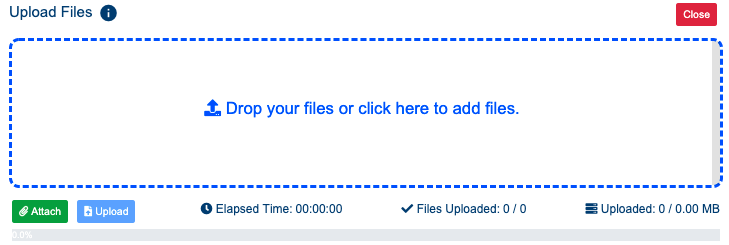
The look of the tool is presented on the picture above.
Successful/failed upload
On successful upload the following display will be shown:
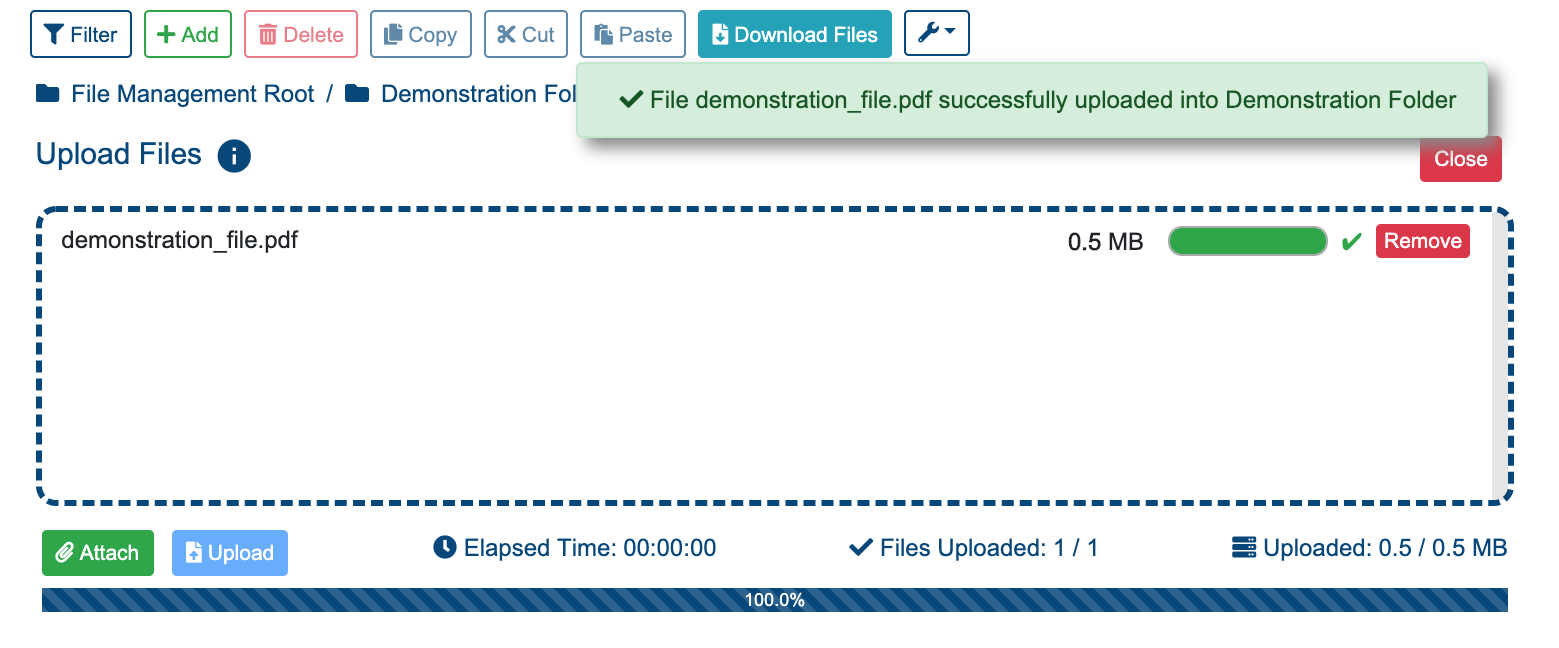
If the upload is failed then the following display will be shown:
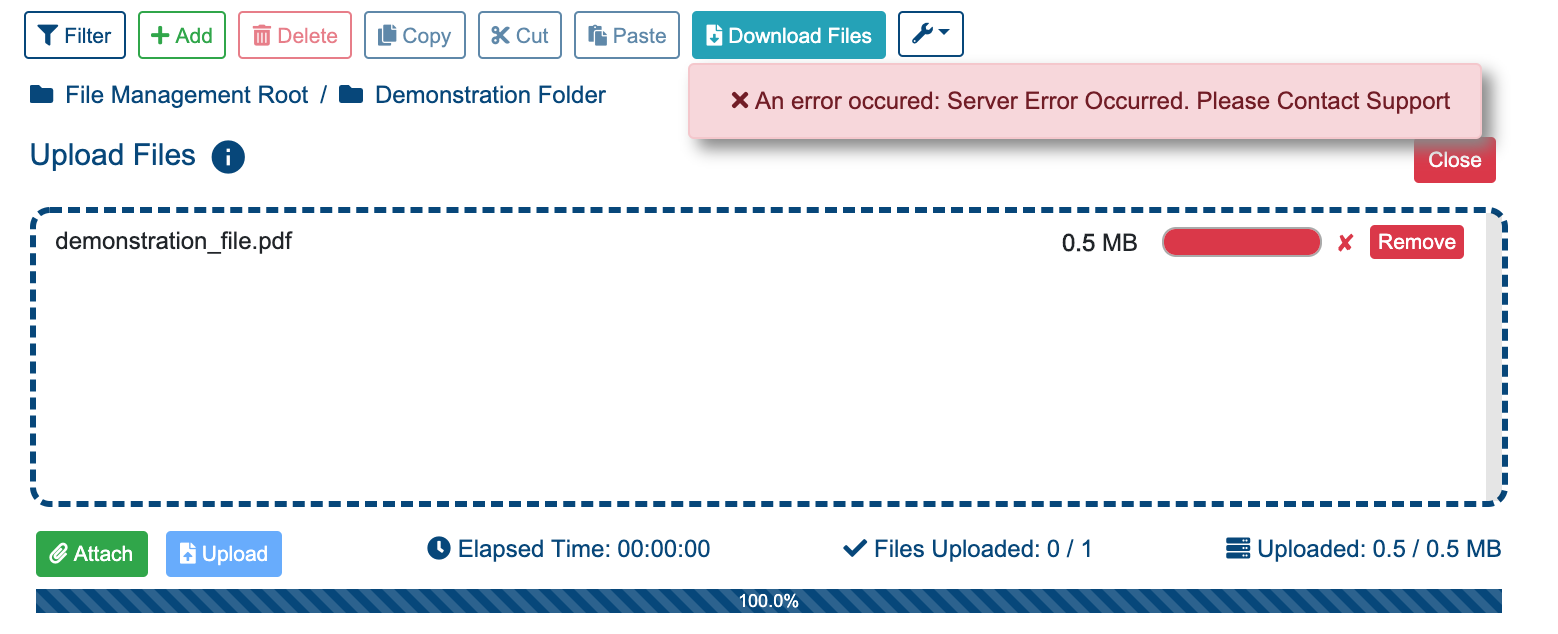
When an upload is completed—whether successful or failed—the Drag & Drop File Upload Tool will not close automatically. Manual closing is required when the tool is no longer needed.
Limitations
This tool only provides the ability to upload files of any type. To upload a folder or folder structure, the upload folder structure functionality functionality is available.
Only five files can be uploaded in parallel. If more files are added, the remaining ones will be queued.
The size limitation corresponds to the available space on the infinitrac instance.
Reloading the page or navigating to another view will interrupt the upload process.
Mobile possibilities
On mobile displays, all functionalities are available, and it is also possible to instantly upload a photo right after taking it.
Attach Files
By pressing the Attach button, the default browser file selection window will open, allowing you to select one or multiple files. The upload begins after the Upload button is clicked.
Upload Files
By pressing the Upload button, the added files will begin uploading. Each file has its own progress bar indicating the upload status. Once the upload is complete, the data table below will display the successfully uploaded files.
Close
By pressing the Close button, any files that are uploading or pending upload will be canceled, and the upload area will be hidden.
Elapsed Time
Displays the time elapsed since the upload started, formatted as hh:mm:ss.
Files Uploaded
Displays the number of files successfully uploaded and saved, out of the total number of files added.
Uploaded
Displays the total size of files uploaded in megabytes, out of the total size of files added.
Progress
Displays total upload progress in percentages.
Cancel Upload
By pressing the Cancel Upload button, any files that are uploading or pending upload will be canceled.