Adding Material Receiving Report(s)
To add a Material Receiving Report (MRR), user role must have an “add“ privilege enabled.
To create an MRR:
Navigate to the MRR’s Detail View by clicking the button in the folder tree toolbar.
Click the + button to create a new MRR.
Fill in all required fields, which are indicated by a red border and/or red warning text (see screenshot below).
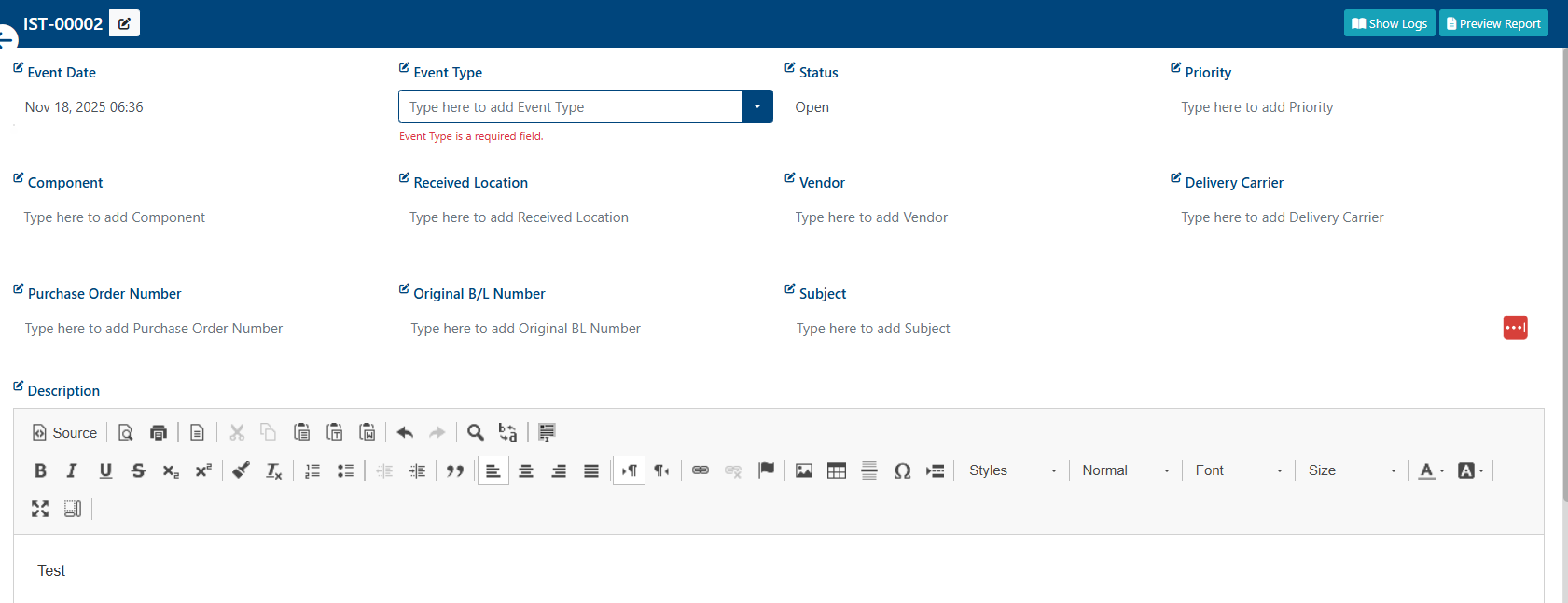
Comments, files, and recipients can also be added.
These features are detailed in the relevant subsections.
All changes made to MRR fields are saved automatically
Once the MRR is created, a success alert will appear in the top-right corner with the message:
“Material Receiving Report has been created successfully!”
To return to the List View, click the > button.
The new Material Receiving Report will be added to the selected folder.