Material Receiving Report Detail View
Material Receiving Report (MRR) Detail View is used to manage a single MRR data/content. Detail View displays all of the MRR attributes and associations such as:
MMR Content - Files table
MMR Recipients - Recipients table
MMR Comments - Comments Table to collect Recipient's feedback
MMR Response Files - Files attached to aid the resolution of the issue
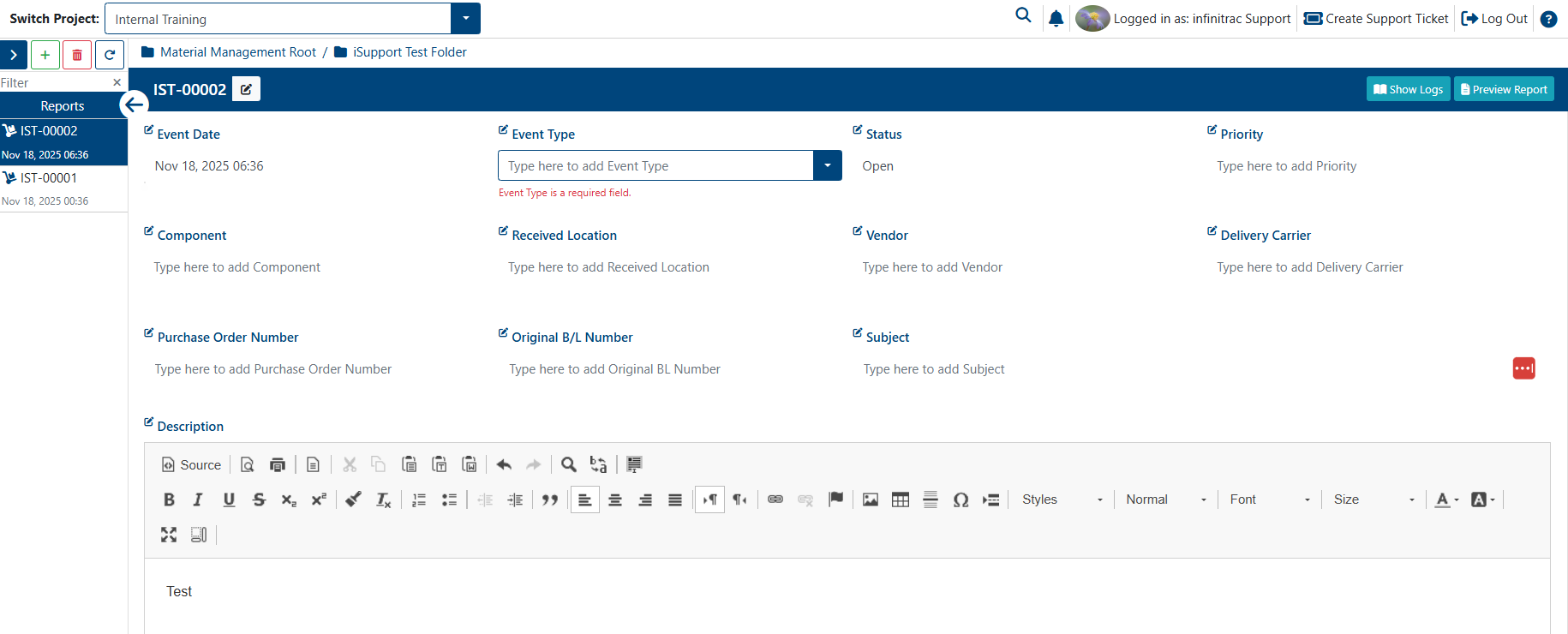
Material Receiving Report Detail View Actions
- Adding Material Receiving Report(s)
- Deleting Material Receiving Report(s)
- Editing Material Receiving Report(s)
- Material Receiving Report Comments
- Material Receiving Report Files
- Material Receiving Report Generate and Email Package
- Material Receiving Report Generate Package
- Material Receiving Report Logs
- Material Receiving Report Preview and Downloading
- Material Receiving Report Recipients
- Material Receiving Report Reopen
- Material Receiving Report Response Files
By default, the Recipients, Comments, and Files tables are minimized.
Clicking the down arrow button will expand the respective section.
Each table title displays the number of items it contains. Tables with zero items do not show a count.
Recipients Table
The Recipients table is used to manage the contacts to whom Material Receiving Report are sent.
Users must have Contact Management permissions enabled in order to manage Material Receiving Report contacts.
Each Material Receiving Report recipient will receive a separate email notification containing a tracking code and a download link to the Submittal content.
To send out a Material Receiving Report, at least one recipient must be added to the Recipients table.
If no recipient are present, the table border will appear in red to indicate that this is a required field
Comments Table
The Comments table is used to manage Material Receiving Report correspondence received from recipients or the sender.
Comment replies are nested one level beneath each original comment.
Users must have the Material Receiving Report - Edit permission enabled to edit comments, and Material Receiving Report - Delete permission to delete them.
Files Table
The Files table is used to manage the content of a MRR package.
Files uploaded or associated with the Submittal will be packaged into a ZIP archive, which also includes a PDF Material Receiving Report Report.
Users must have the Material Receiving Report - Edit permission enabled to modify file metadata, and Material Receiving Report - Delete to remove files from the Submittal.
To import files into a MRR, the Material Receiving Report - Import permission must be enabled
To send out a MRR, at least one file must be added to the Files table.
If no items are present, the table border will appear in red to indicate that this is a required field
In this section
- Adding Material Receiving Report(s)
- Deleting Material Receiving Report(s)
- Editing Material Receiving Report(s)
- Material Receiving Report Comments
- Material Receiving Report Files
- Material Receiving Report Generate and Email Package
- Material Receiving Report Generate Package
- Material Receiving Report Logs
- Material Receiving Report Preview and Downloading
- Material Receiving Report Recipients
- Material Receiving Report Reopen
- Material Receiving Report Response Files