Material Receiving Report Files
Uploading Files to a MRR
To upload a file and associate it with a MRR:
Navigate to the MRR Detail View by clicking the “< List” button.
In the Files section, click the “+” button.
Drag and drop files into the upload area, or browse and select files from your file explorer.
Multiple files can be added at once.
If a file has already been uploaded to the project's File Management module, there is no need to upload it again.
Instead, you can simply associate the file with the Daily Report.
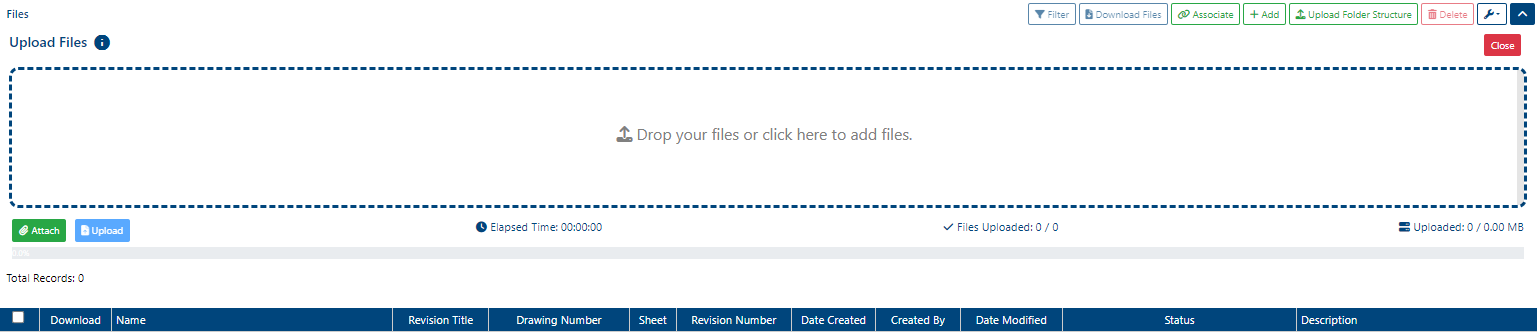
Once the file(s) are uploaded, a success alert will appear in the top-right corner with a green check mark.
Downloading Files from a MRR
Users can download all files associated with a MRR by clicking the Download Files button.
All selected files will be downloaded together as a compressed ZIP file.
The Download Files button remains disabled until at least one file has been uploaded.
Deleting Files from a MRR
To delete associated files from a MRR:
Click the checkbox next to the file(s) you want to remove.
Click the Delete button.

Deleting a file associated with a MRR is permanent and cannot be undone.
Associating Files to an MRR
Instead of uploading a file directly to a MRR, users can associate an existing file that has already been uploaded to the project's File Management module.
A single file can be associated with multiple MRR(s).
Once associated, the file will appear in the Detail View of each linked MRR.
A file cannot be associated with the same Daily Report more than once.
Dynamic Linking
Users can choose to enable or disable dynamic linking when associating a file with a MRR.
If dynamic linking is ON:
Any new revision uploaded to the file (via the File Management module’s folder Detail View) will automatically update across all associated MRR.If dynamic linking is OFF:
The file revision shown in the MRR will remain unchanged, even if a newer revision is uploaded in File Management.
Steps to Associate a File with a MRR
Navigate to the Files section in the MRR(s) Detail View.
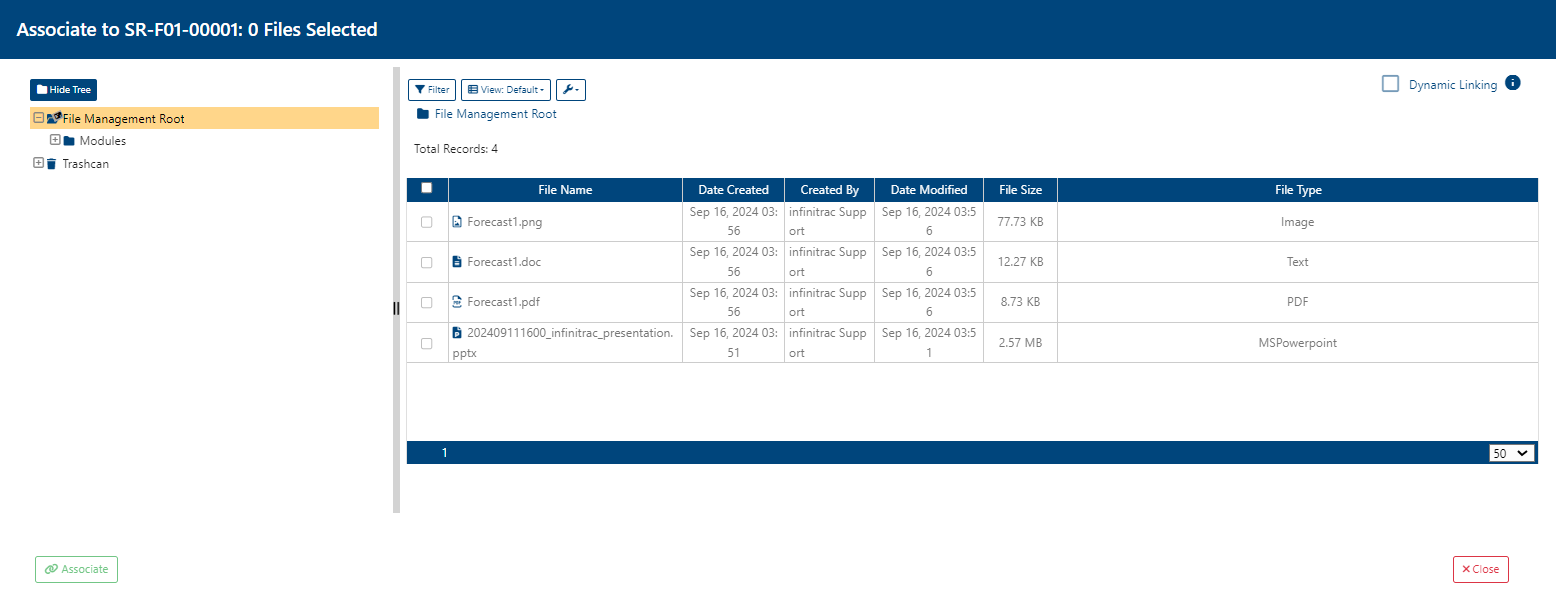
Click the Link button (see screenshot below).
A new window will open, showing the File Management module’s folder tree.
Select the file(s) you want to associate with the MRR.
Use the checkbox in the top-right corner to turn Dynamic Linking ON or OFF.
Click the Associate button to complete the process.
The selected files will now appear in the MRR's "Files" section.
Files in the File Management module that are associated with multiple MRR(s) cannot be deleted without confirmation
Uploading Folder Structure
Instead of uploading individual files, users can upload entire folder structures (including subfolders and files) to a MRR.
These structures must be archived/zipped before upload. Once uploaded, infinitrac will unpack the contents into the selected transmittal.
Steps to Upload a Folder Structure
Navigate to the Files section in the MRR Detail View.
Click the “Upload Folder Structure” button (see screenshot below).
A new window will open with a dropzone area.
Drag and drop your zipped folder into the dropzone, or browse and select it from your file explorer.
Click the “Upload” button located in the dropzone to begin the upload.
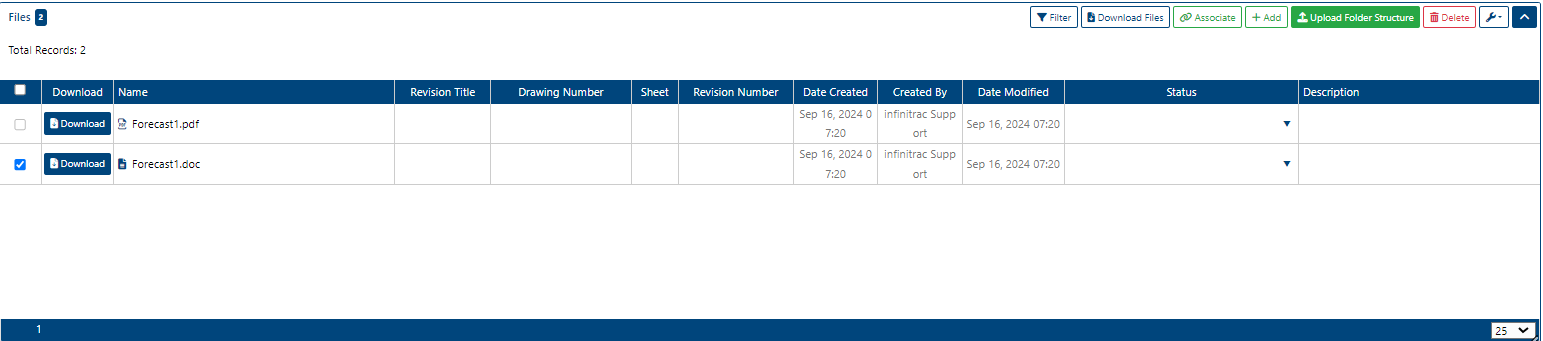
The accepted archive formats—.zip, .tar, and .gz—will be displayed in the upload window.
Uploading a large number of files or folders may take time, depending on the user's internet connection.
Once the upload is complete, the user will receive an email notification with details about the uploaded folder structure and its location within the File Management module.