Downloading an Issue(s)
Downloading an Issue Report
To download an Issue Report:
Select the Issue to download.
Click on the “< Detail” button in the folder tree toolbar, this will open the Detail View of the selected Issue.
Click “Download Report” button in the upper right-hand corner.

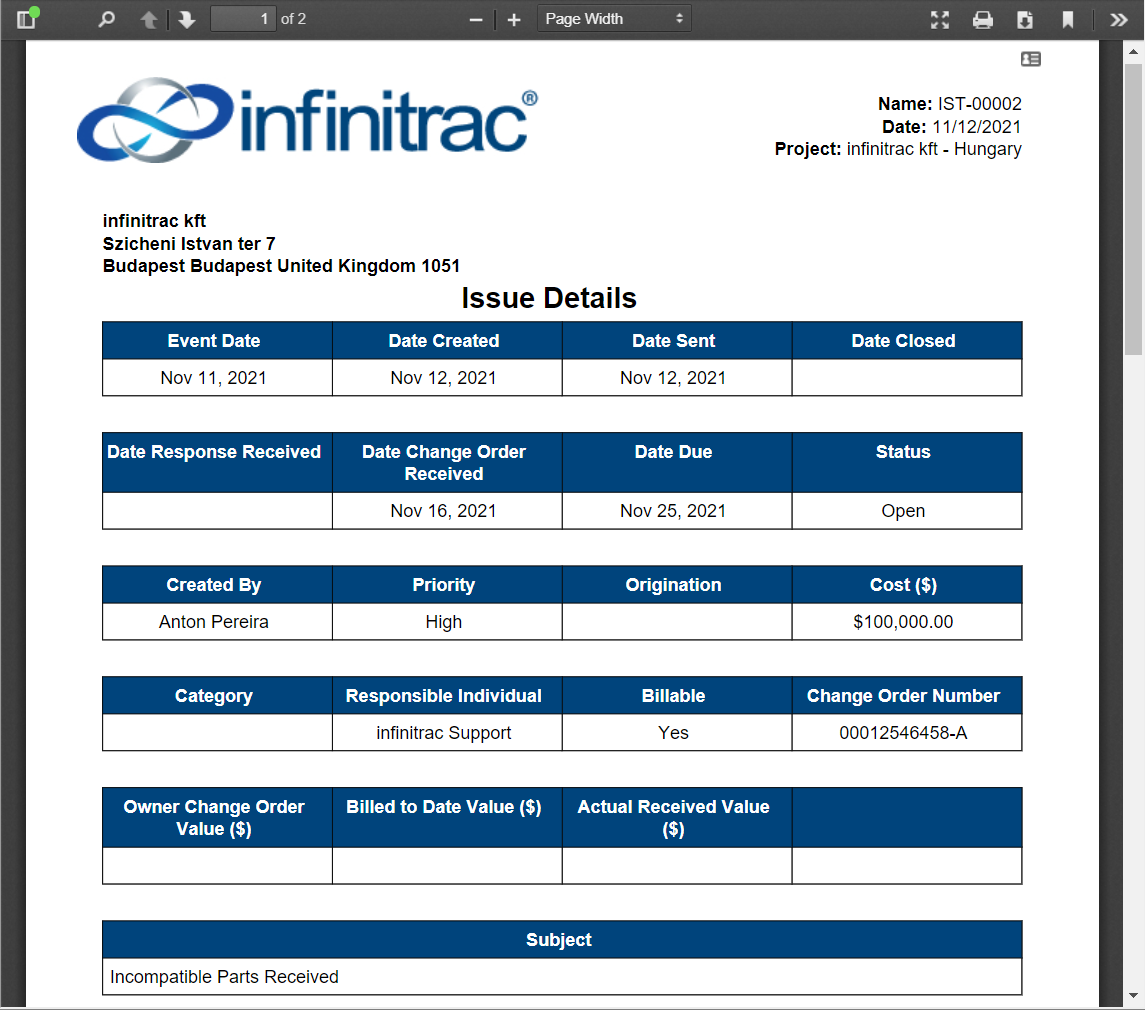
The report will be in PDF format, and will include all available information from the Detail View - name recipients, comments, names of files uploaded as well as the details of the report itself (see screenshot below).
Downloading an Issue package
To download an Issue Package:
Select the Issue to download.
Click on the “< Detail” button in the folder tree toolbar, this will open the Detail View of the selected Issue.
Click “Download Package” button in the upper right-hand corner.
A success alert message will appear on the top right hand corner with a message composed of the downloading date and Issue name.
Eg: “2021-03-10_TRANS-00004_ Rev_01.zip downloaded successfully“.
It will download a zip format folder of the Issue report, which includes every file associated with the Issue as well and the report itself in PDF format.
"Download Package" button becomes available when an Issue has been closed.