Add New Daily Report
Daily Reports may be added by clicking the "Add Daily Report" icon. When doing so, you will be automatically led into the newly created Daily Report.
The Daily Report's detail view is set in a tabular view. Each section is listed on top with the blue tab as the active, or currently viewed, section - Viewable access may vary.
General
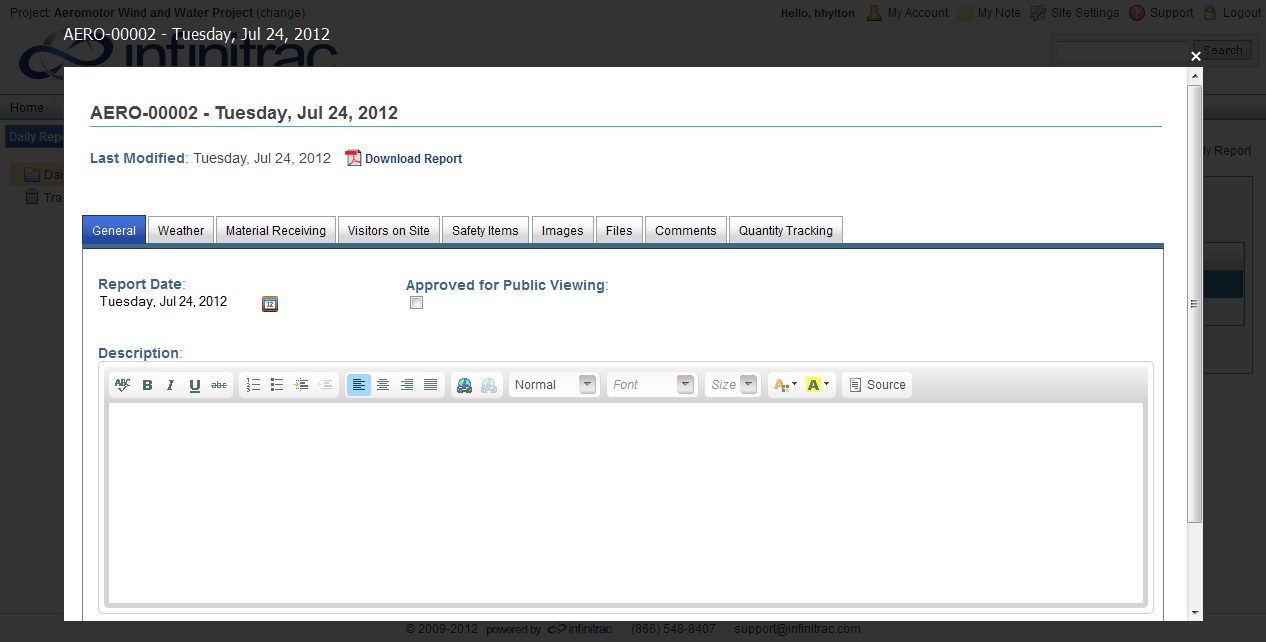
Figure 1 - Daily Report Detail View "General"
Enter a description in the "Description" dialog box.
The Daily Report's date may be changed by clicking the Calendar icon and specifying the desired date.
Clicking the "Approved for Public Viewing" check box makes the Daily Report "Read-Only" and available for all users to view from their Dashboards under "Approved Daily Reports." The Daily Report will not be editable until the "Approved for Public Viewing" is unchecked. Click the "X" in the top right hand corner when you desire to Save and finish.
Weather
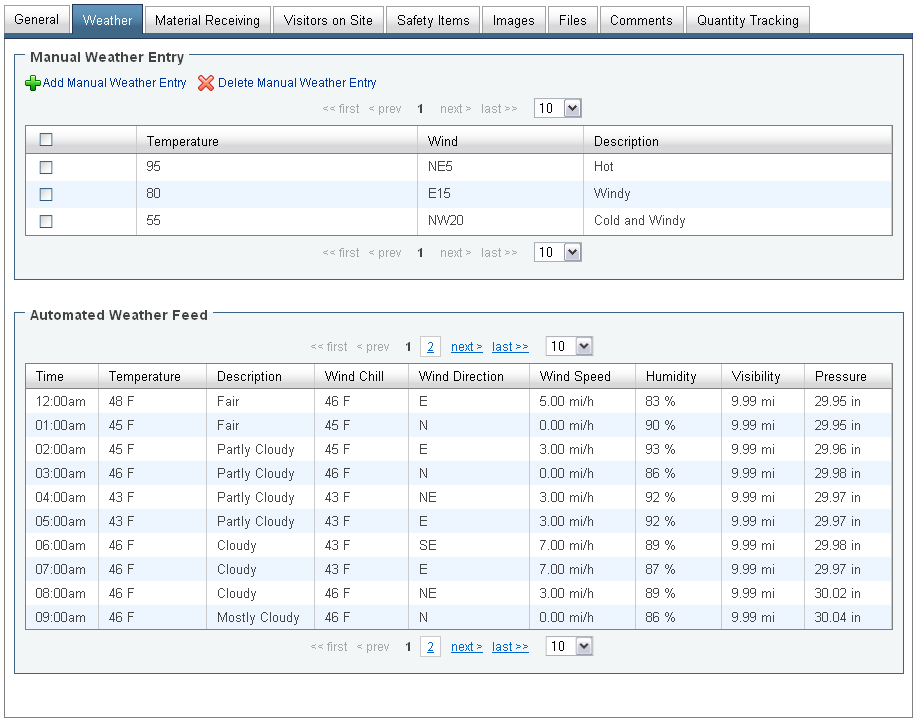
Figure 2 - Daily Report Detail View "Weather"
"Daily Weather Reports" re-populates data into the Daily Report every 10 minutes.
To add a manual Weather entry, click the "Add Manual Weather Entry" link on the upper left corner to open a new window. Click the "Add" button to submit or the "Cancel" button to return to the detail view.
To edit text in a manually entered item, click on each data value.
To delete, click the check box next to the values you wish to delete, then click the "Delete Manual Weather Entry" link on the upper left corner.
To select all, click the first check box in the Header Row.
Material Receiving
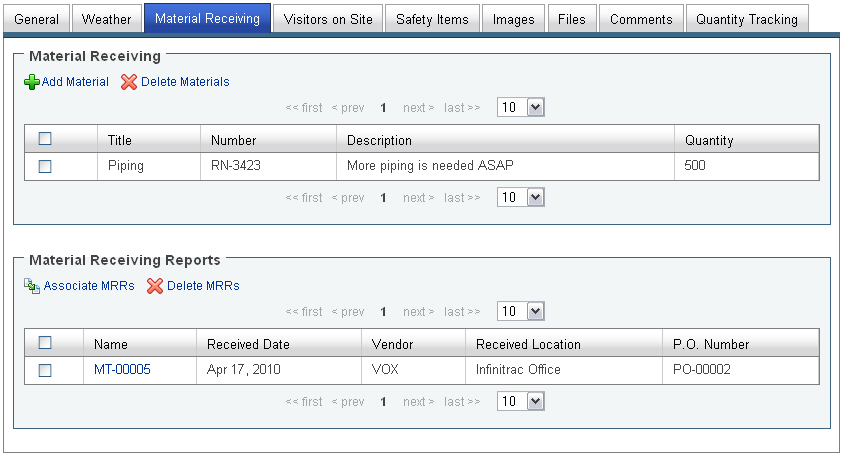
Figure 3 - Daily Report Detail View "Material Receiving"
To add Material Receiving line items, click the "Add Material " link in the upper left corner to open a new window. Enter all known data. Click the "Add" button to submit or the "Cancel" button to return to the detail view.
To edit text, click on each data value.
To delete, click the check box to the left of the values you wish to delete, and then click the "Delete Materials" link on the upper left corner.
To select all, click the first check box in the Header Row.
To associate the Material Receiving section with an existing MRR, click the "Associate MRRs" link in the upper left corner of the "Material Receiving Reports" section. A new window will open displaying existing MRRs in Material Management.
Click the check box next to the MRR you wish to Associate to Daily Reports and click "Add to Daily Report." A success message should appear. Close the window to return to the Daily Report.
You also have the option of creating a new MRR from the new window by clicking "New MRR." See the Adding a New Material Receiving Report User Guide.
Visitors on Site
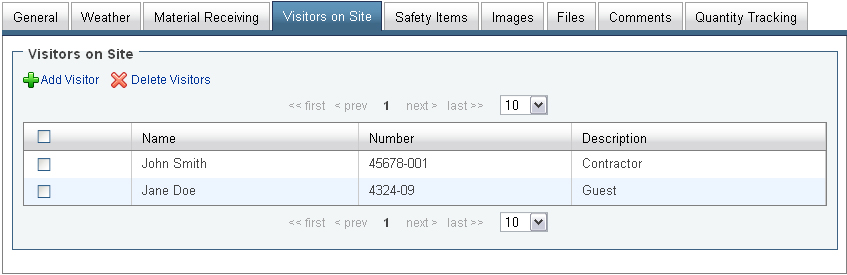
Figure 4 - Daily Report Detail View "Visitors on Site"
To add Visitors entries, click the "Add Visitor" link on the upper left corner to open a new window. Enter all known data. Click the "Add" button to submit or the "Cancel" button to return to the detail view.
To edit text, click on each data value.
To delete, click the check box to the left of the values you wish to delete, then click the "Delete Visitors" link in the upper left corner.
To select all, click the first check box in the Header Row.
Safety Items
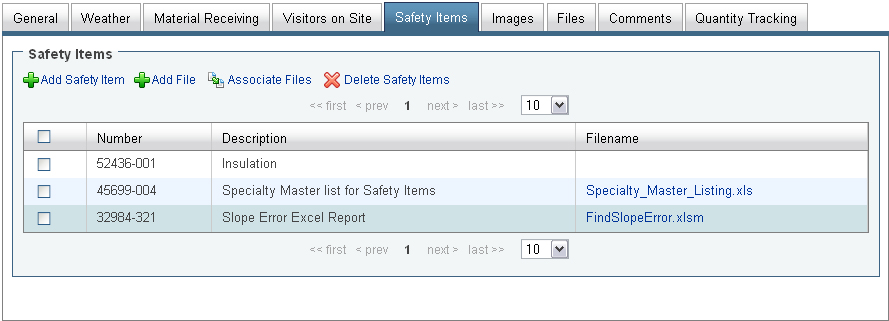
Figure 5 - Daily Report Detail View "Safety Items"There are three ways to add a Safety Item:
Add Safety Item: Opens a new window and the user can manually enter data.
Add File: Allows users to attach a file from their local computer.
Associate Files: Allows user to attach a file located in the infinitrac Library.
New files may also be imported to the Library from this window.
To edit text, click on each data value.
To delete, click the check box to the left of the values you wish to delete, then click the "Delete Safety Items" link in the upper left corner.
To select all, click the first check box in the Header Row.
Images
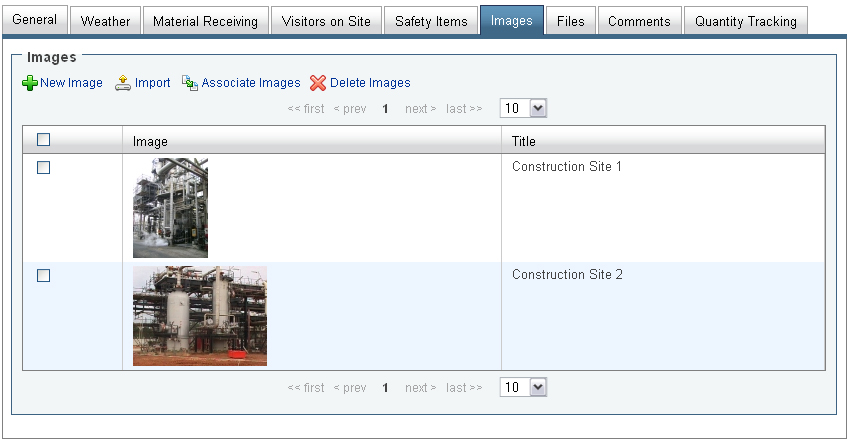
Figure 6 - Daily Report Detail View "Images" There are three ways to add Images:
New Image: Allows attachment of a file from a local computer one file at a time.
Import: Opens a new window, allowing importing of multiple files from a local computer using a Java Application.
Associate Images: Attach a file located in the infinitrac Library.
New files may also be imported to the Library from this window. Images will appear as a thumbnail in the Daily Report.
To edit the File name or Description, click on each data value.
To delete Images, click the check box to the left of the Image(s) you wish to delete, and then click the "Delete Images" link in the upper left corner.
To select all Images, click the first check box in the Header Row.
Files
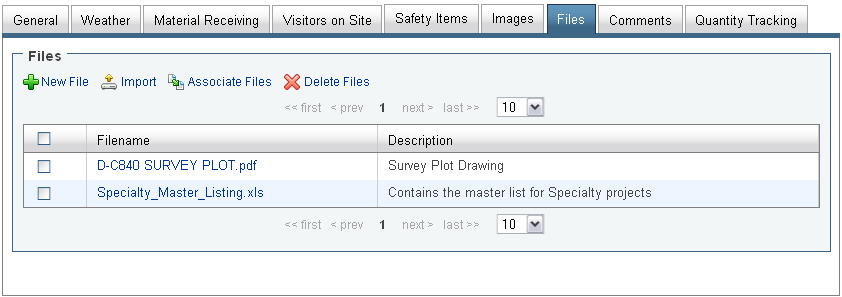
Figure 7 - Daily Report Detail View "Files" There are three ways to add Files:
New File: Allows attachment of a file from a local computer one file at a time.
Import: Opens a new window, allowing importing of multiple files from a local computer using a Java Application.
Associate Files: Attach a file located in the infinitrac Library.
New files may also be imported to the Library from this window.
To add/edit a description, click on each data value.
To delete a file, click the check box to the left of the file you wish to delete, and then click the "Delete Files" link on the upper left corner.
To select all Files, click the first check box in the Header Row.
Comments
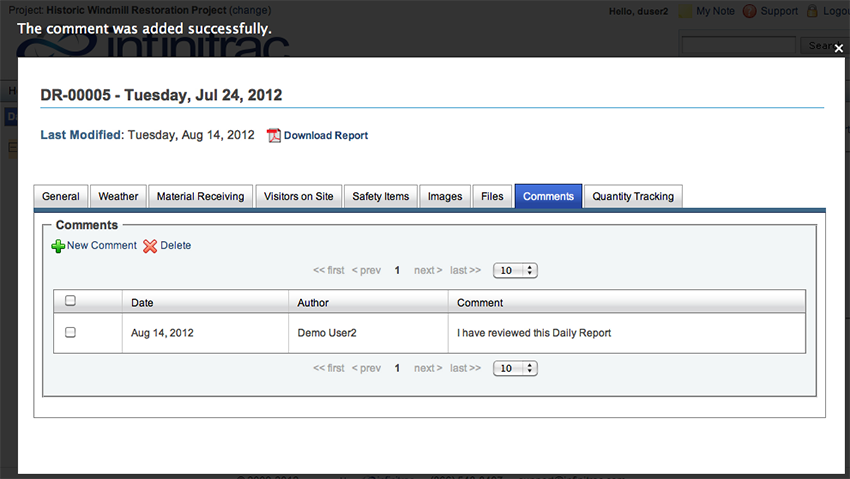
Figure 8 - Daily Report Detail View "Comments"
To add a new Comment, click the "New Comment" link on the upper left corner to open a new window. Enter your comment and click the "Add" button to submit or the "Cancel" button to return to the detail view.
When a new comment is added, the Date and Author are automatically updated.
To edit a comment, click on the comment text.
To delete a comment, click the check box to the left of the Comment you wish to delete, and then click the "Delete" link on the upper left corner.
To select all Comments, click the first check box in the Header Row.
Quantity Tracking
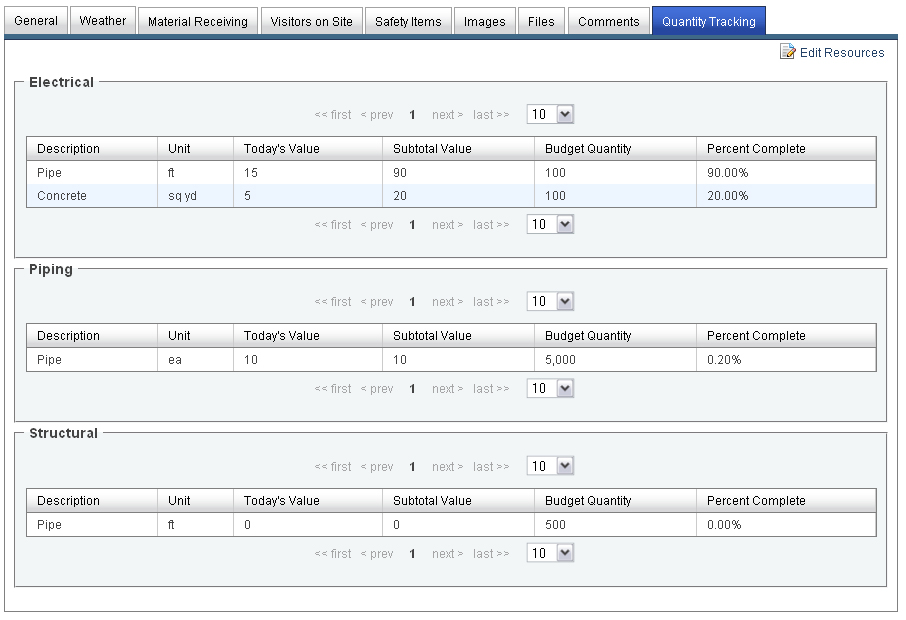
Figure 9 - Daily Report Detail View "Quantity Tracking"
Clicking the "Edit Resources" icon in the upper-right corner allows the user to Add Categories and Resources to the Quantity Tracking Report.
Resources may also be edited, deleted, and marked as Active/Inactive from this view. This will toggle the values on and off for future reports and any printed reports from the active daily report.
You must define your Budgeted Quantity from here, you will not be able to from the detail view.
All values will continue showing up in future Daily Reports and you will be able to enter "Today's Value" for every report. As you add "Today's Value" over time, the Subtotal Value will continue to track the increases and determine your percent complete for value analysis.
To edit a Resource, click the desired table cell. Click "Save" to submit or "Cancel" to go back.