Add new Expense Report
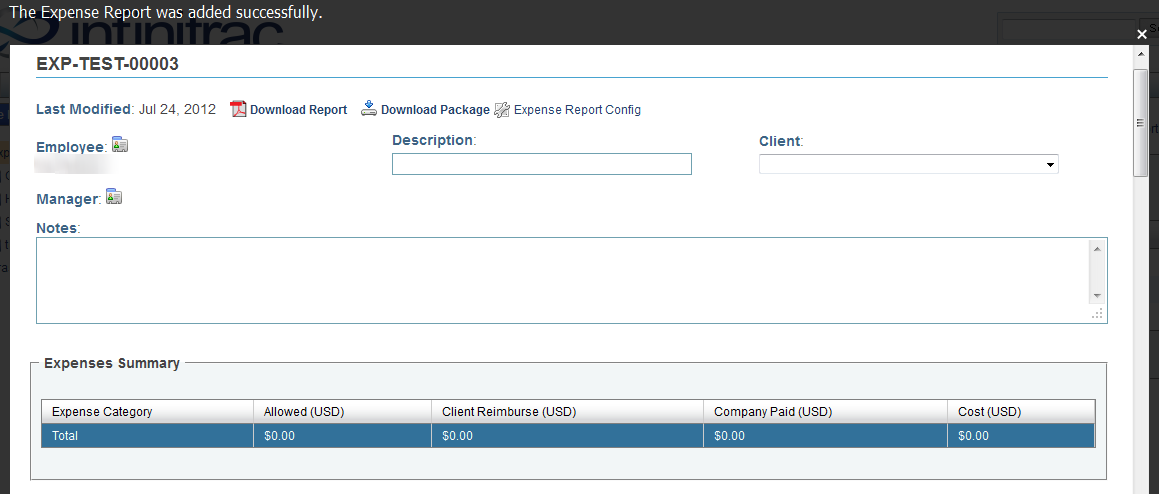
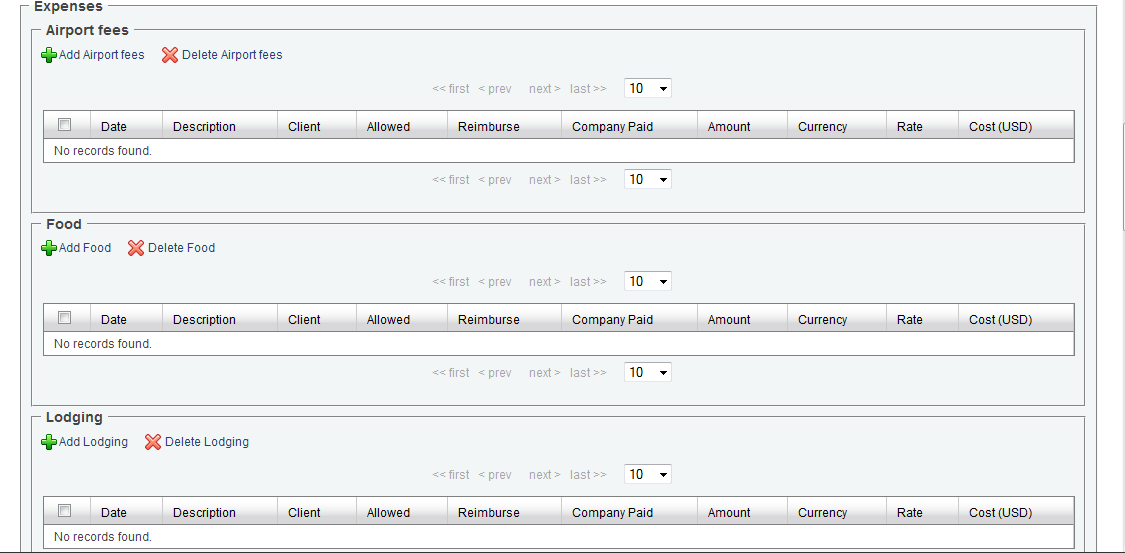
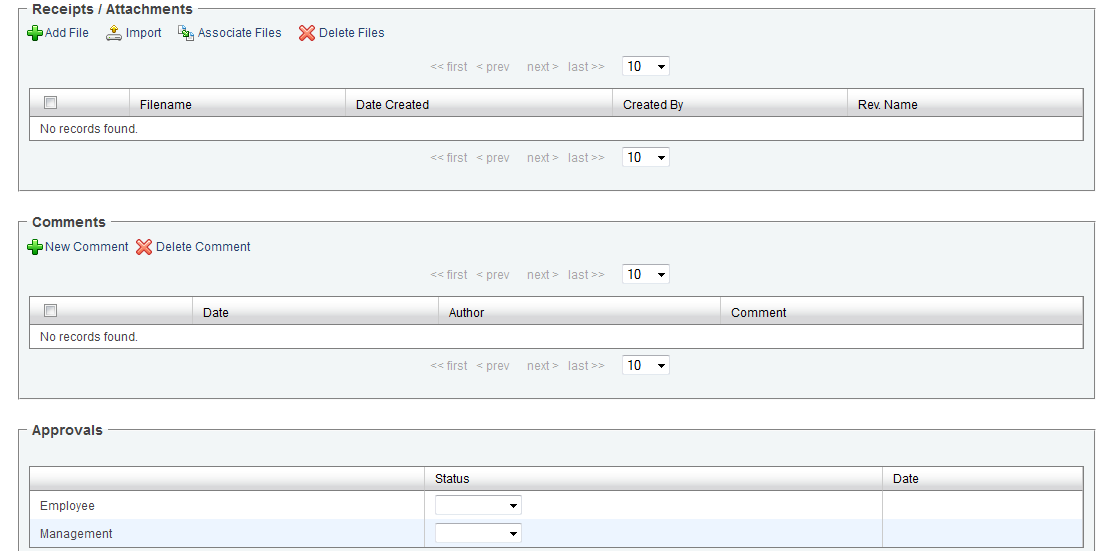
Figure 1 - Expense Report Detail View
Expense Reports may be added by clicking the "New Expense Report" icon. When doing so, you will be presented with the form above.
Edit all of the necessary fields by selecting options from drop down menus and clicking on text fields to enter new information.
To add Contacts to the Expense Report, click the "Employee" or "Manager" link to open a new window.
Click the "Add Contact" link in the upper right corner of the window to add new contacts to the list.
Click the Add link under each Expense type to add line items. To add or remove Expense types see Expense Report Config.
Click the area underneath each column to edit details.
There are three ways to add a Receipt/Attachment to the Expense Report:
Add File: Allows attachment of a file from a local computer one file at a time.
Import: Opens a new window, allowing importing of multiple files from a local computer using a Java Application. See Importing Multiple Files.
Associate Files: Attach a file located in the infinitrac Library.
New files may also be imported to the Library from this window.
To add a new Comment, click the "New Comment" icon to open a new window. Click the "Add" button to submit the comment or the "Cancel" button to return to the detail view.
When a new comment is added, the Date and Author are automatically updated in the detail view.
To approve an Expense Report, in the Approvals section, check the appropriate check box. The Date Approved will automatically update. Un-checking the approval check box will remove the Date Approved.
To Delete any added content from an Issue, select the check box next to the item you wish to delete, then click the "Delete" icon.
WARNING! Once deleted, there is no Undoing that action.