Establish an Agenda and send notifications
To assist in having a focused & goal-oriented meeting, setup your meeting agenda prior to conducting. As a good practice, give all concerned parties ample time to prepare their discussions regarding the meeting agenda.
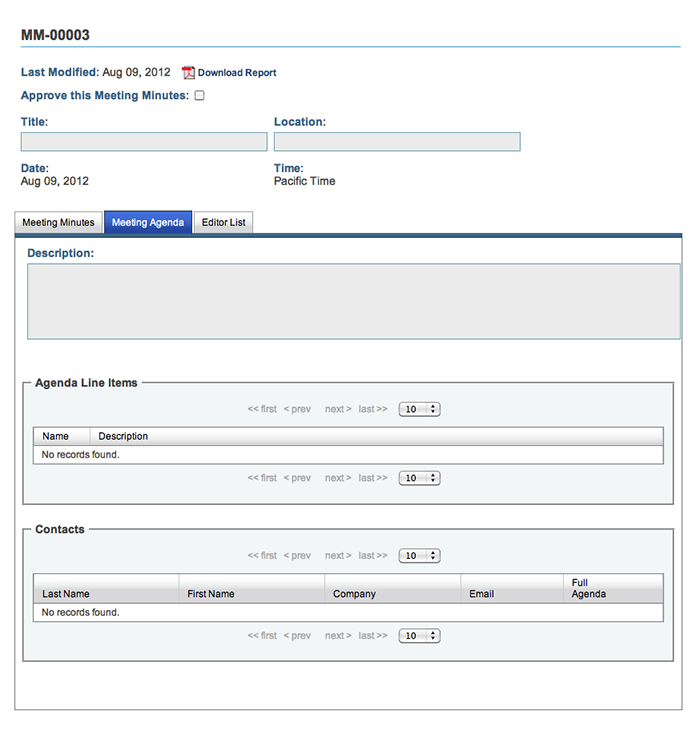
Figure 1 - Meeting Minutes Agenda Detail View
After you've opened a new meeting minute, provide an Title, and include the Date, Time, and Location in the appropriate fields in the header of the Meeting Minute.
Chose "Meeting Agenda" from the tabs at the top of the Meeting Information.
Find the section "Agenda Line Items". Click on " Add Agenda Line Item". A new Item will be displayed (see "Name" column heading), click in the blank field below the "Description" column heading to open the text edit box. Describe a topic for discussion for the meeting and click "Save".
Repeat the previous step for all pertinent topics for discussion.
Find the section "Contacts". Click on " Add Contact". A window will open displaying your Contact Manager. If there are any parties that should receive this, but are not currently in your Contact Manager, click the " Add Contact" button, fill out the appropriate information and select "Add Contact". When your Contact Manager has all parties entered, check the boxes to the left of any parties to receive the Meeting Agenda and click " Add to Meeting Minute".
After returning to the Meeting Minute Agenda, you can adjust whether you would like each contact to receive a full agenda (Meeting Title, Time and Place Email notification + PDF report of all Agenda Line Items) or not (Meeting Title, Time and Place Email notification only).
Click "Send Agenda" at the bottom of the page to send to contacts.