Add new RFI
RFIs can be added by clicking the "New RFI" icon. A new pop-up window will appear.
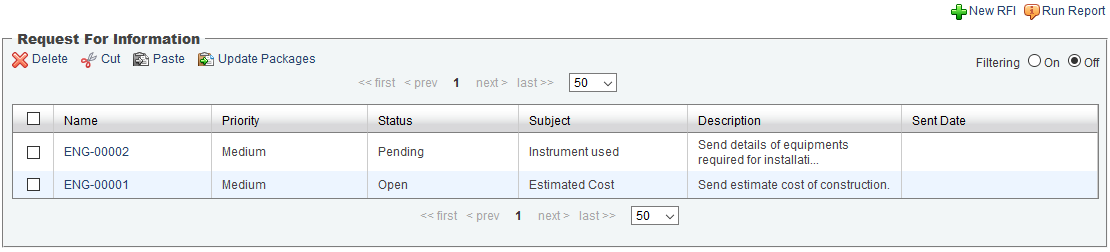
Update Packages
Update packages button gives user an option to update multiple RFIs package at once. Selection of maximum of 10 RFIs can be allowed at a time.
To select the RFI, click on the checkbox at the left side of each RFI. Then click on "Update Packages".
Creating a new RFI
Set all of the necessary attributes, except: Date Returned, Response and Response files. These fields are completed by team members as a response, after a RFI is sent or generated.
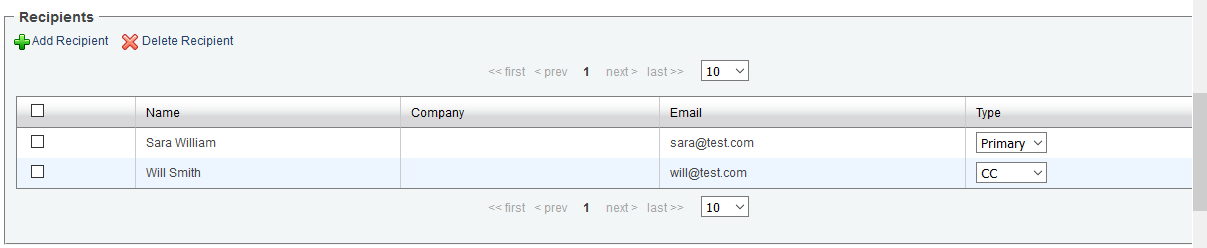
Add Recipient: To add a Recipient to the RFI, click the "Add Recipient" icon to open the Contacts window. Multiple Contacts may be added to the RFI at once, and new Contacts can be added if they are not listed.
Set the Recipient's Type to specify how the RFI will be emailed to each Recipient.
Primary: Receive an email notification, RFI compressed package file, and a PDF Report. The Primary Recipient will be able to see who the CC Recipients are in the email.
CC: Receive an email notification and a PDF Report. Recipient will not be able to see who the Primary Recipients are.
BCC: Only receive an email notification. Recipient will not be able to see who the Primary and CC Recipients of the RFI are.
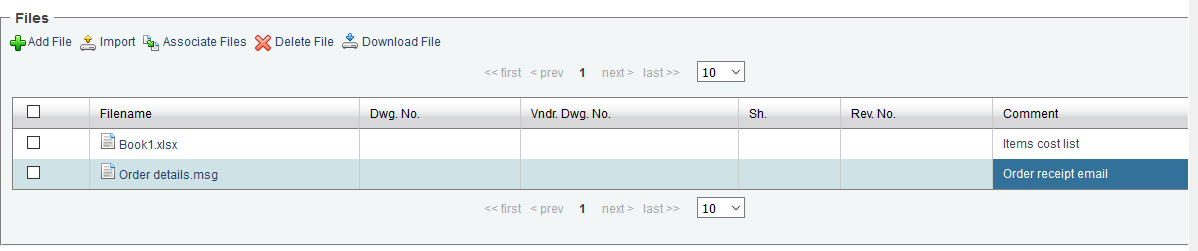
Add Files: There are three ways to add Files:
Add File: Allows attachment of a file from a local computer, one file at a time.
Import: Opens a new window, allowing importing of multiple files from a local computer.
Associate Files: Attach a file located within the infinitrac Library.
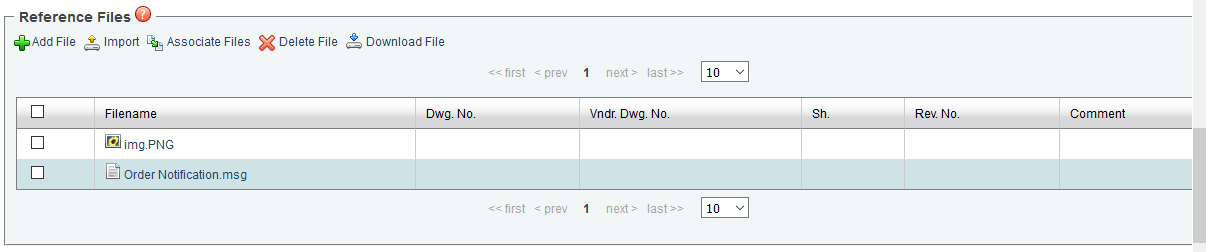
Add Reference Files: Adding a reference file is the same as adding files.
Reference files are not included in the RFI package
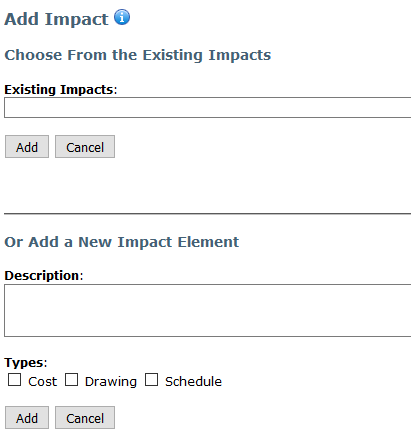
Add Impact: The user is also able to associate the RFI with an Impact element by clicking the "Add Impact" icon.
Impacts can be selected from Existing Impacts or users have the option of creating a new one.
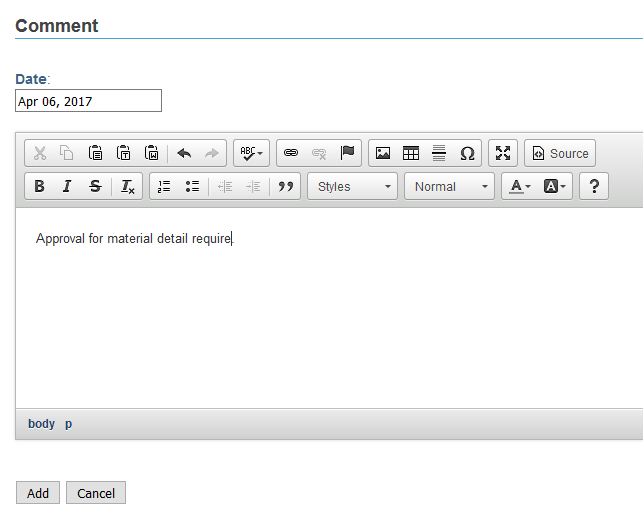
Add Comment: Add a comment to the RFI by clicking the "Add Comment" icon, the user will be directed to a new window. Clicking the "Add" button at the bottom of the window will add the comment to the RFI.
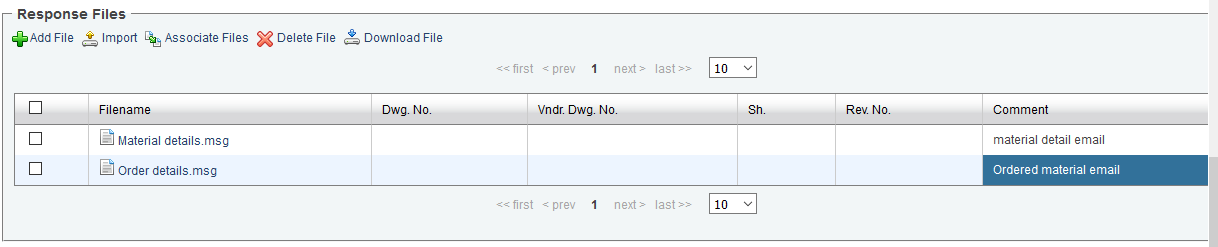
Response Files: Users may respond to the RFI by attaching Response Files. The process of uploading files is the same as adding Files.
Delete: To Delete added content from a RFI, select the checkbox next to the item you wish to delete, then click the "Delete" icon.
WARNING! Once deleted, there is no undoing that action.
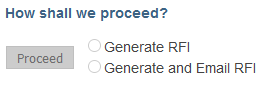
Send RFI: Choose the desired send method and click on "Proceed" button. Once the RFI is sent, it will become "Read-Only" and unable to be edited.
Generate RFI or
Generate and Email RFI
"Generate RFI" allows the user to create and save the RFI in infinitrac without sending it to the Recipients.
"Generate and Email RFI" allows the user to save the RFI in infinitrac and Email the RFI to the Recipients listed
Email Notification: Recipients can download the report and package through their email.
Users will have five new options when they open a "Read-Only" RFI. These options may vary based on Instance customization:
Create Revision: Creates a duplicate RFI with the same properties of the original RFI.
When a new Revision is created, a link to the original RFI is included in the title.
Download Report: Generates the most recent PDF Report of the RFI.
Download Package: Download a zipped file consisting of the RFI files, RFI PDF report, and Response files.
Resend: Update package and report. Send email to recipients.
Update: Only update package and report.
Note! Reference files are not included in the package.

Accessing files through the File Library
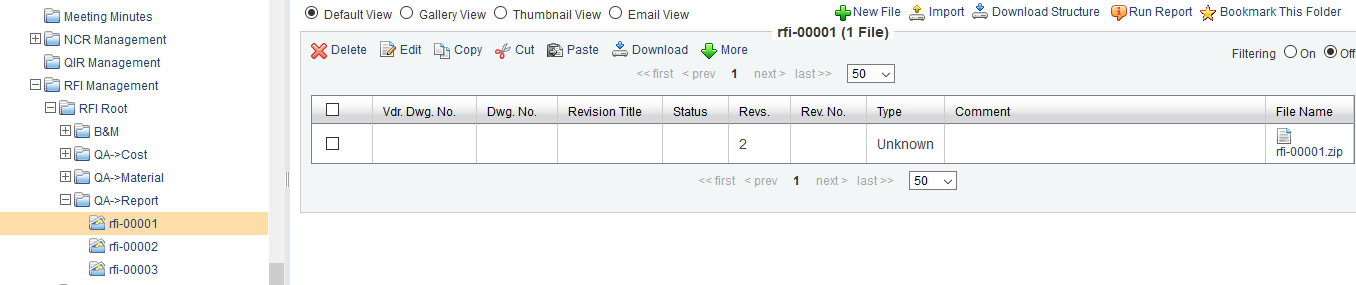
RFI files can be downloaded from the file library under "File Management". In Project->Modules > RFI Management > RFI Root->RFI Folder, RFI Folder should have the file RFI .zip package
Inside the RFI Root, each folder contains RFIs files
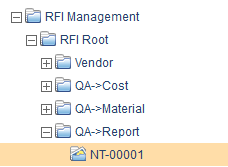
You can see file details by clicking on the file name.