Add new Issue
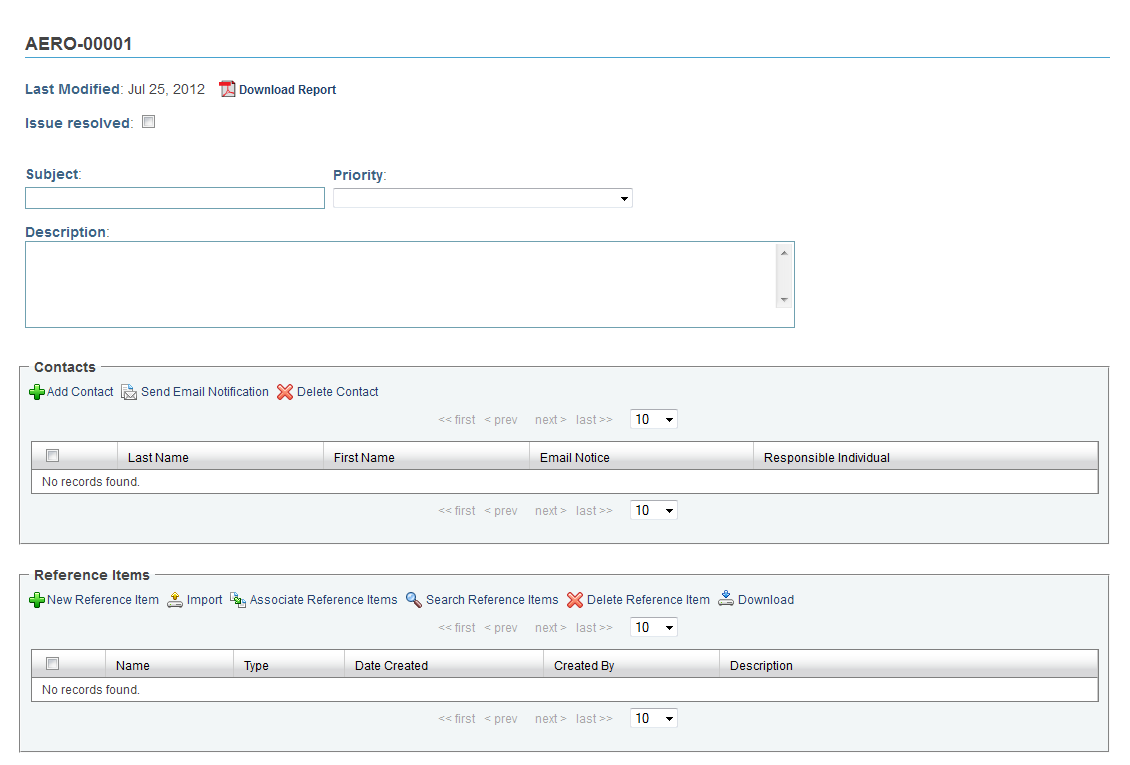
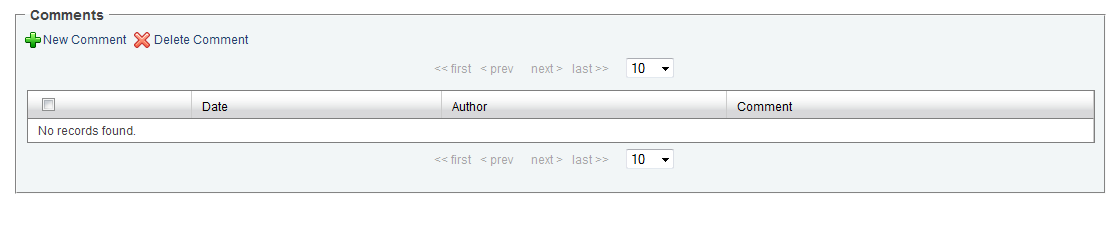
Figure 1 - Issue Resolution Detail View
Issues may be added by clicking the "New Issue" icon. When doing so, you will be presented with the form above.
Edit all of the necessary fields by selecting options from drop down menus and clicking on text fields to enter new information.
To add Contacts to the Issue, click the "Add Contact" link to open a new window. Multiple Contacts may be added to the Issue at once, and new Contacts can be added if they are not listed.
There are three ways to add a Reference Item to the Issue:
New Reference Item: Allows attachment of a file from a local computer one file at a time.
Import: Opens a new window, allowing importing of multiple files from a local computer using a Java Application. See Importing Multiple Files in the File Management User Guide.
Associate Reference Item: Attach a file located in the infinitrac Library.
New files may also be imported to the Library from this window.
To add a new Comment, click the "New Comment" icon to open a new window. Click the "Add" button to submit the comment or the "Cancel" button to return to the detail view.
When a new comment is added, the Date and Author are automatically updated in the detail view.
To Delete any added content from an Issue, select the checkbox next to the item you wish to delete, then click the "Delete" icon.
WARNING! Once deleted, there is no Undoing that action.
When an Issue has been resolved, click the "Issue Resolved" checkbox. Once it has been checked, the Issue will become "Read Only" and will no longer be editable. A timestamp will be visible for the day the Issue was closed.
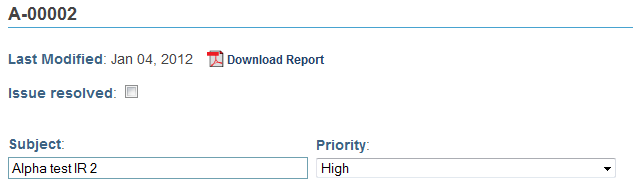
Figure 2 - Issue Header Before Resolution
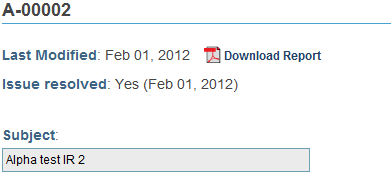
Figure 3 - Issue Header After Resolution