Add new Material Receiving Report
Material Receiving Reports may be added by clicking the "Add Material Receiving Report" icon. When doing so, you will be automatically led into the newly created Material Receiving Report.
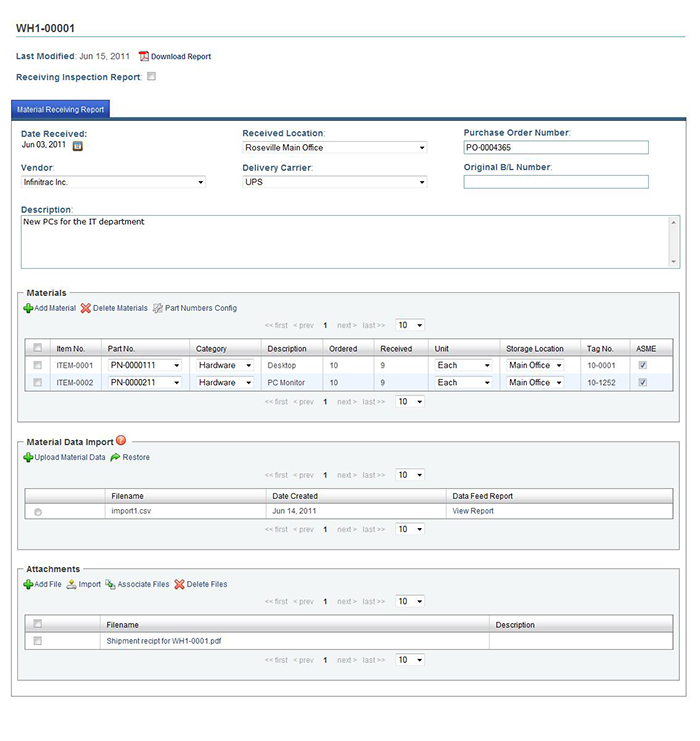
Figure 1 - Material Receiving Report Detail View
Material Receiving Report Details
The Material Receiving Report detail view contains the following attributes:
Date Received – The date that the materials were arrived and received by the materials manager. This value may be set by clicking the “Calendar” icon and specifying the desired date.
Received Location – The location that the materials were collected. This value may be set by choosing the appropriate selection from the drop-down list, or by choosing “Add” to add a new value (user permission applies).
Purchase Order Number – The P.O. number is an alphanumeric code that is assigned to the order that is placed to a vendor regarding the ordered and received materials. This value may be set by simply entering the value then either tab-out or click away from the textbox.
Vendor – The vendor who deliveries the materials. This value may be set by choosing the appropriate selection from the drop-down list, or by choosing “Add” to add a new value (user permission applies).
Delivery Carrier – The transport carrier whose responsibility it is to place a shipment at the disposal of the vendor’s warehouse. This value may be set by choosing the appropriate selection from the drop-down list, or by choosing “Add” to add a new value (user permission applies).
Original B/L Number – It is a bill of lading number that issued by the delivery carrier. The bill of lading is used in taking delivery of a shipment. This value may be set by simply entering the value then either tab-out or click away from the textbox.
Description –The description of the Material Receiving Report. This value may be set by simply entering the value then either tab-out or click away from the textbox.
Materials Table
Materials may be added by clicking the "Add Materials" icon in the upper left corner of the "Materials" section.
Edit all of the necessary fields by selecting options from drop down menus and clicking on text fields to enter new information.
Item Number – An auto-generated serial number for identifying the materials.
Part Number – It is a unique identifier of a part used by the project. Its purpose is to simplify referencing to that part. This value may be set by choosing the appropriate selection from the drop-down list, or by choosing “Add” to add a new value (user permission applies).
Category – It defines the materials type. This value may be set by choosing the appropriate selection from the drop-down list, or by choosing “Add” to add a new value (user permission applies).
Description – The description of the materials. This value may be set by simply entering the value then either tab-out or clicks “save” from the textbox.
When the description is saved, the system will automatically save the description with the correspondent Part Number. Next time when a user selects a Part Number, the description will be automatically inserted.
Ordered – The ordered quantity of the materials. This value may be set by simply entering the value then either tab-out or clicks “save” from the textbox.
Received - The received quantity of the materials. This value may be set by simply entering the value then either tab-out or clicks “save” from the textbox.
Unit – The unit of measure of the materials. This value may be set by choosing the appropriate selection from the drop-down list, or by choosing “Add” to add a new value (user permission applies).
Storage Location – The location / warehouse where stores the materials. This value may be set by choosing the appropriate selection from the drop-down list, or by choosing “Add” to add a new value (user permission applies).
Tag Number – It is a unique extended-identifier of a part used by the project. Some parts that are used in a project may not be generic parts. They require another unique code to identify each part. For example, valve tag numbers are used to indicate each valve spec in use. This value may be set by simply entering the value then either tab-out or clicks “save” from the textbox.
ASME – It identifies if the materials meet the ASME standards. This value may be set by simply checking the check-box.
To delete any added materials from a materials table, select the checkbox next to the item you wish to delete, and then click the "Delete Materials" icon.
WARNING! Once deleted, there is no Undoing this action.
To change or edit the Part Numbers, click ”Part Number Config” icon, and a new lightbox-screen will display a list of Part Numbers along with the associated Descriptions for editing.
WARNING! Once the Part Number value is changed, the new value will take place in ALL related Materials.