Material Management Basics
The goal of Material Management is to provide an unbroken chain of components for material managers to control the materials that are used in a project. This module allows users to manage material arrivals recording, inventory housekeeping and requisition handling.
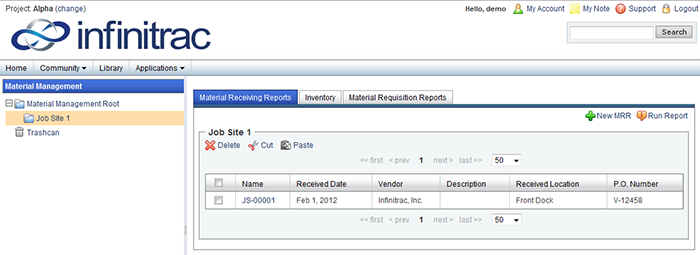
Figure 1. Material Management List View
Upon entering the Material Management, a folder structure will be present in the folder pane on the left.
You may increase or decrease the width of the folder pane by dragging it.
Clicking the arrow to the left of any folder will expand it, displaying each of its sub-folders. Clicking it again will retract it.
Upon clicking a folder, the file contents and their attributes within that folder will appear in the content pane on the right side of the screen.
Right-click a folder to view folder editing options.
Once you have selected a Material Management folder, right-click the folder to view the editing options.
Before any Material Receiving Reports and Material Requisition Reports can be added to the selected folder, it must have a Prefix set.
To set a Prefix, right click on a folder to view the Folder menu then click the "Set Prefix" icon.
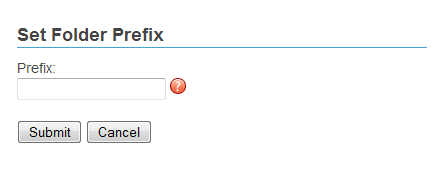
Figure 2. Set Folder Prefix widget
A new window will open allowing the user to set the Prefix to the folder. Click the "Submit" button to apply the Prefix and close the window.
Prefixes may only be set when a Folder is "Mounted." Prefixes cannot be set to Un-Mounted folders.
Material Receiving Reports and Material Requisition Reports may be organized into subfolders, but will maintain their serialized identification.
Clicking the "Add MRR" button in the Material Receiving Reports tab will add a new Material Receiving Report to the selected folder. Also see “Adding a New Material Receiving Report" in this User Guide.
Material Receiving Reports will be named after their Prefix and a serialized number.
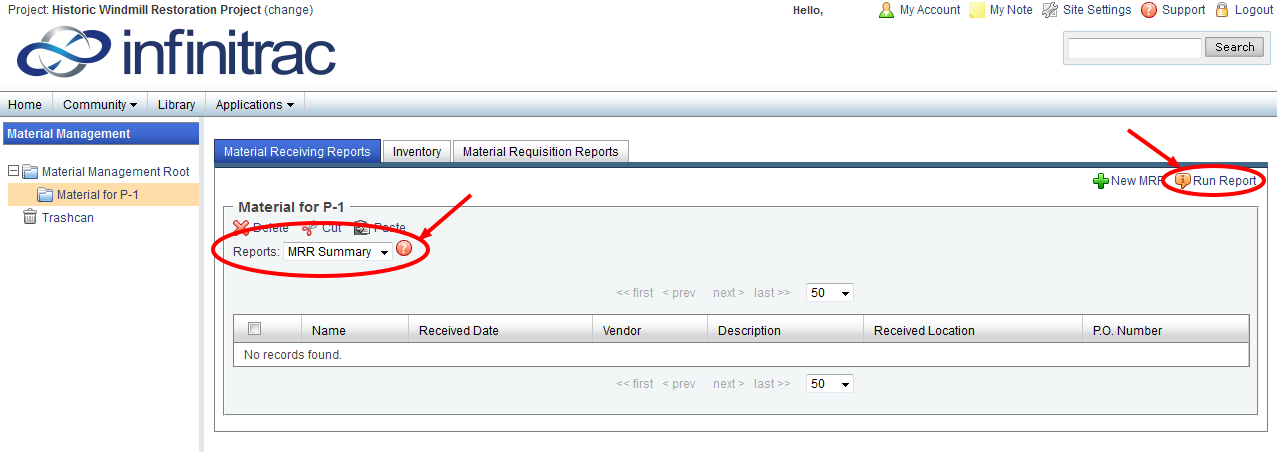
Figure 3. Creating Material Receiving Reports Summary Excel Report
Select a folder in the List View, click the "Run Report" button in the upper right corner of the List View, and then select a report. The report will start downloading automatically.
The "Material Receiving Reports Summary" Report creates an Excel Report that includes details of all the MRRs within the selected folder and its subfolders. Details include Names, Created By, Dates Received, Vendors, Received Locations, Purchase Order Numbers, Delivering Carrier F/B Number, and Original B/L Numbers.