Add new Material Requisition Report
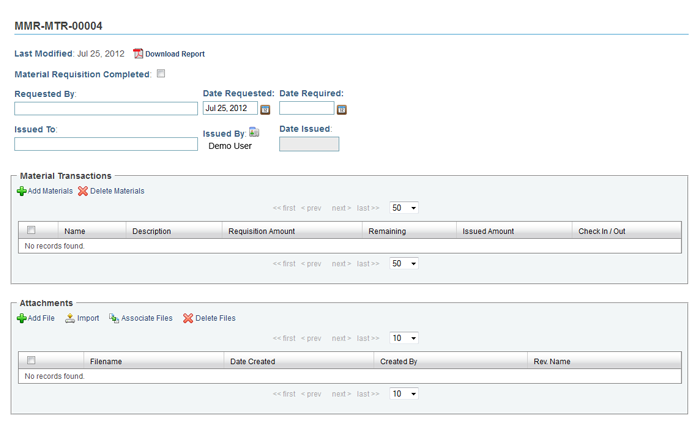
Figure 1 - MRR Detail View
Edit all of the necessary fields by clicking on text fields to enter new information. See figure 1 for the MRR Detail View.
Material Tranactions may be added by clicking the "Add Materials" icon in the upper left corner of the "Materials" section.
Edit all of the necessary fields by selecting options from drop down menus and clicking on text fields to enter new information.
Requisition Amount: the amount a requester needed.
Issued Amount: the amount an issuer transferred.
Changing the issued amount will affect the Remaining amount.
Remaining = Material's Total Quantity minus Issued Amount from ALL Material Requisition Reports.
Check In / Out: the material transferring status.
Click "MRR Completed" checkbox to complete and close the MRR.
You may view MRRs as a PDF by clicking the "Download Report" icon on the top left of the page.
To Delete any added materials from a material transaction table, select the checkbox next to the item you wish to delete, then click the "Delete Material" icon.
WARNING! Once deleted, there is no Undoing this action.