Expense Report Config
Configuring Expense Reports
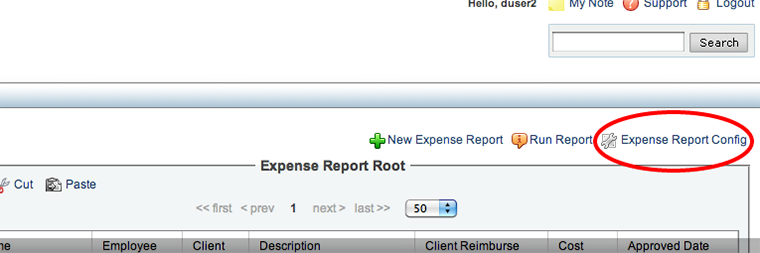
Figure 1 - Expense Report Config Link
Click the "Expense Report Config" link to change currency, mileage rate and expense types.
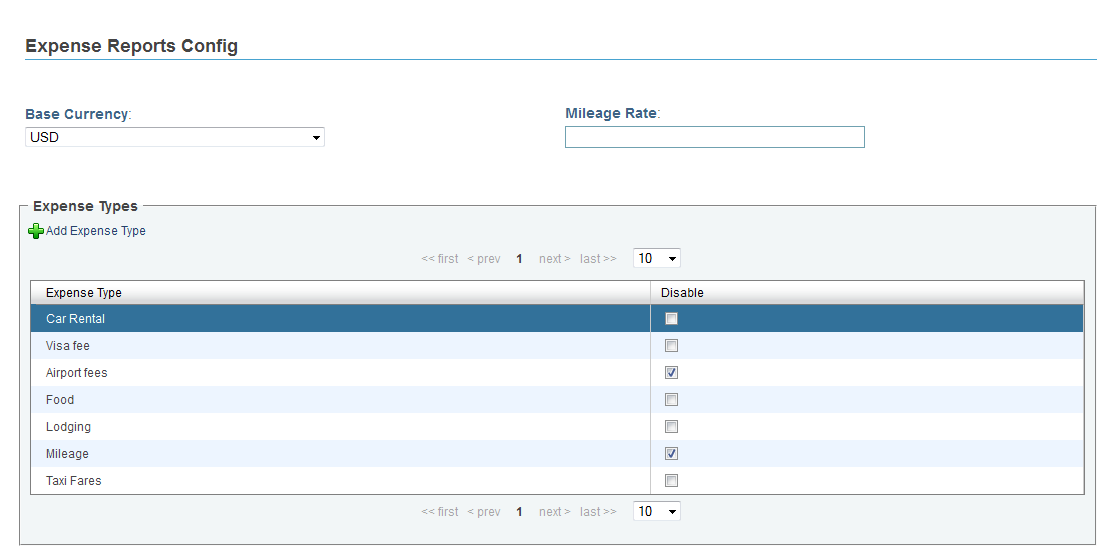
Figure 2 - Expense Report Config View
Click the "Add Expense Type" link to add a new blank line item. Click the blank space under the "Expense Type" column to enter a new title for the Expense Type. Click the Save button to save any changes.
To remove Expense types from the detail view, check the check box next to the Expense Type you wish to remove under the "Disable" column.
Expenses will not be removed until all line items under that Expense type are removed.
Change the Expense Report currency by selecting the correct currency from the "Base Currency" drop down menu.
To add new currency, select Add Option in the "Base Currency" drop down menu and enter the new currency. Click "Add" to save, or "Cancel" to go back.