Weather Data (Daily Report)
Weather data is fetched based on the Daily Report Date.
If the report date is changed, the weather feed is automatically refreshed to match the newly selected date.
When creating a new Daily Report, users can view the Weather Data table in the Detail View. The table includes the following columns:
Column | Description |
|---|---|
Time | Point intime associated with the weather data for a given row. |
UV Index | Amount of skin-damaging UV radiation reaching the Earth's surface at that time. |
Wind Direction | The direction the wind is coming from. |
Humidity | Amount of water vapor in the air. |
Temperature | Actual air temperature. |
Temperature Feels Like (°C) | Perceived temperature based on human sensation. |
Wind Speed (m/s) | Speed of the wind in meters per second. |
Wind Direction (°) | Wind direction in meteorological degrees. |
Pressure (mb) | Atmospheric pressure, representing the weight of the air. |
Precipitation (mm) | Water deposited on Earth's surface (rain, snow, ice, or hail). |
Wind Chill (°C) | Rate of heat loss from exposed skin due to wind. |
Description | Optional field; can be edited inline or in the detail view. |
Wind Gust (m/s) | Sudden, brief increase in wind speed. |
Dew Point (°C Td) | Temperature at which air reaches 100% relative humidity. |
Visibility (m) | Horizontal clarity of the atmosphere at the observation point. |
By default, units of measurement are displayed in Metric.
However, they can be changed to Imperial upon request.
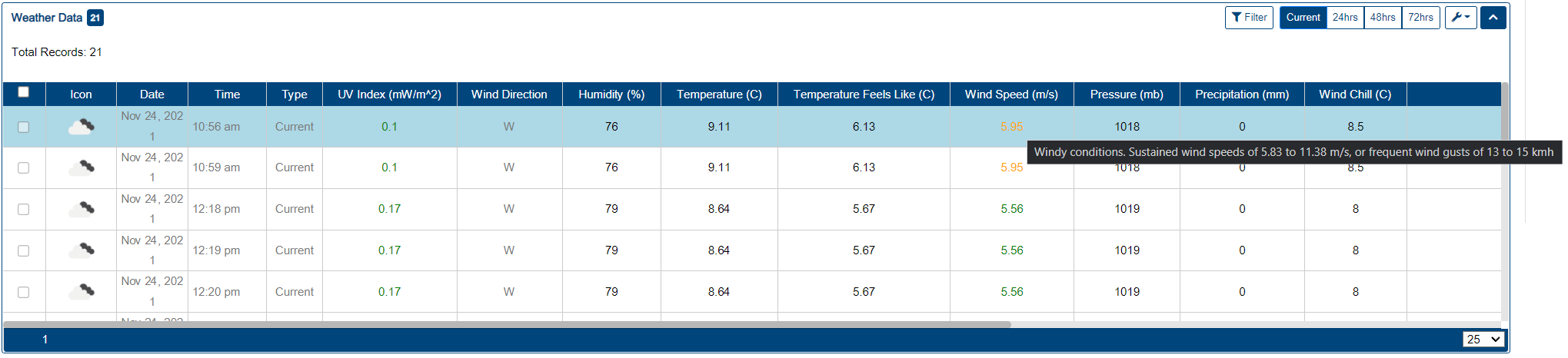
Hovering Over Color-coded values displays different notification based on customizable thresholds
Upon request forecast granularity and thresholds can be adjusted, Weather Data can also be sent in a .csv file/report, for this please contact infinitrac Support
Table Configuration
The Weather Data table allows the following configuration:
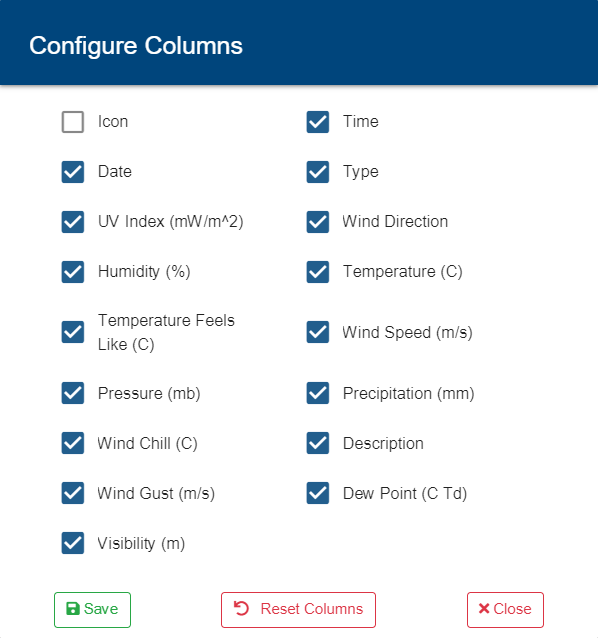
Configure Table Columns
To select which columns are displayed:
Click the More Options icon in the top-right corner of the table.
Select Configure Columns from the dropdown menu.
Check the boxes for the columns you want to display.
Click Save to apply your changes.
Let me know if you'd like this adapted for tooltips, guides, or Spanish documentation.
Configure Table Columns
To select which columns are displayed:
Click the More Options icon in the top-right corner of the table.
Select Configure Columns from the dropdown menu.
Check the boxes for the columns you want to display.
Click Save to apply your changes.
Forecast Hours
Users can select how many hours ahead the forecast data will be displayed by using the following buttons:

Current: Displays weather data for the current day.
24hrs: Displays weather data for the next 24 hours.
48hrs: Displays weather data for the next 48 hours.
72hrs: Displays weather data for the next 72 hours.
Current Weather Data is always included, regardless of the selected forecast duration.