Previewing Files
In infinitrac, it is possible to view a preview of an uploaded file by using the mouse to hover over the filename column listed in the Files table of BPO module (such as NCR, RFI, Daily Report etc.) or inside File Library.
Not all file types are supported in File Preview. If file type is unsupported, an Error message will be displayed at the top right hand corner.
Please refer to section: Unsupported File Types to view list of unsupported file types.

Error Message
To Preview a File
If file is newly uploaded and has not been previewed before, ensure that the queue (AQM)is running so that AQM can generate a preview, otherwise proceed to next step.
Ensure that file that is to be previewed is a supported file type.
Move the mouse cursor so that it is hovering over the “Name“ column of the file that is to be previewed.
Assuming that the application has completed generating a preview for the file, a modal containing the preview of the file will open on the screen.
If the file has recently been uploaded, it may take a small amount of time before the application has completed generating a preview for the recent file; if this is the case, a warning message will be displayed.

Warning Message
File Preview Functions for Images

File Preview Modal for Image File Type
“Previous” Button → Will preview previous file in files list.
“Next” Button → Will preview next file in files list.
“Maximize/Minimize“ Button → Will increase/decrease size of file preview modal.
“Close“ Button → Exits file preview modal.
Clicking outside of modal can also close the file preview modal.
File Name → Clicking on file name downloads file.
File Preview Functions for Emails
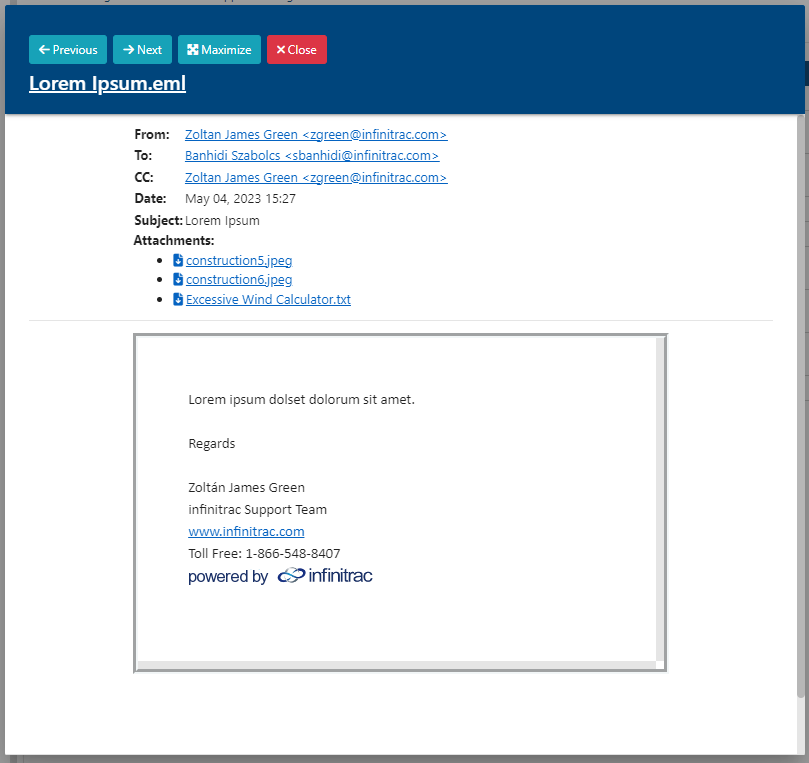
File Preview Modal for Email/MSOutlook File Type
“Previous” Button → Will preview previous file in files list.
“Next” Button → Will preview next file in files list.
“Maximize/Minimize“ Button → Will increase/decrease size of file preview modal.
“Close“ Button → Exits file preview modal.
Clicking outside of modal can also close the file preview modal.
File Name → Clicking on file name downloads file.
“From“ Attribute → Clicking on email in the “From“ attribute will create a draft email in the user’s default email software with the value from “From“ set as the recipient in the email draft.
“To“ Attribute → Clicking on email in the “To“ attribute will create a draft email in the user’s default email software with the value from “To“ set as the recipient in the email draft.
“CC“ Attribute → Clicking on email in the “CC“ attribute will create a draft email in the user’s default email software with the value from “CC“ set as the recipient in the email draft.
“Attachments“ Attribute → Clicking on any of the files listed in the “Attachments“ attribute will download the file.
File Preview Functions for Other Files
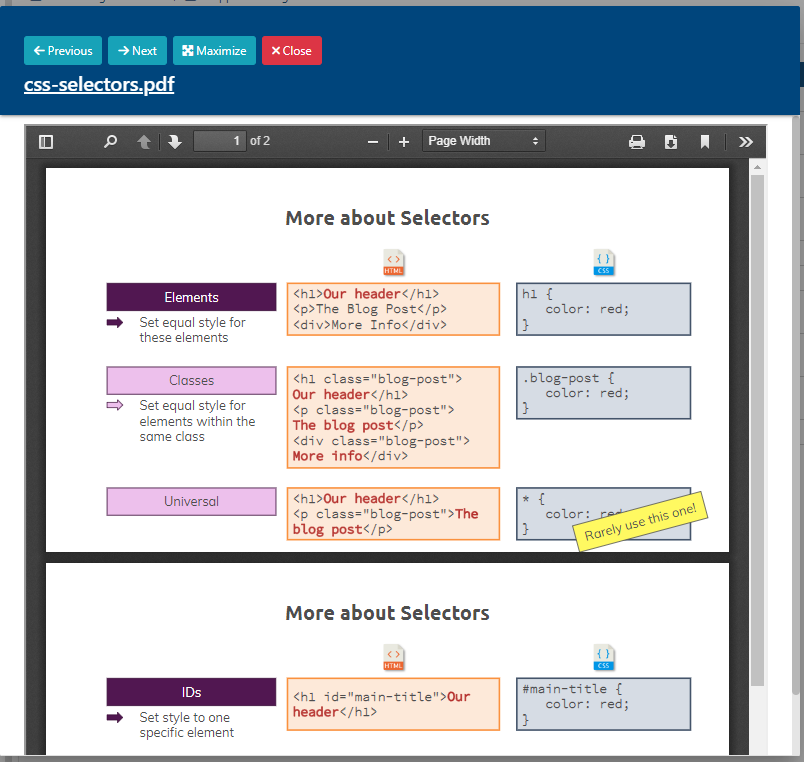
File Preview Modal for PDF File Type
“Previous” Button → Will preview previous file in files list.
“Next” Button → Will preview next file in files list.
“Maximize/Minimize“ Button → Will increase/decrease size of file preview modal.
“Close“ Button → Exits file preview modal.
Clicking outside of modal can also close the file preview modal.
File Name → Clicking on file name downloads file.
PDF Format:
“Toggle Sidebar“ → Toggles sidebar which contains options for showing thumbnails and document outline.

“Find in Document” → Searches for specific text in PDF.

“Previous/Next Page“ → Moves to next or previous page if PDF contains multiple pages.

“Zoom In/Out“ → Zooms in and out of page.

“Page” → Displays which page of PDF is currently being shown.

“Page Width“ → Displays how zoomed in/out PDF page is.
“Print“ → Prints PDF file.

“Download“ → Downloads PDF file.

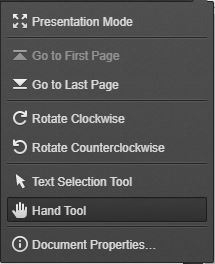
“Tools“ → Toggles menu which contains extra tools

“Tools“ Menu: