Outgoing Transmittals Generate and Email Package
To perform the actions mentioned in this article, user need to have the appropriate roles enabled in the Outgoing Transmittal role section.

To generate a package for an Outgoing Transmittal Report:
Select an opened Outgoing Transmittal.
Click on the “< List” button in the folder tree toolbar, this will open the Detail View of the selected Transmittal.
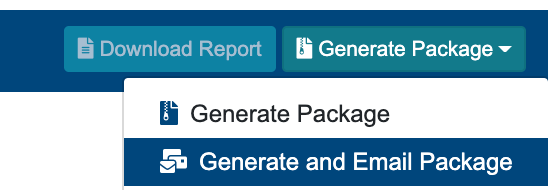
Click on “Generate Package” button in the upper right-hand corner.
On Success, a green message will appear at the top right hand corner with message: “Outgoing Transmittal Notification was sent successfully”.
The Transmittal will be locked, and a package will be generated containing every information given to the transmittal (Files, Comments, Description, etc.). An email will be sent to all recipients given in the recipients table.
When given recipients are opening the email or downloading the package , the recipients table will display the timestamp of these occurrences.
The generated package, and email will be associated with the Outgoing Transmittal in the Files Management Module as well.
The Generated package can be found by
Opening up the Files Table in the Outgoing Transmittal, and clicking on the link, in column “File Path”, this will then open up the File Management module, in the appropriate location.
Manually Navigating to the Files Management Module, then Modules → Outgoing Transmittal → Outgoing Transmittal Root → And then going down the path where the Outgoing Transmittal is placed.
The Generated Package will have a unique appendix appended to it (e.g. _Rev_01) in case, if there were multiple packages generated for the same transmittal.
The Email will be also saved to the same location, when Subject field is given in the Outgoing Transmittal, the Email file will be saved with the Subject given as it’s name. Otherwise the email will be named with an unique randomly generated name.
Note That the generation of the Package and Email might take longer time, depending on the size of the files associated etc.
On failure, a message will appear in the top right hand corner, with a message: “Error Occurred: Transmittal Notification was not sent”.
"Generate and Email Package" button becomes available when all required fields are filled out (Description, Recipients, Files).