Edit a Non Conformance Report(s)
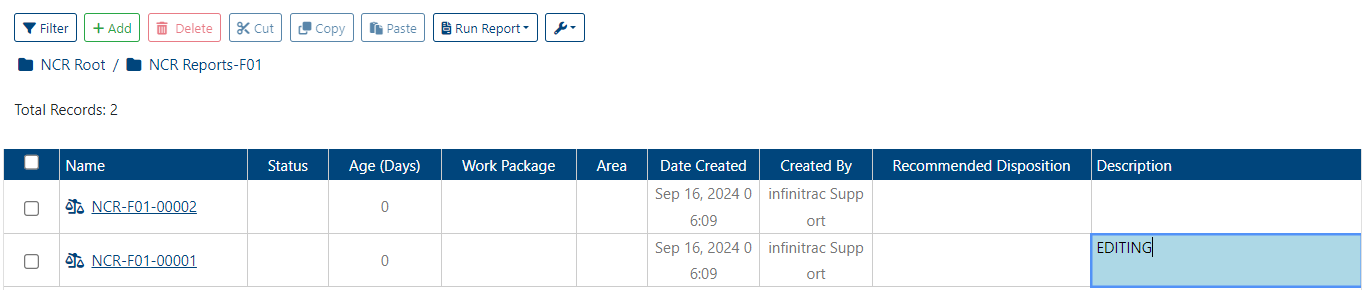
For convenience purposes, the Name and Description of an NCR can be edited in the List View, while the rest of the fields are Read Only. Read Only cells are formatted with a grey font color, while otherwise in black.
To edit an NCR, user role must have an “edit“ privilege enabled.

To edit the Name and/or Description of an NCR:
Double click on the respective field to enter inline edit mode. Border of edited cell will be shown.
Edit the cell’s value.
Click away from the field to update the value, or press ENTER on a keyboard.
Alternatively, to edit one or many cells at once, copy and paste values into a List View. infinitrac will match number or pasted rows, with the number of displayed cells in a List View.
To roll back previous List View values, press CTRL+Z.
Once the NCR has been updated, a success alert message will appear at the top right hand corner with a message: “NCR was successfully edited“. A failed operation will display message “Error Occurred: Failed to edit [NCR Name] ”.
An NCR can only be edited when its Status is not set to “Closed”. To edit closed NCR, it must be re-opened first.