Delete a Material Transaction Report(s)
To temporarily delete a Material Transaction Report (MRR), the user role must have the “delete” privilege enabled.
The infinitrac platform will move the selected MTR(s) to the trashcan, which is visible within the folder tree. These items are not removed from the system.
To permanently delete MTR(s), the user role must have the “trashcan” privilege enabled.

To temporary delete an MTR in List View:
Select the MTR(s) to delete, by clicking on the checkbox next to MTR’s Name.
Click “Delete” button in the data table action menu.
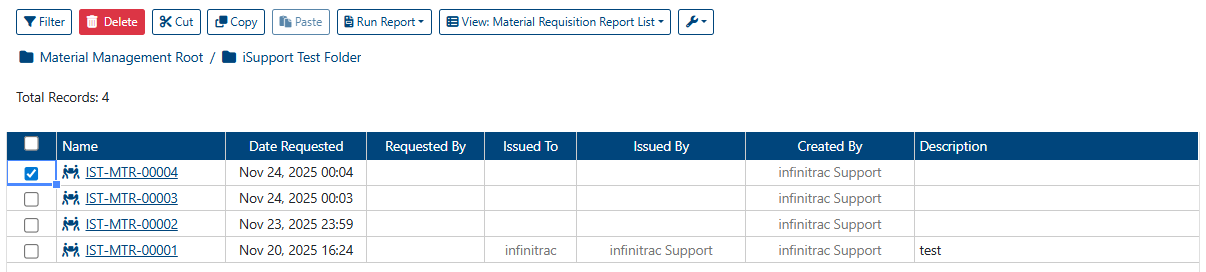
The “Delete” button remains disabled until one or more MTR(s) are selected.
Once the MTR(s) are deleted, a success alert message will appear in the top-right corner:
“Material Requisition Report(s) successfully moved to Trashcan.”
After being moved to the Trashcan, MTR(s) can either be permanently deleted or recovered to their original folder location.
MTR(s) can also be deleted or restored by removing their respective MTR folder(s).
To delete a MTR(s) folder(s):
Select the folder(s) to be deleted by clicking the checkbox next to each folder name.
Click the “Delete” button.

To recover a deleted folder(s):
Select the Trashcan located at the bottom of the folder tree on the left-hand side.
Select the folder(s) you wish to recover.
Click the “Recover” button.

To permanently clear a deleted folder(s):
Select the Trashcan located at the bottom of the folder tree on the left-hand side.
Select the folder(s) you wish to permantly delete.
Click the “Clear” button.

Permanently Delete MTR(s)
To permanently delete MTR(s) from the Trashcan:
Select the MTR(s) you wish to permanently remove.
Click “Clear” button.

Clearing MTR(s) from the Trashcan will also permanently delete all uploaded files associated with those MTR(s) from the system. This action cannot be undone.
Once the Trashcan is cleared, a success alert message will appear in the top-right corner:
“Item(s) deleted.”
If the operation fails, an error message will be displayed:
“Error Occurred: Failed to clear Trashcan item(s).”
Recover Trashcan Items
To recover one or more MTR(s):
Select the Trashcan at the bottom of the folder tree displayed at the left hand side.
Select the MTR(s) to recover.
Click “Recover” button.
The “Recover” button remains disabled until at least one MTR(s) is selected.
The selected MTR(s) will be restored to their original folder.
If successful, a confirmation message will appear in the top-right corner:
“Item(s) restored.”
If the operation fails, an error message will be displayed:
“Error Occurred: Failed to restore items from Trashcan.”