Subscribe To File Notification
The ‘Subscribe To File Notification’ feature allows users to select contact groups to receive email notifications whenever a change, such as the addition of a new file/file revision, occurs in a certain folder.
This guide will show users how to access this feature, choose which contact groups to receive notifications and save these changes.
In order to access ‘Subscribe To’ option in a Tree object’s action menu, the logged in user must have the edit permission allowed for File Management module.
Accessing 'Subscribe To' Feature
There are two ways to access 'Subscribe To’ feature:
1. Right click on the folder where contact groups are to receive notifications from and select ‘Subscribe To’ option in the dropdown menu.
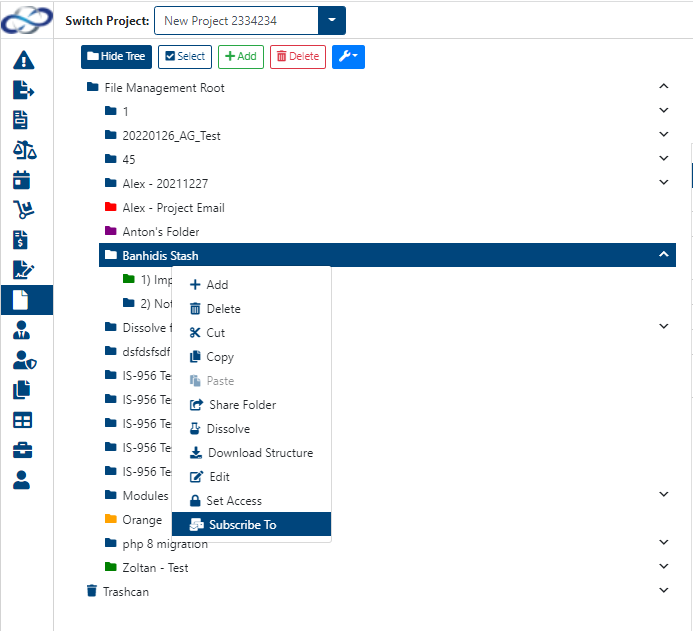
Select 'Subscribe To' by right clicking on folder
2. Select the folder where contact groups are to receive notifications from. Then press the button with the wrench icon and in the dropdown menu select 'Subscribe To' option.
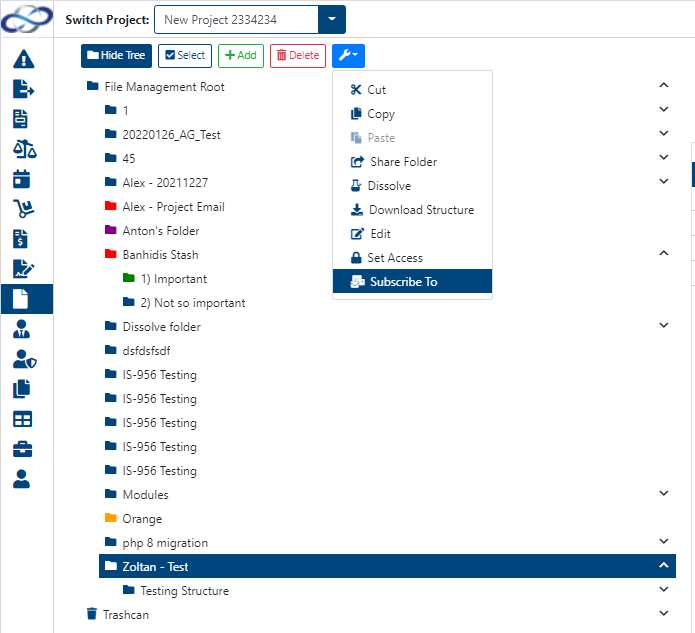
Select ‘Subscribe To' by left clicking on the folder and then pressing the button with the wrench icon
A window named ‘Subscribe To Folder Notifications’ should now appear. It is here where the user can select which contact group is to receive file notifications by checking the checkbox next to the contact group’s name.
Subscribe Contact Groups
Proceed to the bottom of the window to where the three buttons: Save, Reset and Close are.
Press the ‘Save’ button to save selected contact groups and close the window. Alternatively, press ENTER on the keyboard.
On success: ‘Subscribers Added Successfully' message will appear in the top right corner of the screen.
Otherwise, on fail: ‘Error Occurred: Failed to Add Subscribers' message will appear in the top right corner and a create a support ticket window will be opened.
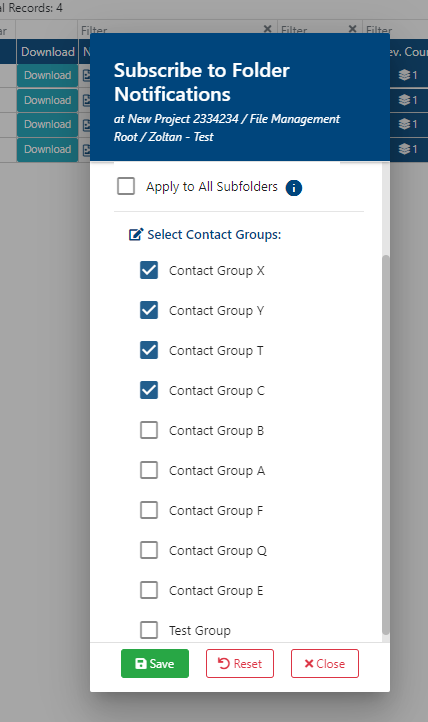
Select contact groups by checking the checkboxes then press the 'Save' button
Reset Changes
To revert contact group selections to the original state, press the 'Reset' button at the bottom of the window. Resetting changes will set subscription selection to the original state.
To have contact groups receive file notifications from this folder AND all of its folders within, the ‘Apply to All Subfolders’ checkbox must be checked. This will ensure that any new additions made in any of the selected folders' subfolders will notify the selected contact groups.
From this point onwards, the selected contact groups will now receive email notifications anytime a new file, file revisions or folder structure has been uploaded to the selected folder (and subfolders if ‘Apply to All Subfolders' is checked). On error: ‘Error Occurred: Failed to Send Subscription Notifications’ will appear in the top right corner and a support ticket window will be opened.
Close Window
Proceed to the bottom of the window where the three buttons are.
Left click on 'Close'. Alternatively, left click on whitespace within the window and press the ESC key.
The window will close without saving any changes.