Adding an Incoming Transmittal
To add an Incoming Transmittal user must have add permission enabled.

To create an Incoming Transmittal:
Navigate to the Incoming Transmittal’s Detail View by clicking the Detail button in the folder tree toolbar.
Click on the green + button to create a new Incoming Transmittal.
Fill in all the required fileds, they are indicated by the red border and/or red warning text (see screenshot below).
Upload files which require dispositioning into Files table.
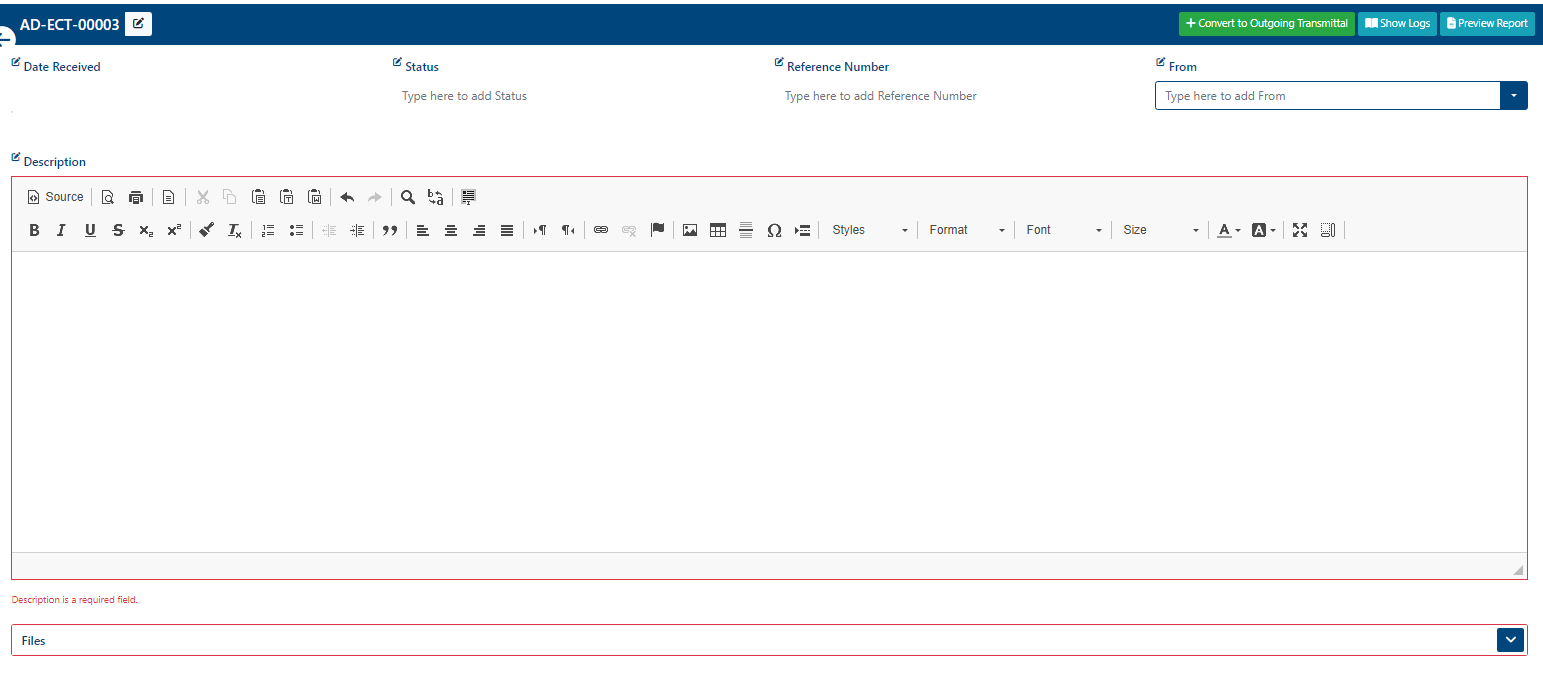
These features are detailed in the relevant subsections.
All changes to the fields of the Incoming Transmittal are saved automatically.
Once the Incoming Transmittal is created a success alert message will appear on the top right hand corner with the message: “Incoming Transmittal has been created successfully!“
To return to the List View click the > button. The new Incoming Transmittal will be added to the folder.
Incoming Transmittals cannot be created without a folder prefix.
In the case where an Incoming Transmittal cannot be created, user must check and provide a folder prefix, if needed, before creating an Incoming Transmittal. For these actions, user needs to have edit and prefix permissions enabled.
To provide a prefix to an already created folder:
Click on the selected folder.
Click on the tool button on the folder tree toolbar. This will unfold a list of functions.
Click on Edit button
Provide a prefix.
Click Save button.