Incoming Transmittal Files
Uploading Files to an Incoming Transmittal
To upload a file and associate it with an Incoming Transmittal:
Select desired Incoming Transmittal’s from the list view.
Select the Add button in the Files section.
User can drag and drop files or browse and select files from the file explorer. Multiple files can be added for upload.
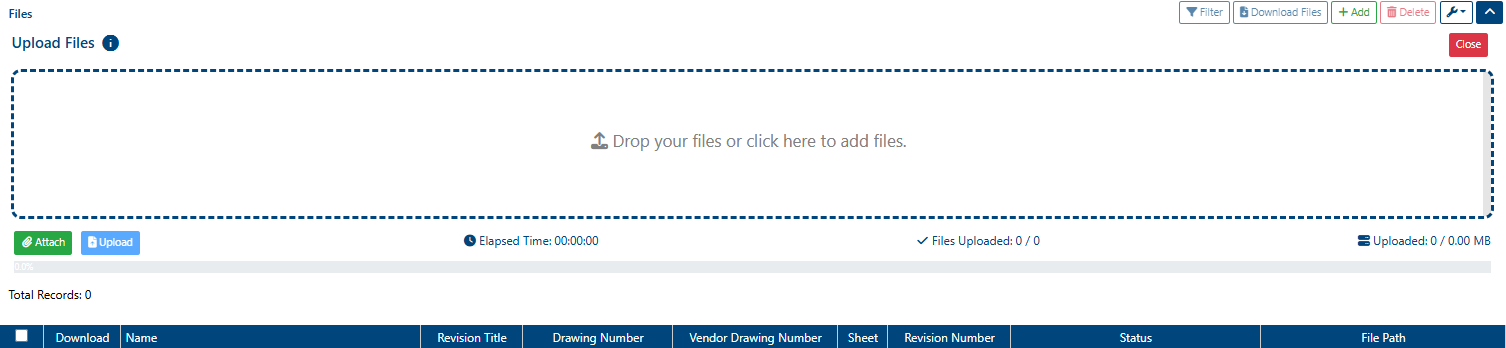
Once the file(s) are uploaded, a success message will appear in the top right hand corner with a green check mark.
Downloading Files from an Incoming Transmittal
Users can download files uploaded with an Incoming Transmittal by using the Download Files button.
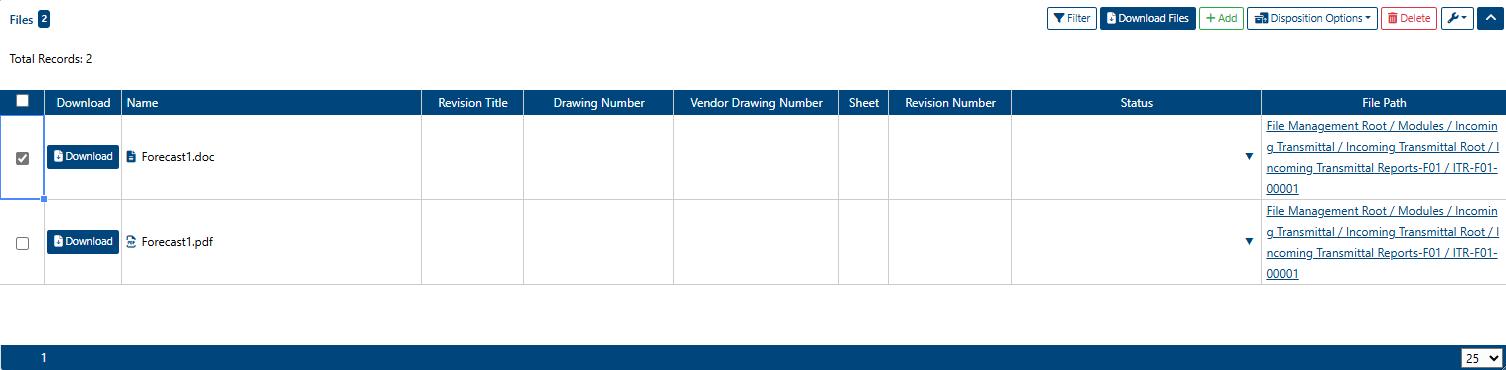
Download Files button is disabled until one or more files are uploaded.
Deleting Files from an Incoming Transmittal
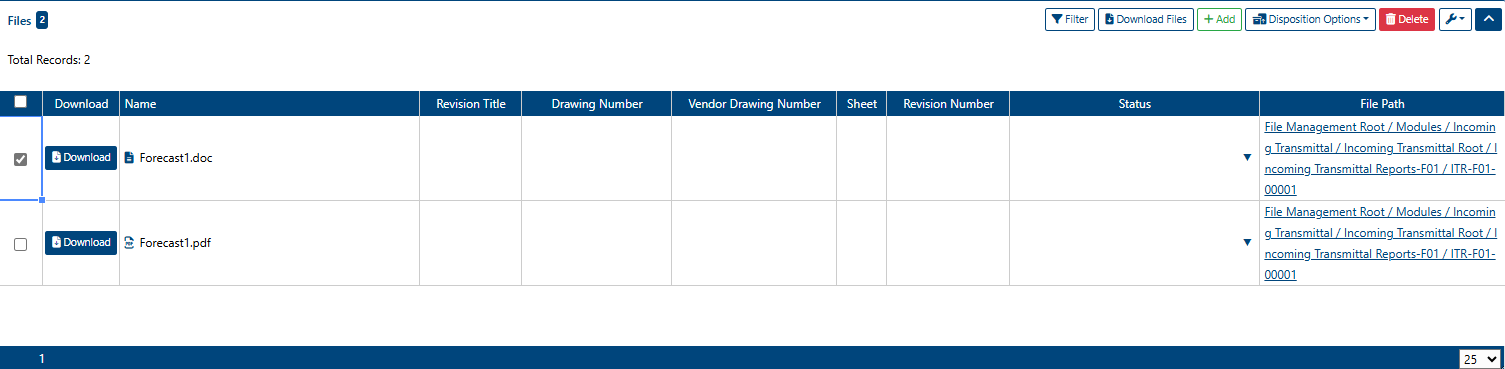
To delete associated files from an Incoming Transmittal:
Click the checkbox next to the file(s).
Click the Delete button.
Dispositioning Files in an Incoming Transmittal
The purpose of file dispositioning is to move files received in an Incoming Transmittal to the exisiting files in the system and have the received files be a revision to the existing files. Auto Dispositioning allows users to add multiple file revisions at once without having to leave Incoming Transmittal module.
Auto Dispositioning
To Auto Disposition Files:
Navigate to the Files section of Incoming Transmittal’s Detail View.
Select files you wish to auto disposition or if you wish to disposition all files it will be done automatically if no files are selected.
Ensure that files to be dispositioned have values for matching criteria Vendor Drawing Number (required) and Sheet (optional) values that match the values of a file in File Library, these are pivotal for auto disposition to run successfully.
Select Disposition Options dropdown and click on Auto Disposition.
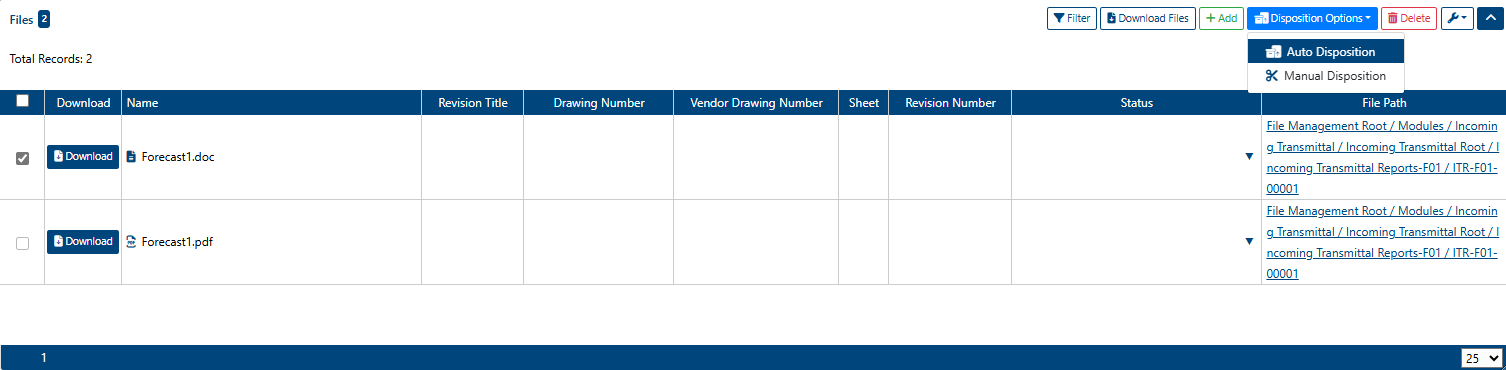
If disposition ran successfully, a message will appear in the top right hand corner stating: “Files Dispositioned“ and file(s) will appear in Dispositioned Files table Otherwise, a warning message will appear stating why file(s) were not successfully dispositioned.
Manual Dispositioning
To Manual Disposition Files:
Navigate to the Files section of Incoming Transmittal’s Detail View.
Select Disposition Options dropdown and click on Manual Disposition
An alert will appear stating that a navigation to File Management to the folder containing the files will occur. From here the user can manually move the file revision to appropriate location.
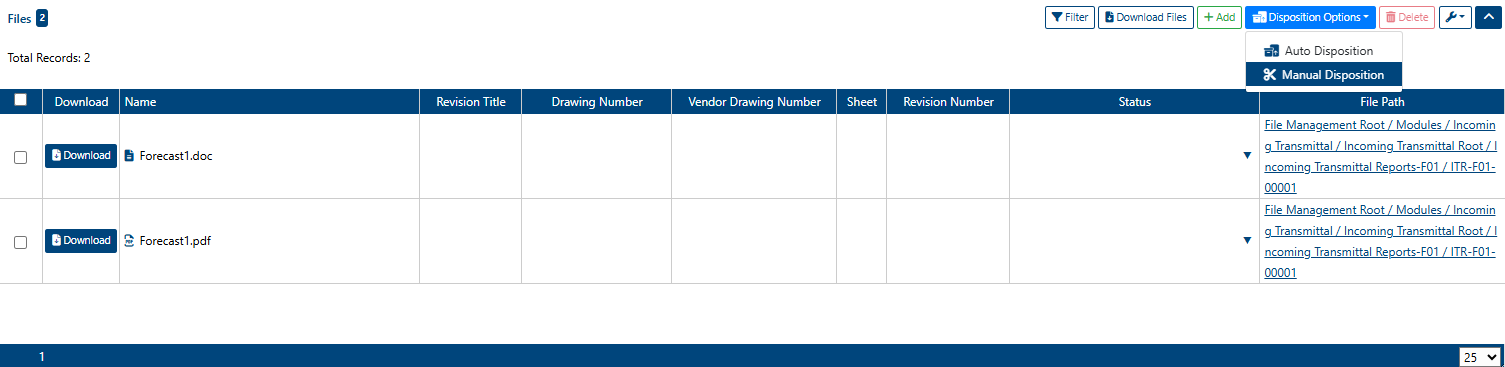
Remember, in order to auto disposition any file(s), they must have a matching criteria such as Vendor Drawing Number (required) and Sheet (optional) value set.