Incoming Transmittal Files Data Import
In order to download Excel template and import file data attribute import permission must be enabled.

Files Data Import
Files Data Import is used to download a template based on files table as an Excel file. The Excel template file can then be edited and, using import data, be used to update the values of the fields in files table.
Files Data Import section will not be shown unless at least one file has been added to Files section.
Download Template
To download Excel template file:
Navigate to Files Data Import section in Incoming Transmittal Detail View.
Select Import Options dropdown and click on Download Template.
This will create an Excel file containing data from Files section which can be downloaded and then edited by user.
Importing File Data is also possible in File Management.

Headers in the Excel template file should not be edited and must be spelled as they are; “id“ column should not be removed either as removing it will result in import failure.
Import Data
To Import Data into Files section:
After having downloaded template file, edit values within Excel file and save file once finished.
Navigate to Files Data Import section in Incoming Transmittal “Detail View“.
Select Import Options dropdown and click on Import Data.
Either by drag and drop or using file explorer attach Excel template file and upload to Files Data Import section.
If a new value is added to dropdown attributes such as Status, the new value is added to the list of form options for that dropdown attribute, thus, making it possible to import form options, too.
A message will appear in the top right hand corner stating: “[Number] of items imported successfully“ and any values added to Excel file will have been applied to files in “Files“ section.

Import Options
To see what attributes were imported and which were not, click on Download Import Report button in the Data Feed Report column after having imported data from the Excel template file.

Download Import Report
This will download an Excel report which states which attributes were imported successfully for which files:
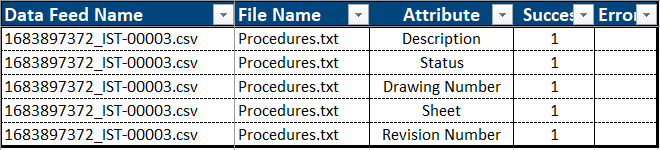
Example of Import Report
If user attempts to navigate away or whilst import is in progress or cancel import, an alert message will be shown first before navigating away.
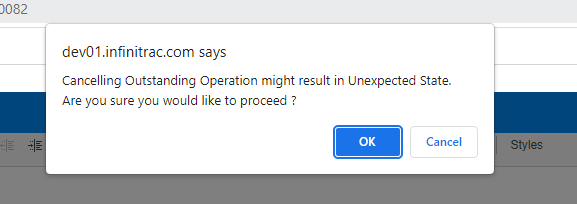
Alert Message