Edit Daily Report(s)
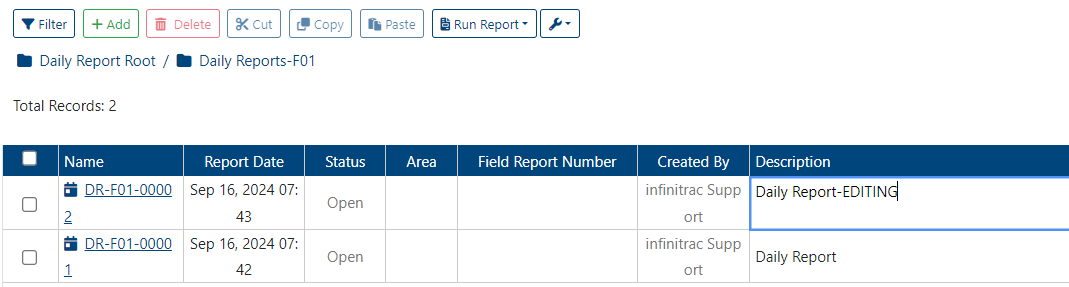
For convenience purposes, the Name and Description of a Daily Report DR(s) can be edited in the List View, while the rest of the fields are Read Only. Read Only cells are formatted with a grey font color, while otherwise in black.
The list of editable attributes in List View also includes those hidden by Default, that can be viewed by configuring the columns.
Name
Status
Shift
Phase
Created By
Modified by
Report Date
Area
Field Report Number
Date Created
Date Modified
Description
To edit an DR, user role must have an “edit“ privilege enabled.

To edit the Name and/or Description of a DR:
Double-click the respective field to enter inline edit mode. The border of the edited cell will be highlighted.
Modify the cell’s value as needed.
Click outside the field or press ENTER on your keyboard to save the changes.
Alternatively, to edit one or multiple cells at once, copy and paste values into the List View.
infinitrac will match the number of pasted rows with the number of displayed cells in the List View.
To undo previous changes in the List View, press CTRL+Z.
Once the Submittal has been updated, a success alert will appear in the top-right corner with the message:
“DR was successfully edited.”
If the operation fails, an error message will be displayed:
“Error Occurred: Failed to edit [DR Name].”